OpenCloud✯
OpenCloud is the new file hosting and sharing solution for ISIMA/LIMOS. It gradually replaces ownCloud: your ownCloud space has been migrated to OpenCloud, and owncloud.isima.fr will remain accessible in read-only mode after the switch.
Before the switch date: DO NOT work on OpenCloud
OpenCloud is already accessible for you to discover the interface, but your ownCloud space continues to evolve: it will be copied one last time on the switch day ([SWITCH DATE]), overwriting the content currently on OpenCloud. Any file created or modified on OpenCloud before this date will be lost. Continue working on owncloud.isima.fr until the switch; OpenCloud will then become THE reference service.
An OpenCloud instance is available for ISIMA/LIMOS users:
- to have a cloud storage space for sharing data within the school and the laboratory, as well as with external individuals
- to retrieve their ownCloud files and shares (automatic migration)
- to collaborate on project spaces
- to synchronize your files on your workstation with the new OpenCloud client (different from the ownCloud client)
You can access your OpenCloud space
- via the web at the URL https://cloud.isima.fr by logging in with your ISIMA credentials (SSO)
- by installing the OpenCloud synchronization client
Accounts and credentials
Your credentials remain unchanged: it is your usual ISIMA/UCA account, and login is done via the single sign-on (SSO) portal.
Login✯
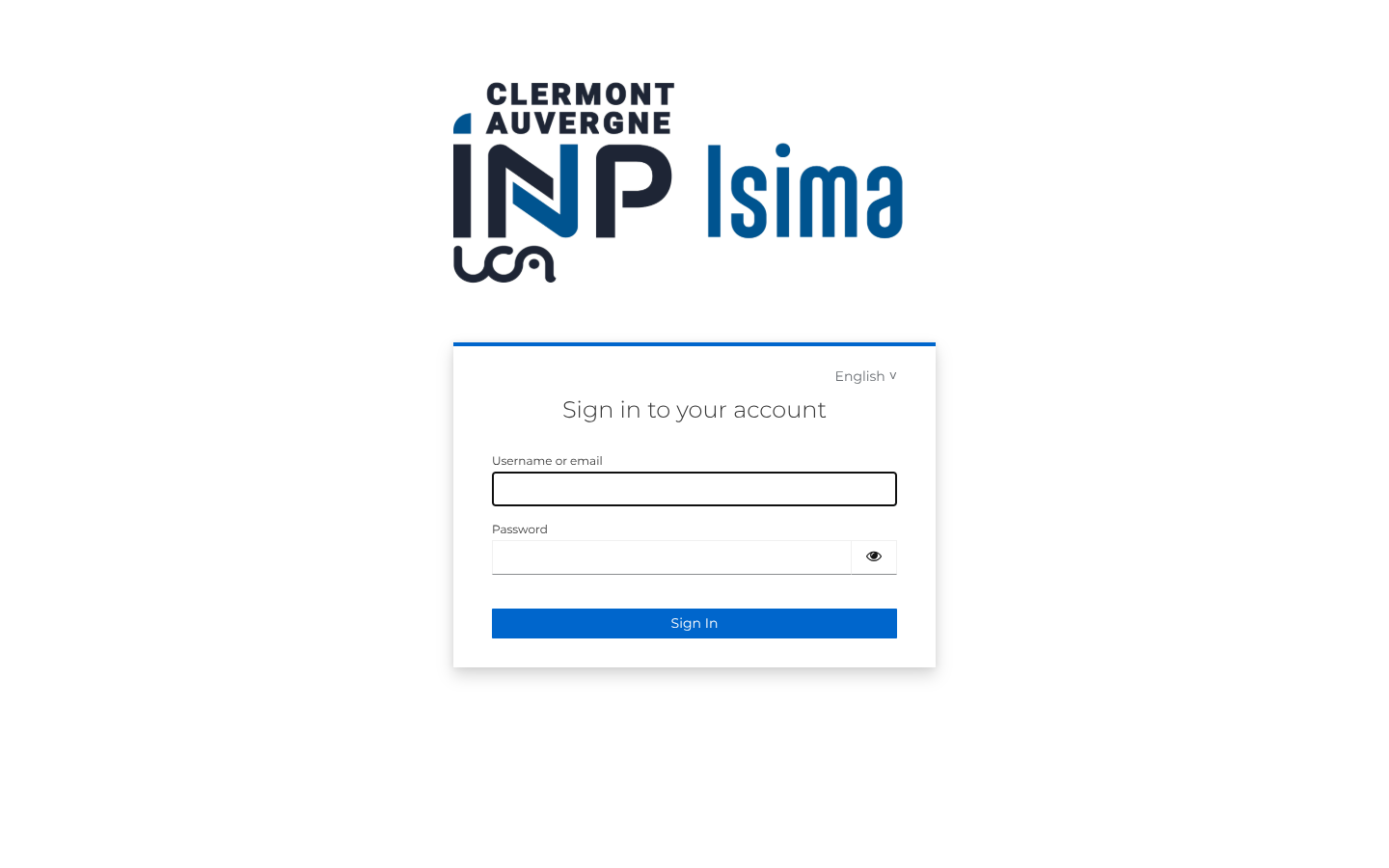
Go to https://cloud.isima.fr: you are redirected to the authentication page.
Enter your ISIMA login and password:
Web interface✯
After logging in, the interface is divided into 3 areas: the top bar (search, notifications, account), the sidebar (views), and the file list.
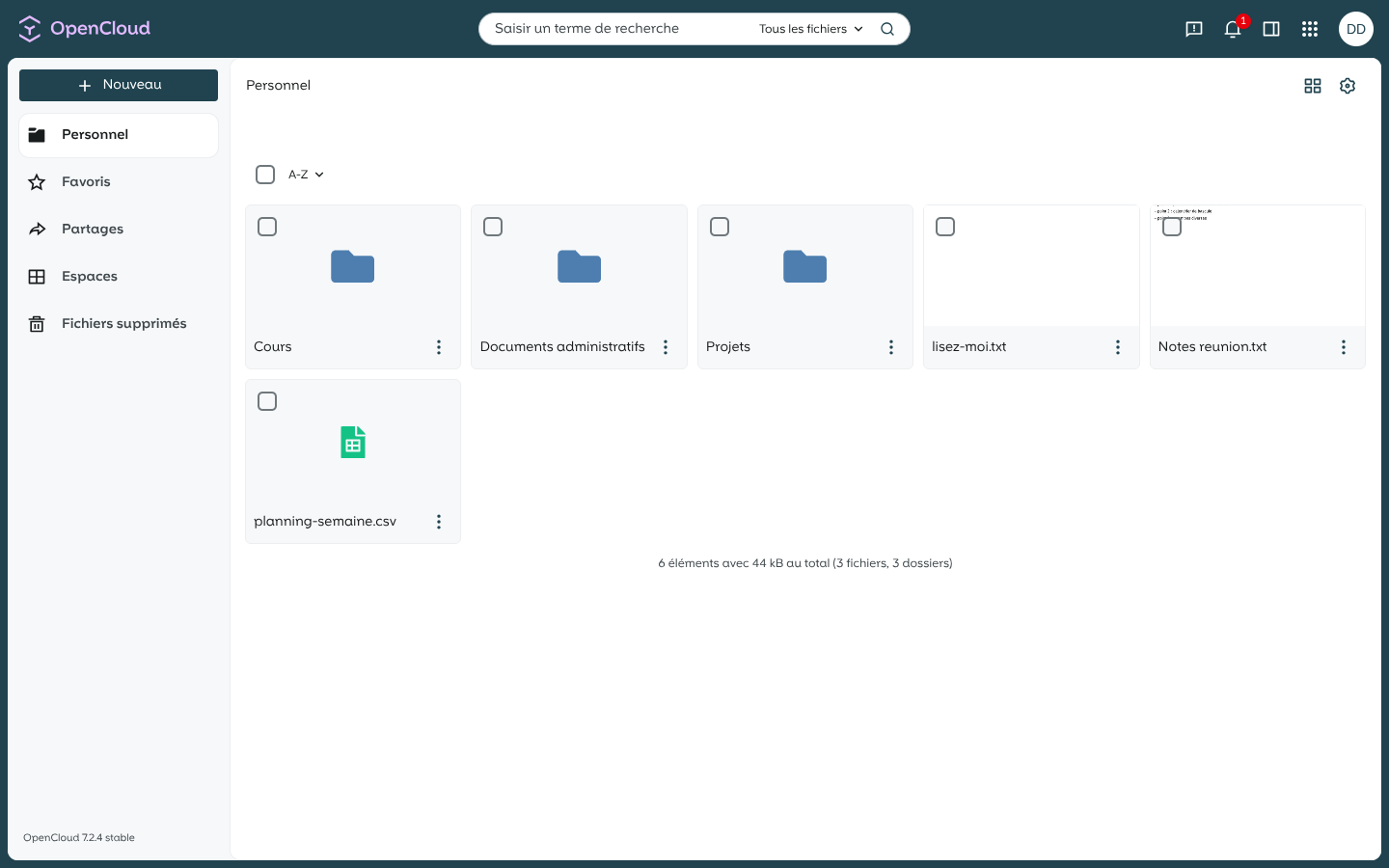
The sidebar provides access to the following views:
- Personal: your personal files (your space migrated from ownCloud)
- Favorites: files/folders marked with a star
- Shares: what you have shared and what has been shared with you
- Spaces: the project spaces
- Deleted files: the trash bin (restoration possible)
The service version is displayed at the bottom left. At the top right, you will find the application selector and your account menu.
Creating and uploading files✯
The New button (top left) allows you to create a folder, import a file, or create a text document:
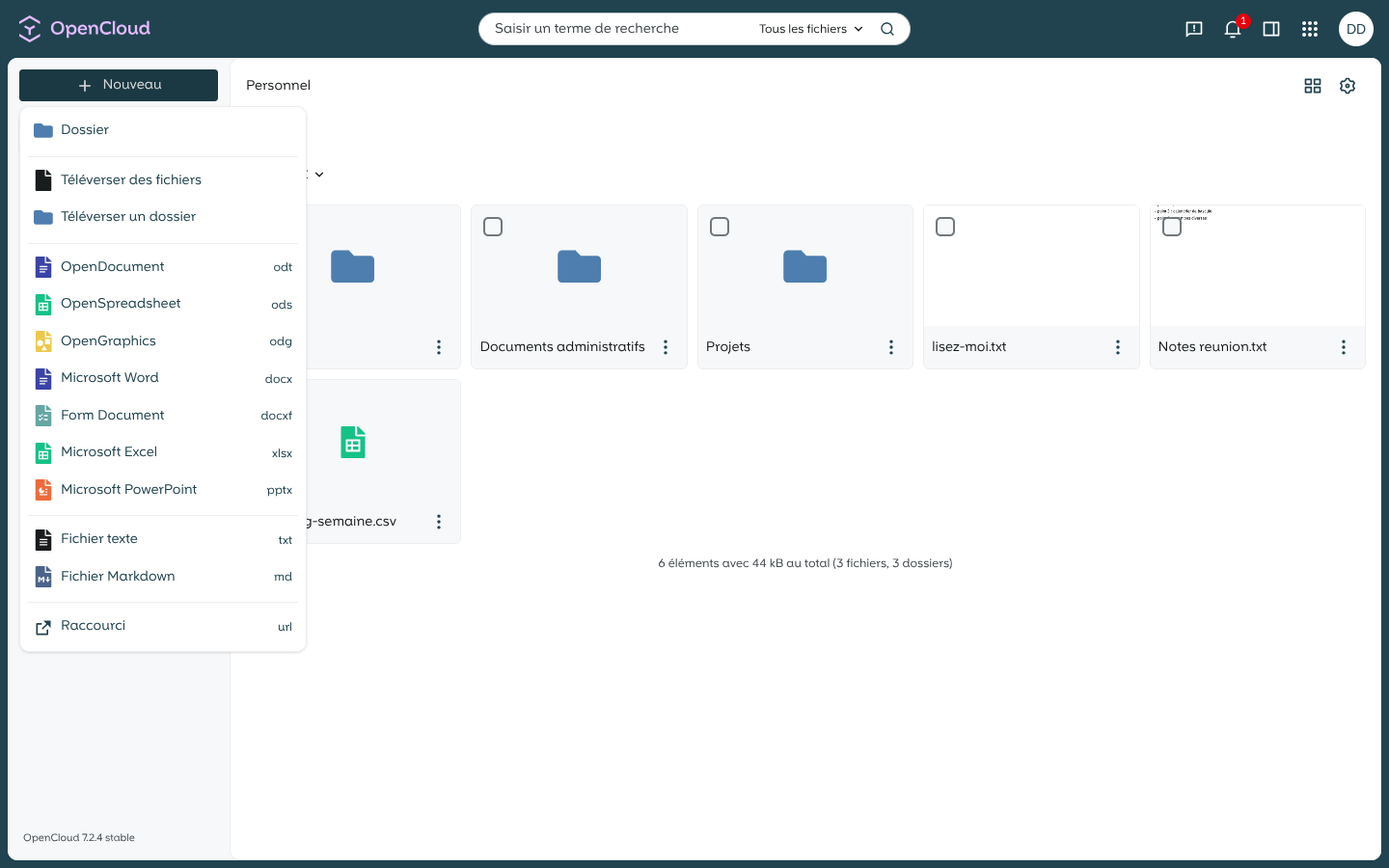
You can also drag and drop files directly from your workstation into the list.
Multiple quick actions
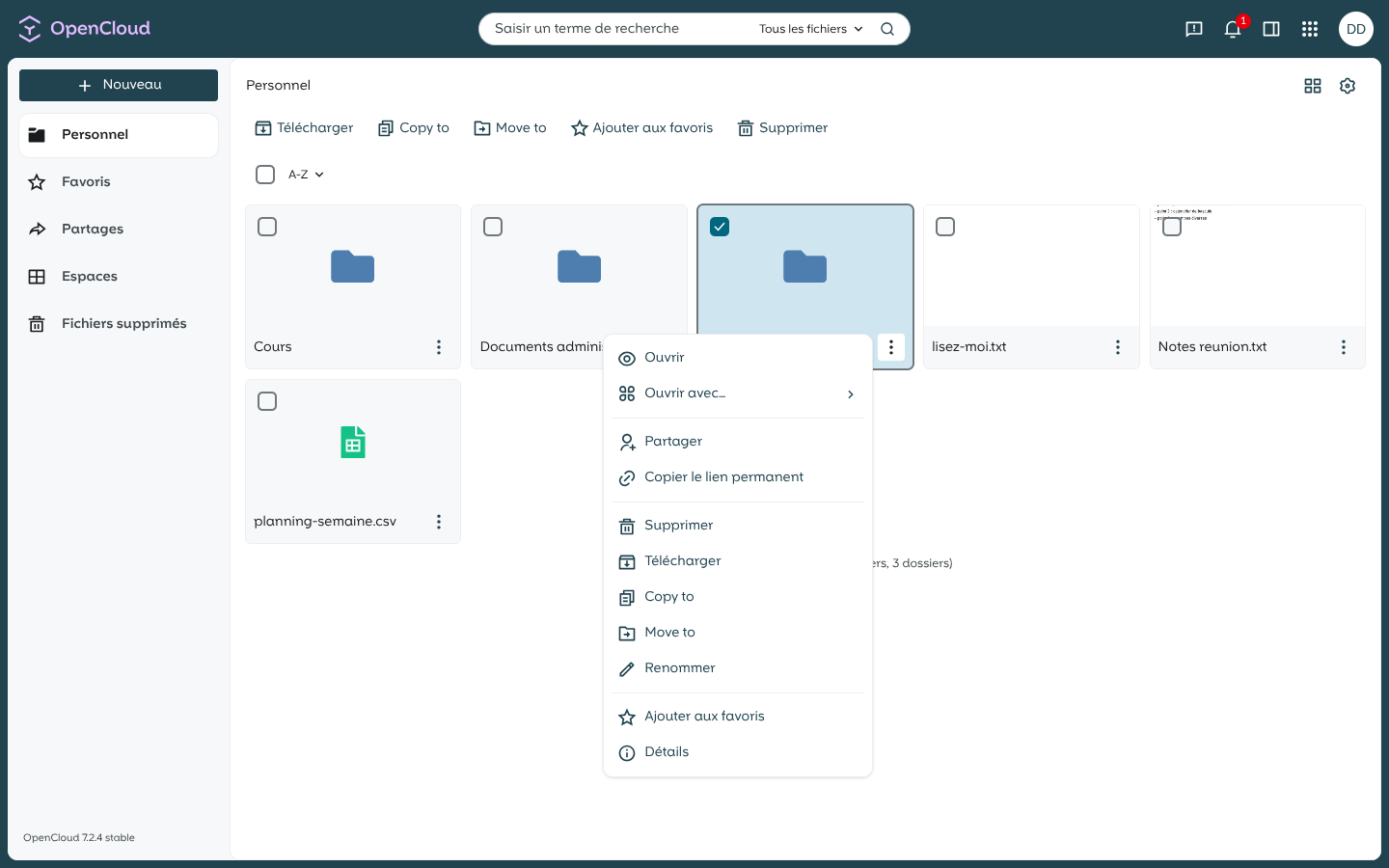
Click on the three dots to the right of a file/folder to open the context menu (open, download, share, rename, delete…):
Sharing with other users✯
Click on the three dots of a file or folder, then Share: the sidebar opens with two sections, Share with others (internal users) and Public links (external individuals).
For internal sharing, enter the person's (or group's) name in the search field, choose the permission (view, edit…), then validate:
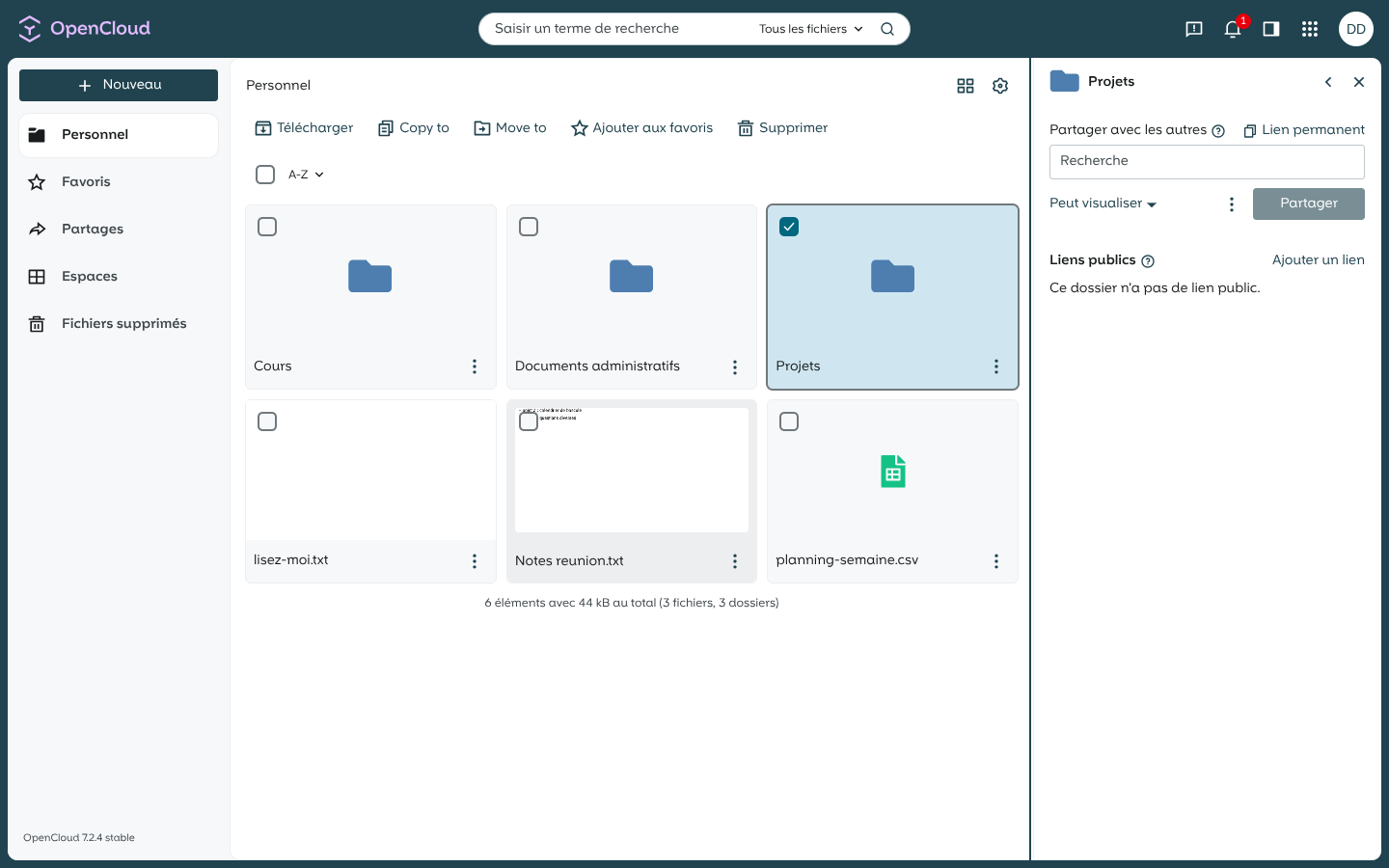
The sidebar has three tabs: Actions (file details), Shares, and Activities (history).
Public links✯
In the Shares panel, the Public links section allows you to create a link accessible to external individuals. Click Add link: the link is created and copied to the clipboard, ready to be shared:
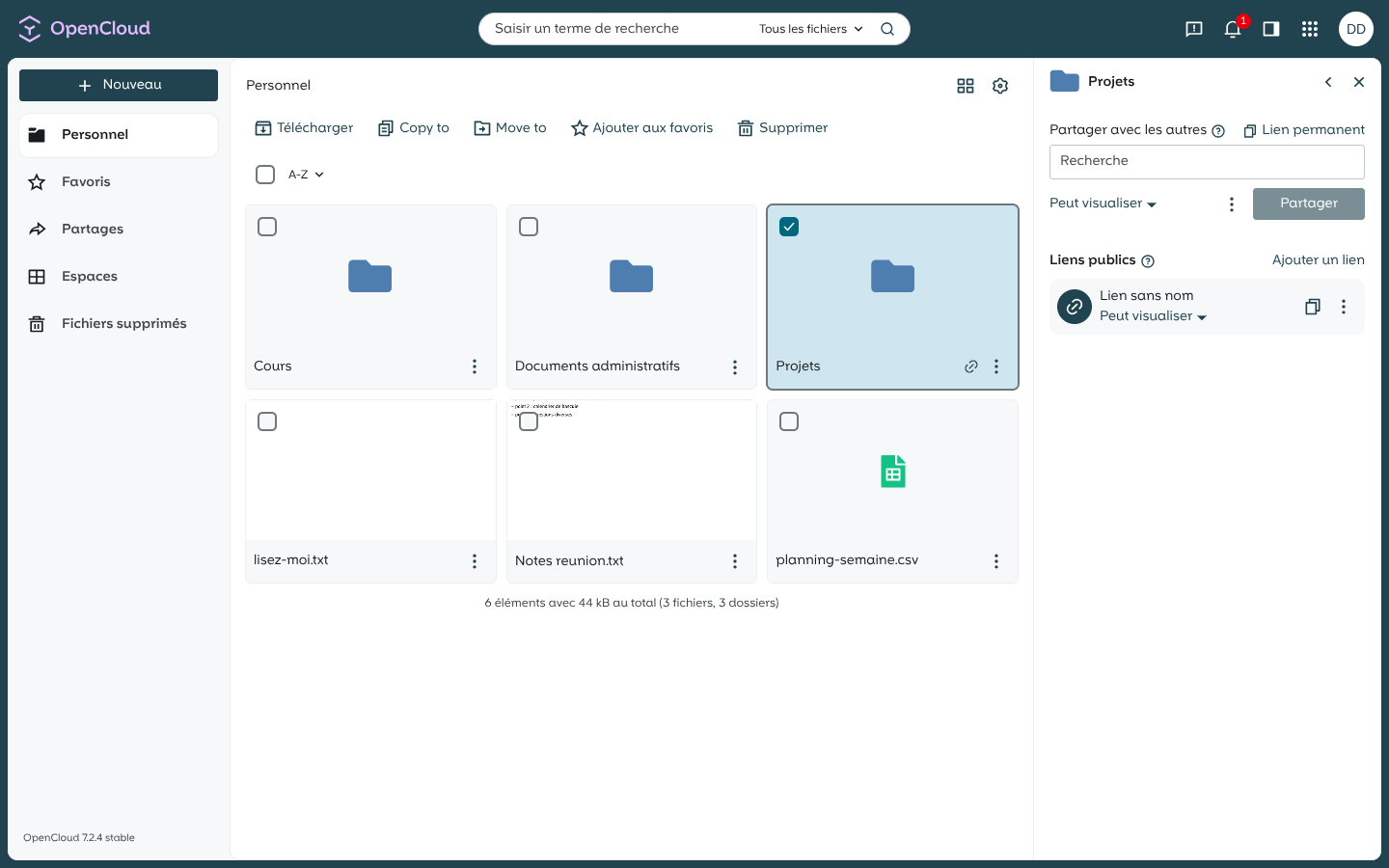
- the default permission is Can view (click on it to change it: Can edit, file upload…)
- via More options you can rename the link, protect it with a password, or set an expiration date
- the file/folder displays a badge indicating that it is shared via a link
Privacy
Anyone with the link can access the share according to the granted permissions. Consider using a password for sensitive data.
Your old ownCloud links still work
Public links created on owncloud.isima.fr are automatically redirected to OpenCloud: no action is required for your recipients.
Project spaces: the new logic for group sharing✯
Spaces replace ownCloud’s “group shares”: instead of sharing a folder from your personal space with a group, OpenCloud provides a dedicated workspace, independent of any individual, with its own members and quota.
| ownCloud (before) | OpenCloud (now) |
|---|---|
a folder shared with a group (e.g. enseignants_isima) from an individual’s space |
a named project space, whose group members are invited |
| the folder disappears if the owner deletes it or stops sharing | the space belongs to the project, not to an individual |
| rights = share permissions | clear roles: viewer, editor, manager |
| quota limited to the owner’s quota | dedicated quota for the space |
In practice:
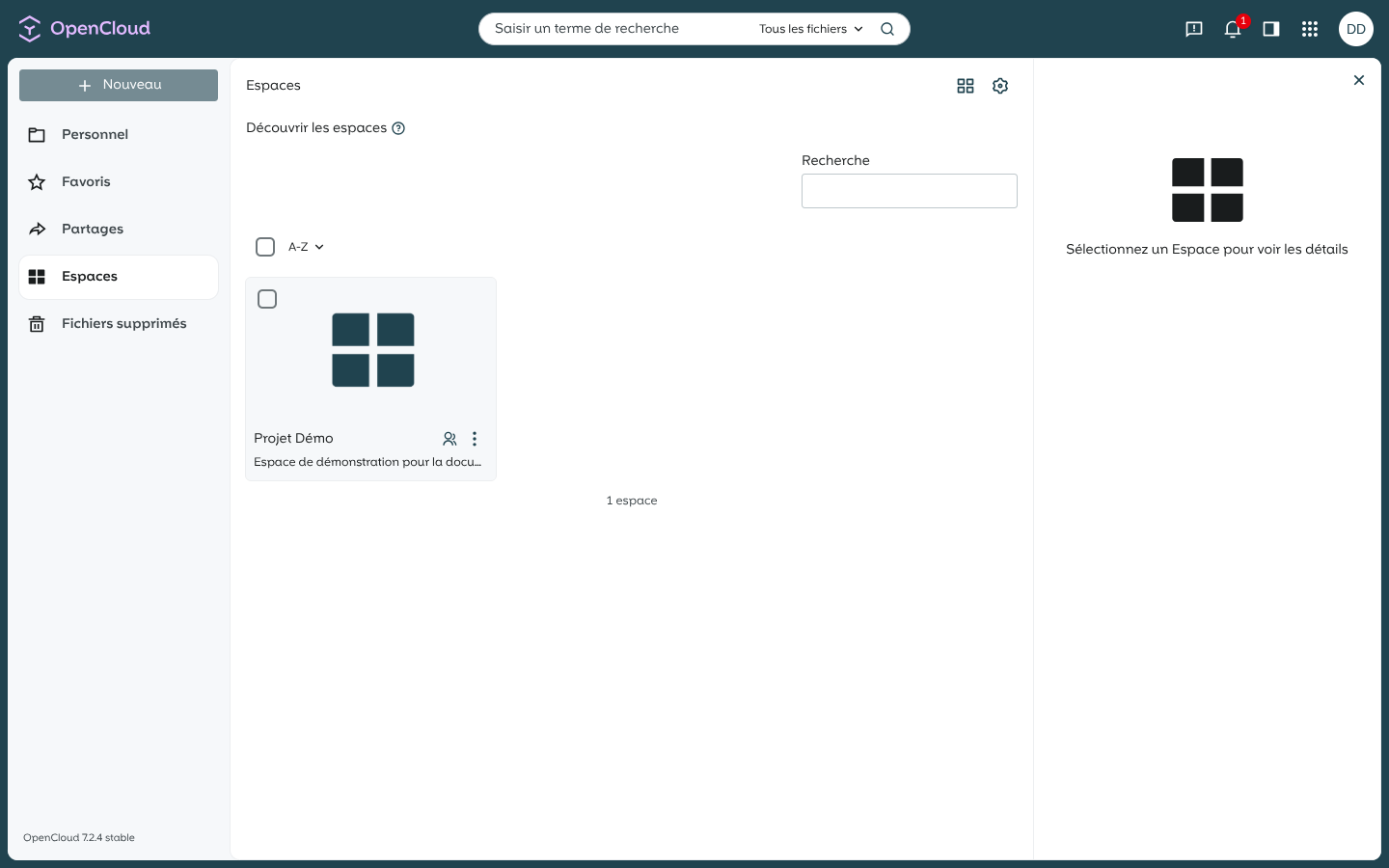
- the group shares you had on ownCloud have been recreated as project spaces during migration: you will find them in the Spaces view
- within a space, everyone works on the same copy of the files (no duplicates in each individual’s personal space)
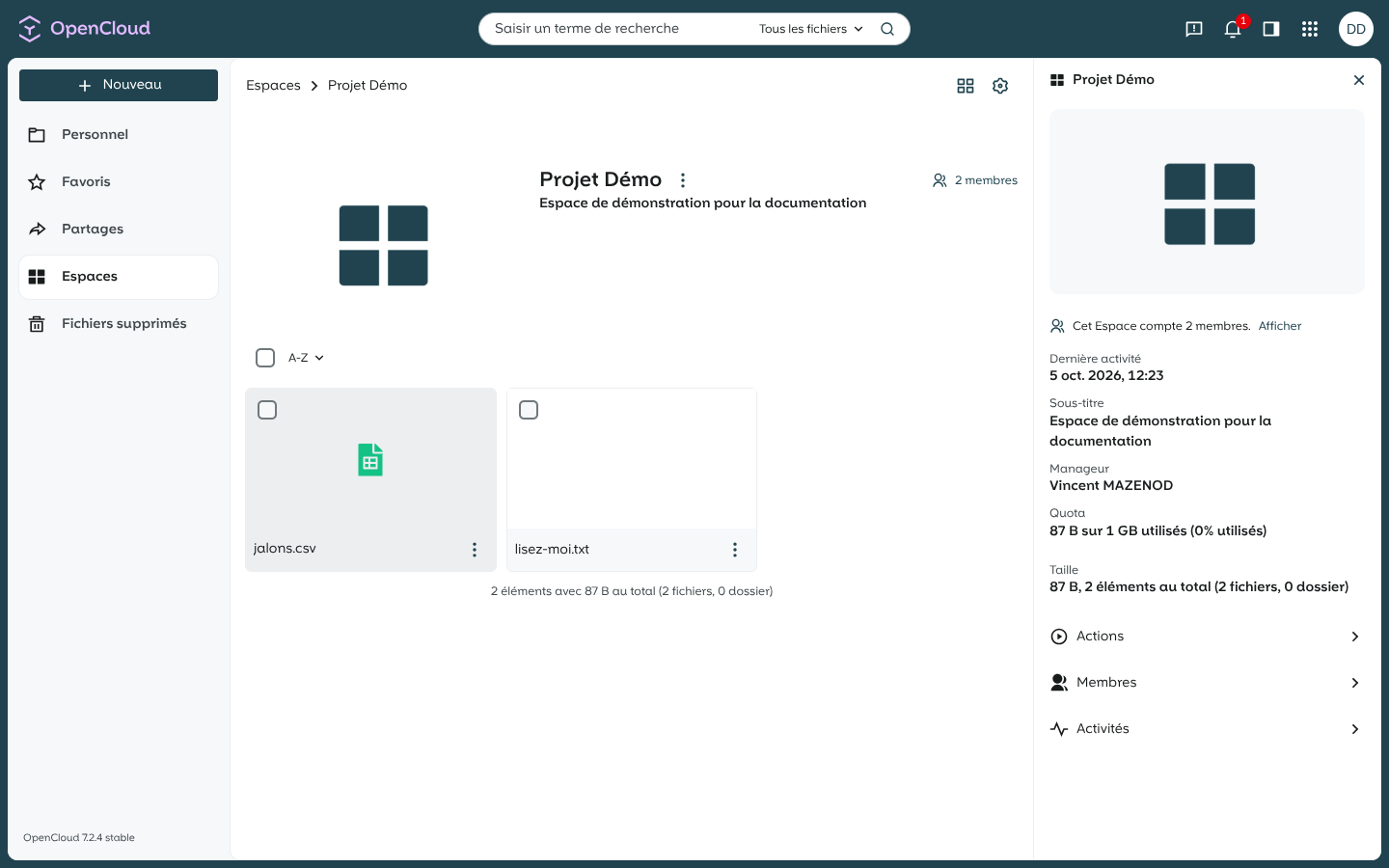
- the sidebar of a space displays its information: members, manager, quota, description
The Spaces view in the sidebar lists the spaces you are a member of:
Within a space, the sidebar displays information: members, manager, quota, size, and description. Managing members (inviting, changing roles) is done via the Members button in the space’s sidebar panel:
Your other shares remain unchanged
Shares with an individual (individually shared folder or file) remain as shares, visible in the Shares view. Only shares with groups become project spaces.
The Euro Office office suite✯
OpenCloud integrates Euro Office, an online collaborative office suite (word processor, spreadsheet, presentations) that replaces ownCloud’s OnlyOffice. It allows you to view and edit office documents directly in the browser, alone or collaboratively.
Simply open an office document (.docx, .xlsx, .pptx, .odt…) from the file list: it opens in Euro Office.
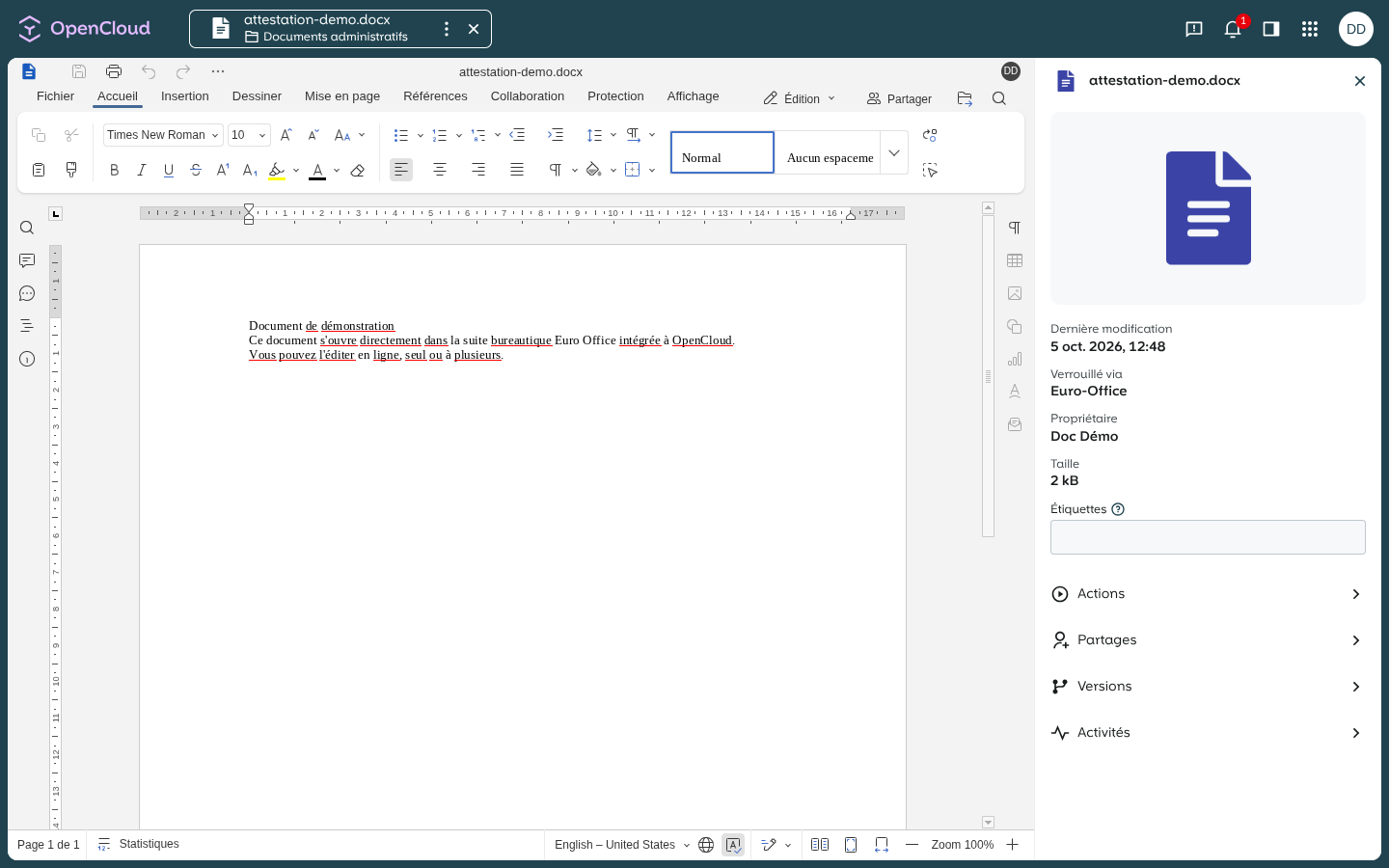
The editor retains the familiar features of classic office suites (fonts, styles, tables, images, comments…) and adds collaborative functions:
- Collaboration: real-time co-editing on the same document
- Comments and chat integrated (panels on the left)
- Change tracking (see who changed what, accept/reject)
- Share button: opens the OpenCloud sharing panel without leaving the document
- Versions: the file’s version history remains accessible from the sidebar
The document remains stored in your space (or project space): no export to manage, automatic saving.
Applications✯
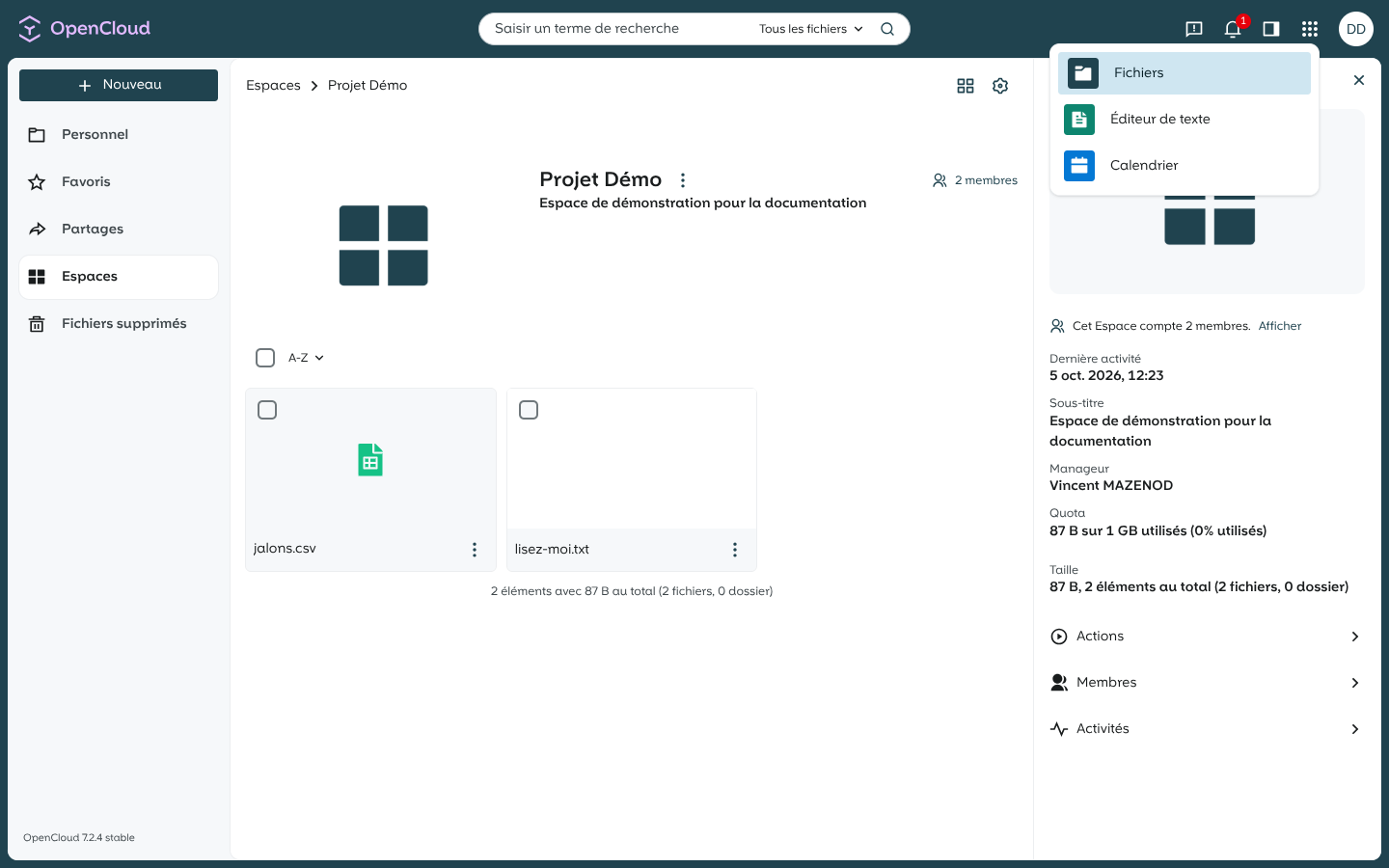
The application selector (top right) provides access to available apps: Files, Text Editor (collaborative text file editing), and Calendar. Office documents, on the other hand, open in Euro Office directly from the file list:
Your account✯
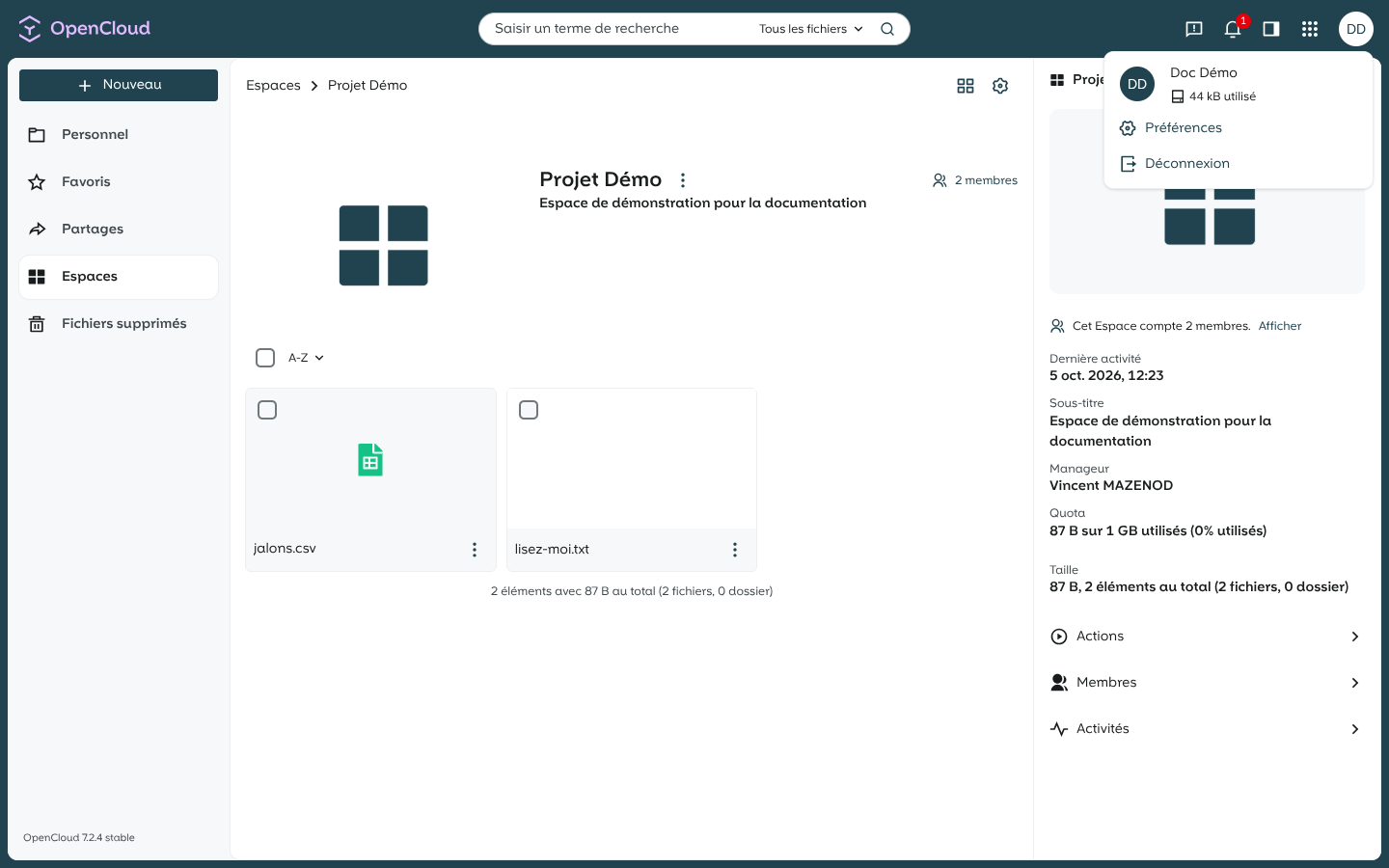
The My account menu (initials at the top right) displays your name, used space, and provides access to Preferences (appearance, language, application password…) and Logout:
Desktop synchronization client✯
OpenCloud uses a new desktop client, different from the ownCloud client: remember to install the OpenCloud client and reconfigure your synchronizations.
Your shared directory (Linux personal space)✯
The shared directory (your Linux personal space mounted under ownCloud) is not migrated: it remains accessible via the dedicated service homeweb.isima.fr and on workstations via the usual network shares.