Managing Mailing Lists✯
Note
It is recommended to consult the documentation on group management to better understand this section.
Indeed, mailing lists are an integral part of the ISIMA and LIMOS Information Systems. They are managed by the My directory module. The terms "groups" and "mailing lists" can be used interchangeably.
The new mailing list system is now integrated into the ISIMA and LIMOS Information Systems. Thus, lists are based on the school's directory.
A mailing list is a group of directory users.
A group consists of member users and other LDAP groups. LDAP groups can be used to define mailing lists (see: group management)
For example, the group personnel@listes.isima.fr contains the following groups:
administratifs@listes.isima.frenseignants@listes.isima.frappui-technique@listes.isima.fr
Thus, the mailing list personnel@listes.isima.fr contains the members of these mailing lists. It inherits members from these lists.
Warning
It may happen that a list can have multiple direct parents. For example, the list administratifs@listes.isima.fr has personnel@listes.isima.fr and biatss@listes.isima.fr as direct parents.
Example
flowchart RL
PERSONNEL_ISIMA["<a style='font-size: 150%;color: var(--md-accent-fg-color)' href=https://my.isima.fr/cri/ldap/sympa/members/CN=personnel_isima,OU=PERSONNELS,OU=POPULATIONS,OU=GROUPES_LOCAUX,DC=local,DC=isima,DC=fr>personnel@listes.isima.fr</a><br><i>ISIMA Staff + LIMOS BIATSS</i>"]
ADMINISTRATIFS_ISIMA["<a style='font-size: 150%;color: var(--md-accent-fg-color)' href=https://my.isima.fr/cri/ldap/sympa/members/CN=administratifs_isima,OU=PERSONNELS,OU=POPULATIONS,OU=GROUPES_LOCAUX,DC=local,DC=isima,DC=fr>administratifs@listes.isima.fr</a><br><i>All administrative staff attached to ISIMA</i>"]
APPUI_TECHNIQUE_ISIMA["<a style='font-size: 150%;color: var(--md-accent-fg-color)' href=https://my.isima.fr/cri/ldap/sympa/members/CN=appui_technique_isima,OU=PERSONNELS,OU=POPULATIONS,OU=GROUPES_LOCAUX,DC=local,DC=isima,DC=fr>appui-technique@listes.isima.fr</a><br><i>ISIMA technical support team members: system and network administrators, technical staff</i>"]
ENSEIGNANTS_ISIMA["<a style='font-size: 150%;color: var(--md-accent-fg-color)' href=https://my.isima.fr/cri/ldap/sympa/members/CN=enseignants_isima,OU=PERSONNELS,OU=POPULATIONS,OU=GROUPES_LOCAUX,DC=local,DC=isima,DC=fr>enseignants-permanents@listes.isima.fr</a><br><i>All ISIMA affiliated teachers</i>"]
BIATSS_ISIMA["<a style='font-size: 150%;color: var(--md-accent-fg-color)' href=https://my.isima.fr/cri/ldap/sympa/members/CN=biatss_isima,OU=PERSONNELS,OU=POPULATIONS,OU=GROUPES_LOCAUX,DC=local,DC=isima,DC=fr>biatss@listes.isima.fr</a><br><i>ISIMA BIATSS agents</i>"]

    ENSEIGNANTS_ISIMA ----> PERSONNEL_ISIMA
    APPUI_TECHNIQUE_ISIMA ----> PERSONNEL_ISIMA
    APPUI_TECHNIQUE_ISIMA -.- BIATSS_ISIMA
    ADMINISTRATIFS_ISIMA -.- BIATSS_ISIMA
ADMINISTRATIFS_ISIMA ----> PERSONNEL_ISIMAThe My directory module becomes the tool for managing ISIMA and LIMOS mailing lists.
You can access it at https://my.isima.fr/cri/ldap/groups.
Home Page✯
When you arrive at the directory, you land on your home page. Symbolized by a house, it allows you to return to this page at any time. 
You will see the list of mailing lists you manage. You can click on a list to view its members and properties.
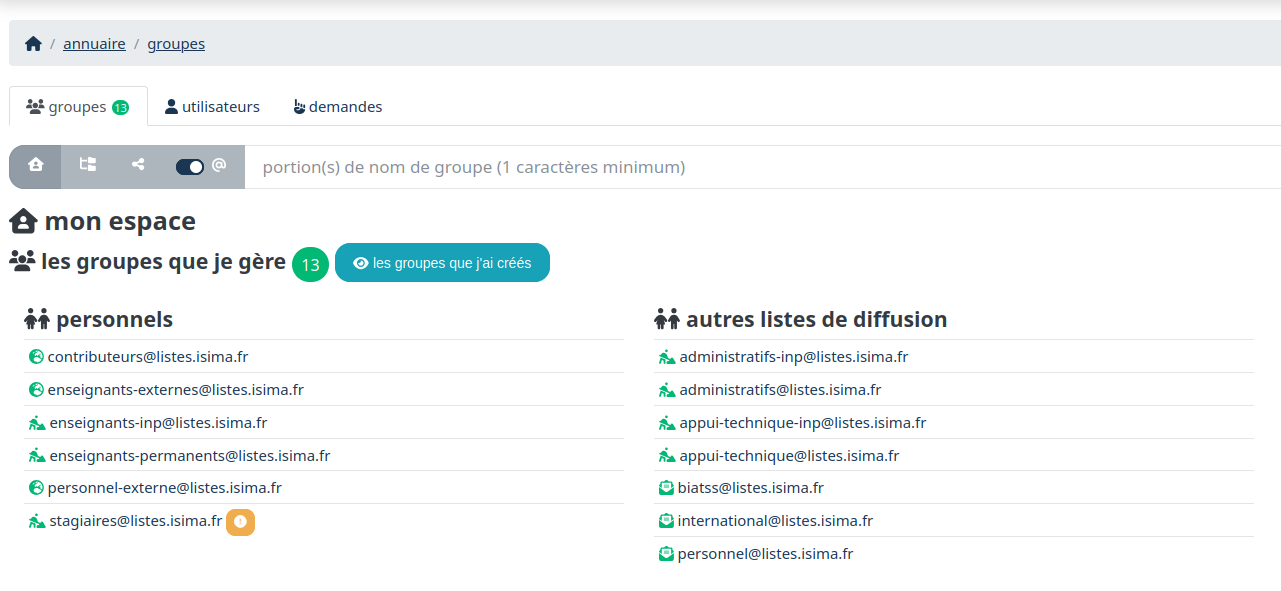
Here, the logged-in user manages 13 mailing lists.
Overview of Mailing Lists✯
To get an overview of existing mailing lists (not just the ones you manage), click the button 
You will then be able to view groups by category (academic affairs, research, staff, projects, etc.).
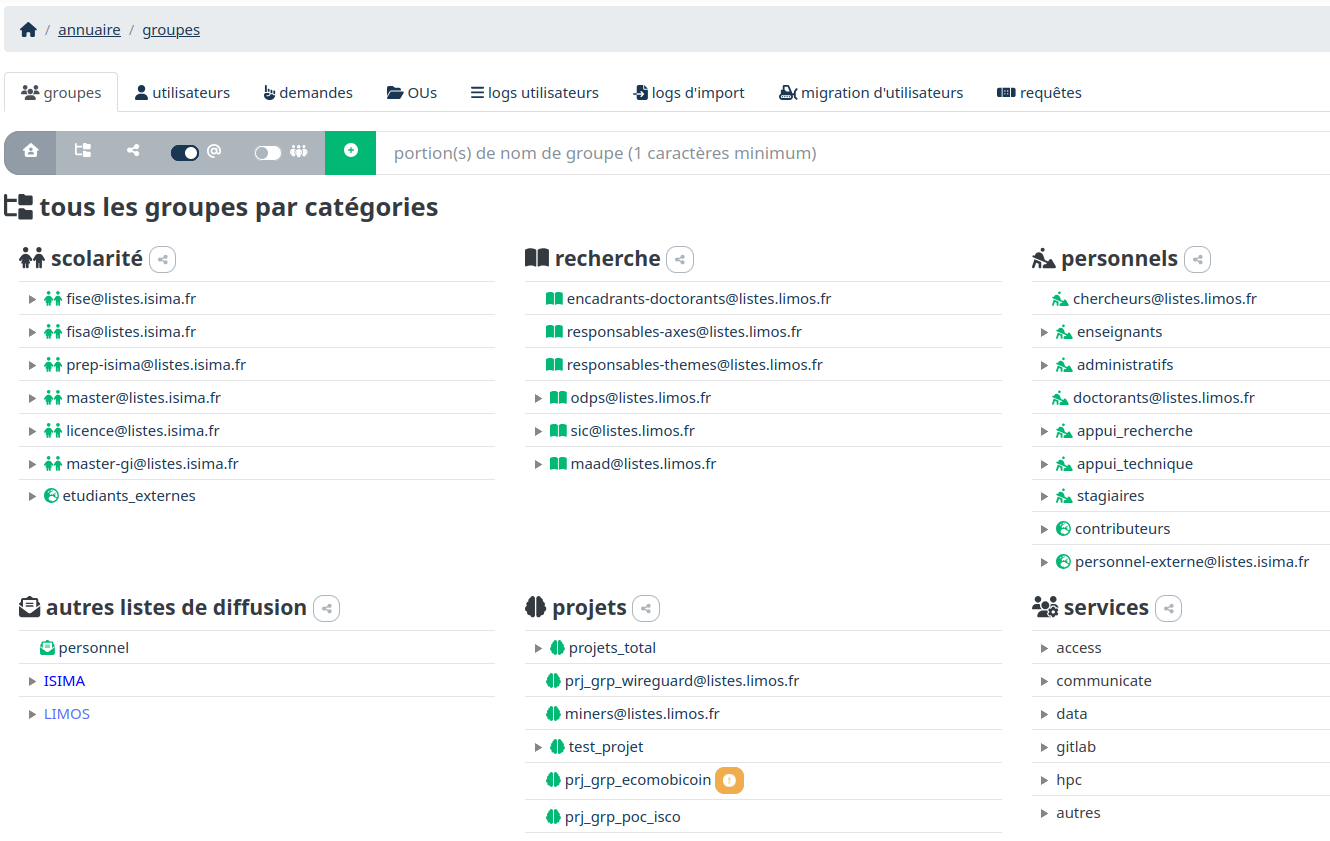
Mailing List Overview as a Mind Map✯
To get a visual representation of mailing lists and their nesting, click the button 
You will then see a visualization like this:
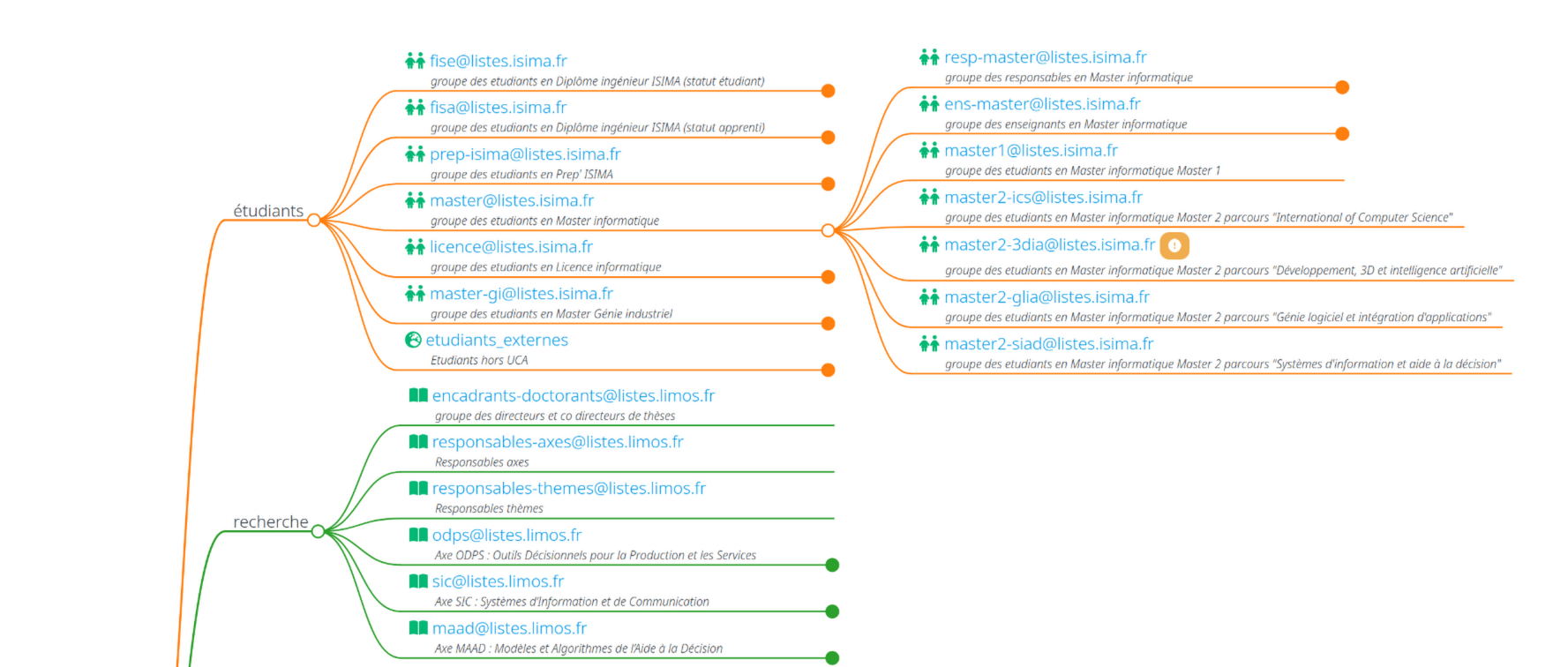
Using the Mind Map
To navigate in the mind map, you can zoom with the mouse wheel, move the view by clicking and dragging the mouse, and click on a group's "point" to expand or collapse its children.
View with Group Names or Mailing List Names✯
You have a button that allows you to display groups by their name or by the name of the mailing list (if the group is one). 