Using with Docker✯
This page describes how to push and pull images using the docker command. The examples can also be applied to podman.
Prerequisites
- Have Docker installed
- Have created a project (e.g.
my-project) - Know your
docker loginCLI secret
Naming convention✯
Any image hosted on the registry follows this naming pattern:
registry.isima.fr/<project>/<repository>:<tag>
<project>: the name of your project<repository>: the name of your image (e.g.my-app)<tag>: the version (e.g.latest,1.0.0,dev…)
Authentication✯
Authentication is only required to push images, or to pull from a private project.
docker login registry.isima.fr -u <your_username>
# Password: your CLI secret
Pushing an image✯
1. Build or tag the image✯
From a Dockerfile:
docker build -t registry.isima.fr/my-project/my-app:1.0.0 .
Or re-tag an existing image for the registry:
docker tag my-app:latest registry.isima.fr/my-project/my-app:1.0.0
2. Push the image✯
docker push registry.isima.fr/my-project/my-app:1.0.0
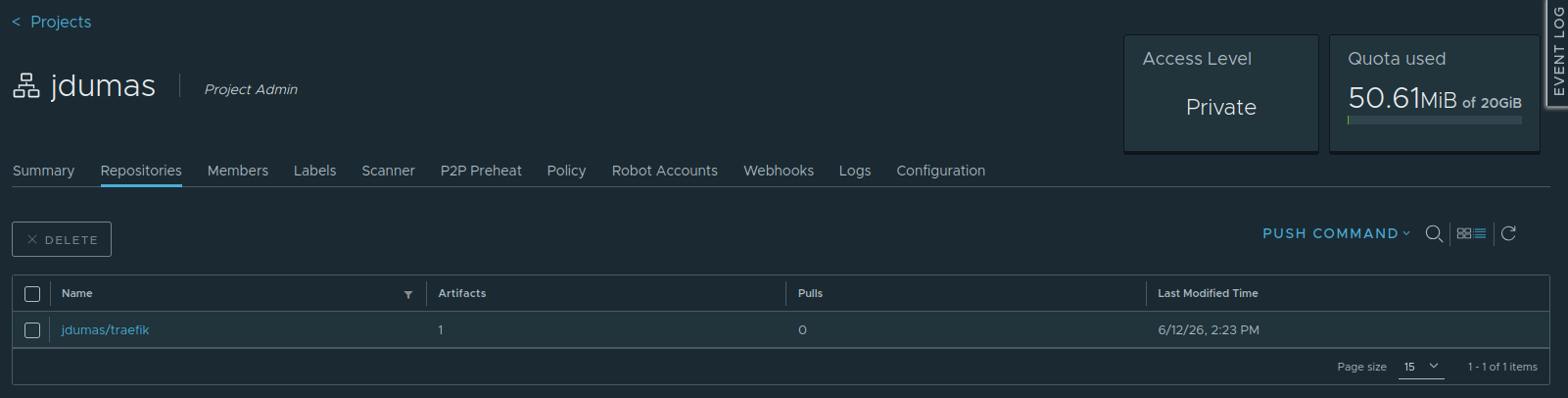
The image then appears in your project on the web interface, where it is automatically scanned if the option is enabled.
Pushing multiple tags✯
It is common to tag the same image with an explicit version and the latest tag:
docker tag registry.isima.fr/my-project/my-app:1.0.0 registry.isima.fr/my-project/my-app:latest
docker push registry.isima.fr/my-project/my-app:latest
Tagging with Git commit hash
To precisely track which code version produced an image:
docker tag registry.isima.fr/my-project/my-app:latest \
           registry.isima.fr/my-project/my-app:$(git rev-parse --short HEAD)
docker push registry.isima.fr/my-project/my-app:$(git rev-parse --short HEAD)
Pulling an image✯
From a public project, no authentication is required:
docker pull registry.isima.fr/my-project/my-app:1.0.0
From a private project, authenticate first with docker login (see above).
Using with Docker Compose✯
The registry is used transparently in a compose.yaml. Example combining building an image and publishing it to the registry:
services:
  my-app:
    image: registry.isima.fr/my-project/my-app:latest
    build:
      context: .
      dockerfile: Dockerfile
- Build the image:
docker compose build - Push it to the registry:
docker compose push - On the user side, the image is automatically downloaded:
docker compose up
Deleting an image✯
Deletion is done from the web interface (repository tab, select the tag then DELETE), provided you have at least the Maintainer role on the project.
Checks before pushing
- No secrets in the image (see best practices)
- A reasonable size (prefer
alpine/-slimbase images and multi-stage build)