Windows Workstation Backup✯
General Framework✯
SMB (Server Message Block) share spaces are available on the network, on a server named home which groups together each person's personal spaces. They allow for workstation backups. Currently, the available quota is 300 GB.
These SMB shares are authenticated using the university directory's login and password. For us to be able to authenticate you, your password must have been changed since July 2017. If not, go to the UCA portal: here. Log in and go to "My Account" / "Login and Security" to change your password.
The idea is to create a folder in your personal space that will serve as your backup storage. To facilitate security on these backup spaces (synchronization with other servers, antivirus checks), please name this directory sauve (backup).
Backup Client✯
The recommended client is the one provided by default on Windows.
In the Windows search bar, simply type Backup and click on Backup settings
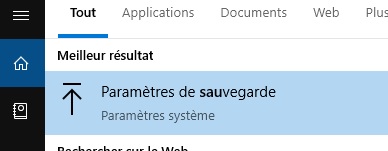
Configuring the Backup Drive✯
You will need to specify a network drive where your backups will be stored
Under Add a drive, click on More options
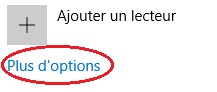
In the next window, click on View advanced settings
In the window that opens, click on Select a network location
Then add a network location. To do this, navigate using the file explorer.
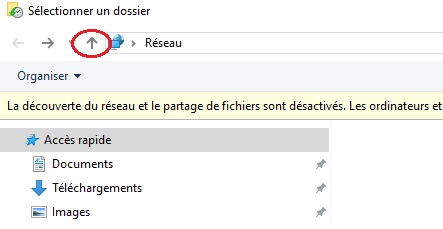
Find your dirs.local.isima.fr\<login>\sauve directory from your computer and select this folder
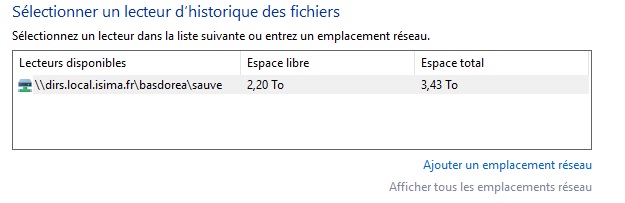
You return to the previous page. You can then activate your backup space
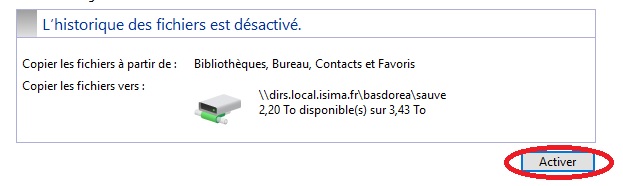
Close this window
Configuring Data to Back Up✯
In the Windows search bar, simply type Backup and click on Backup settings
You will see your backup drive activated. Click on More options
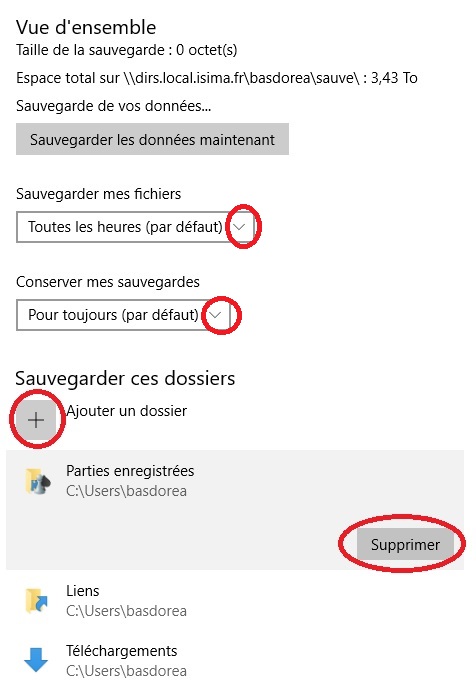
You can then specify the backup frequency and retention duration.
- Frequency:
Daily - Retention duration:
1 month
Next, you can specify the folders to back up. By default, Windows backs up everything in your profile.
To save some space, you can delete some large and rarely used folders such as Videos, Downloads, ... (note that if these folders are empty, they will not take up any space)
You can add other folders not present in your profile by clicking on + Back up these folders
You can exclude a subfolder from the backup by clicking on + Exclude these folders