Population Group Management✯
Presentation and Principles✯
The various actors within ISIMA and LIMOS are divided into population groups to inherit their associated rights (access rights to certain services such as the GitLab forge, inclusion in mailing lists).
These actors include:
- ISIMA members: faculty, external faculty, administrative staff, etc.
- LIMOS members: researchers, PhD students, research support staff, etc.
- Students: FISE, FISA, Prep_isima, master's, bachelor's degree
- External individuals interacting with ISIMA or LIMOS: LIMOS contributors, external faculty, interns, external students
ISIMA and LIMOS administrative staff as well as faculty can now manage these groups (based on their permissions) via the internal software my.isima.fr.
This software, among other functions, serves as an administration tool for the ISIMA / LIMOS information system
The group management section described in the following documentation is not accessible to students, PhD students, or external individuals.
There are a large number of groups due to the granularity required for mailing lists.
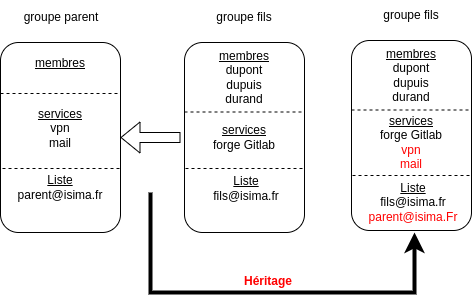
As such, a group nesting system allows individuals who are part of a group to inherit not only the rights of that group but also those of its parent groups.
For example, Ms. Durand has been registered as a member of the child group:
She will have access to the services of the child group (GitLab forge) AND the services of the parent group (mail, VPN).
Similarly, she will be part of both the child mailing list fils@listes.isima.fr and the parent mailing list parent@listes.isima.fr.
Some groups are also mailing lists, while others are not
Some groups may not contain any direct members but only inherit members from parent groups
Tips
Technically, services and mailing lists are also groups. Some groups have been created by UCA (dark green icon), while others have been created by us (light green icon).
Group Directory Homepage✯
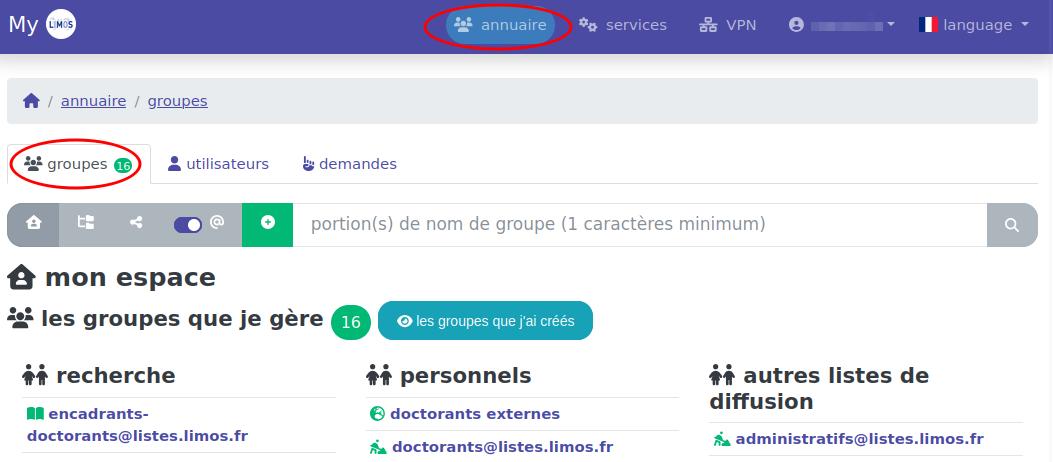
In MY, you can access groups by clicking on the Directory and Groups tabs at the top of the page.
Your Homepage✯
Upon arriving at the directory, you land on your homepage. Represented by a house icon  , it allows you to return to this page at any time.
You will see a list of groups you manage. You can click on a group to view its members and properties. (Here, the logged-in user manages 13 mailing lists.) Groups are divided into large subsections for better readability.
Overview of All Groups✯
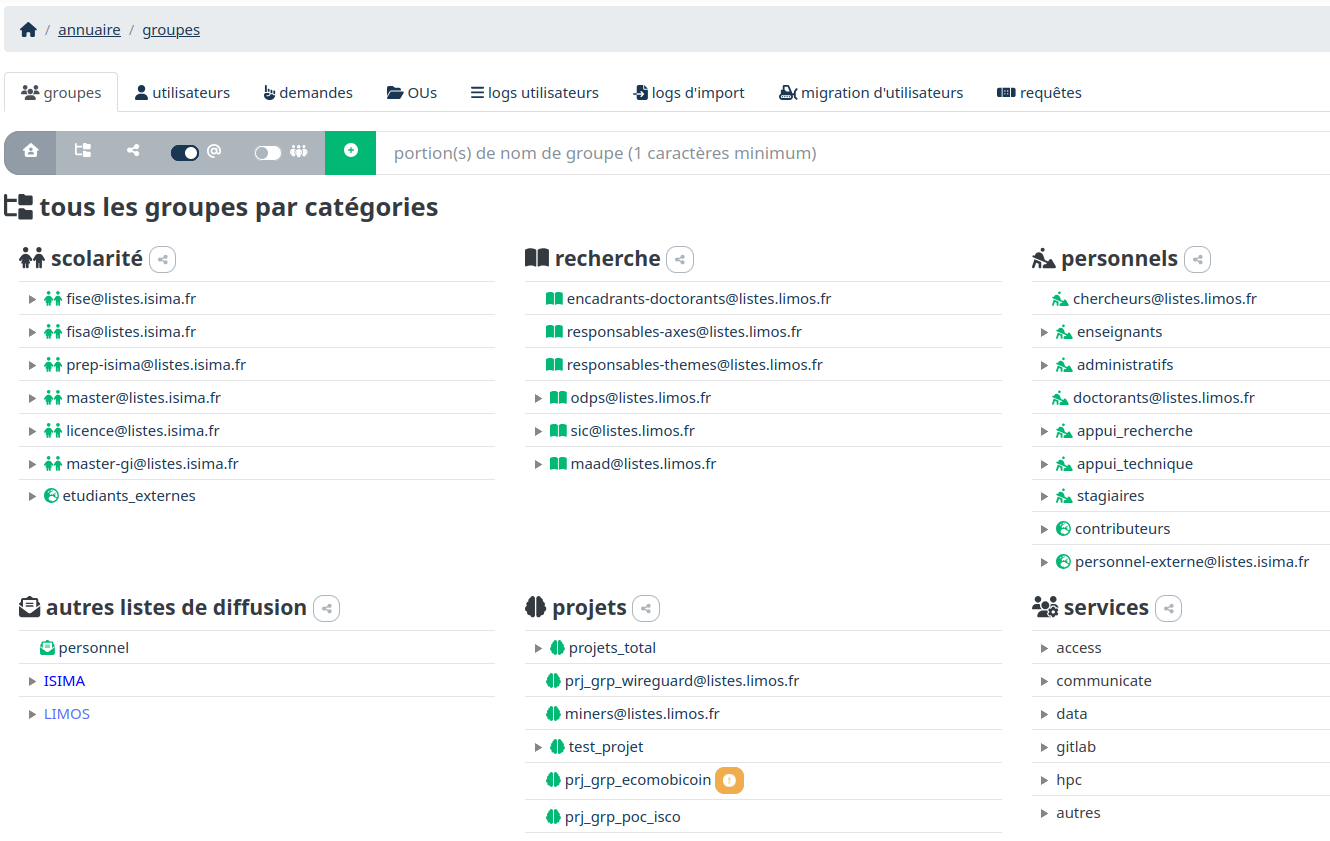
To get an overview of all existing groups and mailing lists (not just the ones you manage), click the button  .
.
You will then be able to view groups by category (academics, research, staff, projects, etc.).
Group Overview as a Mind Map✯
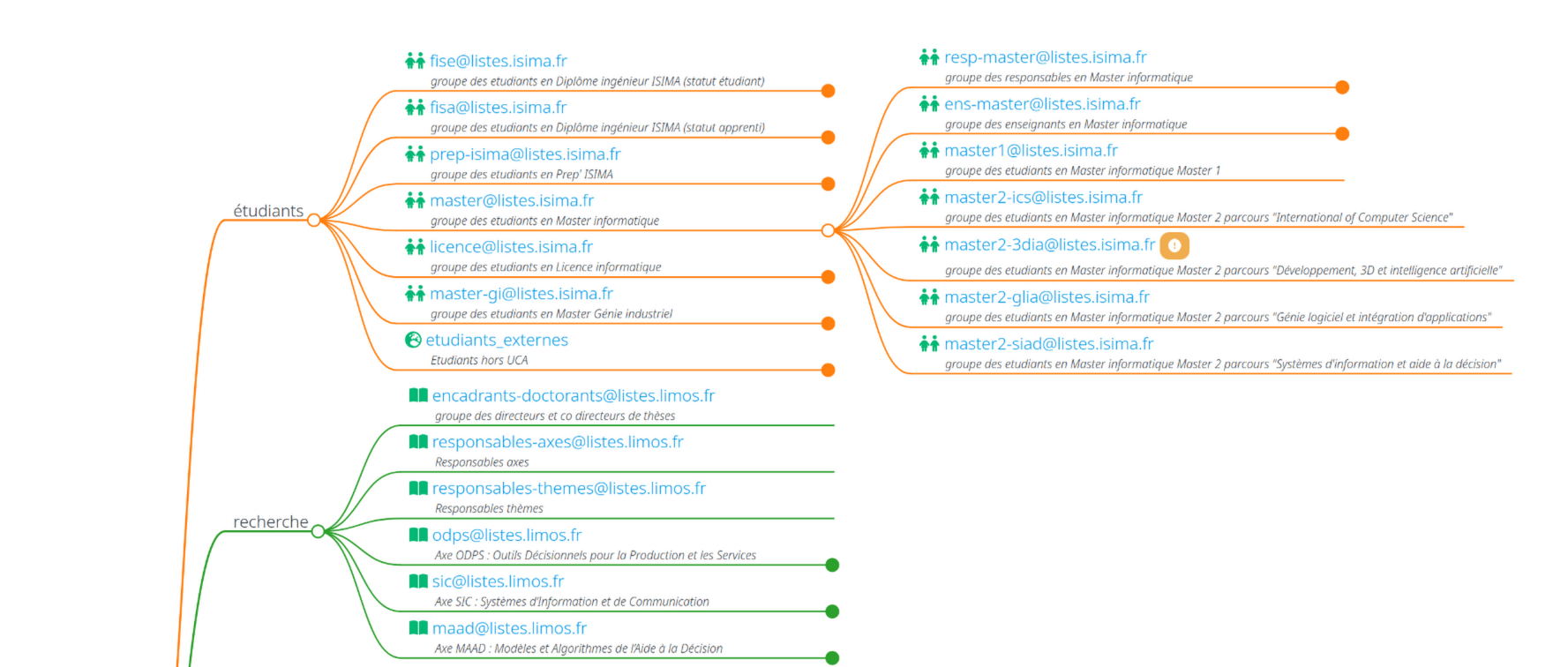
To view a visual representation of groups and their nesting, click the button  .
.
You will then see a visual like this:
Using the Mind Map
To navigate the mind map, you can zoom using the mouse wheel, move the view by clicking and dragging the mouse, and click on a group's "point" to expand or collapse its children.
View with Group or Mailing List Names✯
You have a button that allows you to display groups by their name or by the name of the mailing list (if the group is one). 
Searching for a Group in MY✯
You can search for a group by its name (even if incomplete). The search is case-insensitive and accent-insensitive.
To do this, simply type your search in the search bar at the top of the page.

You will then see a list of groups as results. You can click on a group to view its members and properties.