Using and Configuring Time Machine✯
How Time Machine Works:✯
On first use, a complete backup of your internal hard drive will be created. This can take between 30 minutes and 1 hour depending on the data stored on your disk. Once completed, Time Machine is configured to perform backups:
- Every hour for the past 24 hours
- Daily backups for the past month
- Weekly backups that will be kept until the disk is full (after which the oldest backups will be deleted)
Time Machine only backs up changes made to your data.
Where to Find Time Machine?✯
- In the Applications folder
- In System Preferences
- In your menu bar (if the option was checked)

Configuring Time Machine✯
The IT department provides a backup disk called "backups sur Tardis". Each user has a maximum volume of 300 GB. After clicking "Select Backup Disk" and selecting the disk mentioned below, you will be prompted for authentication. Use your "ENT" (ENT) credentials.
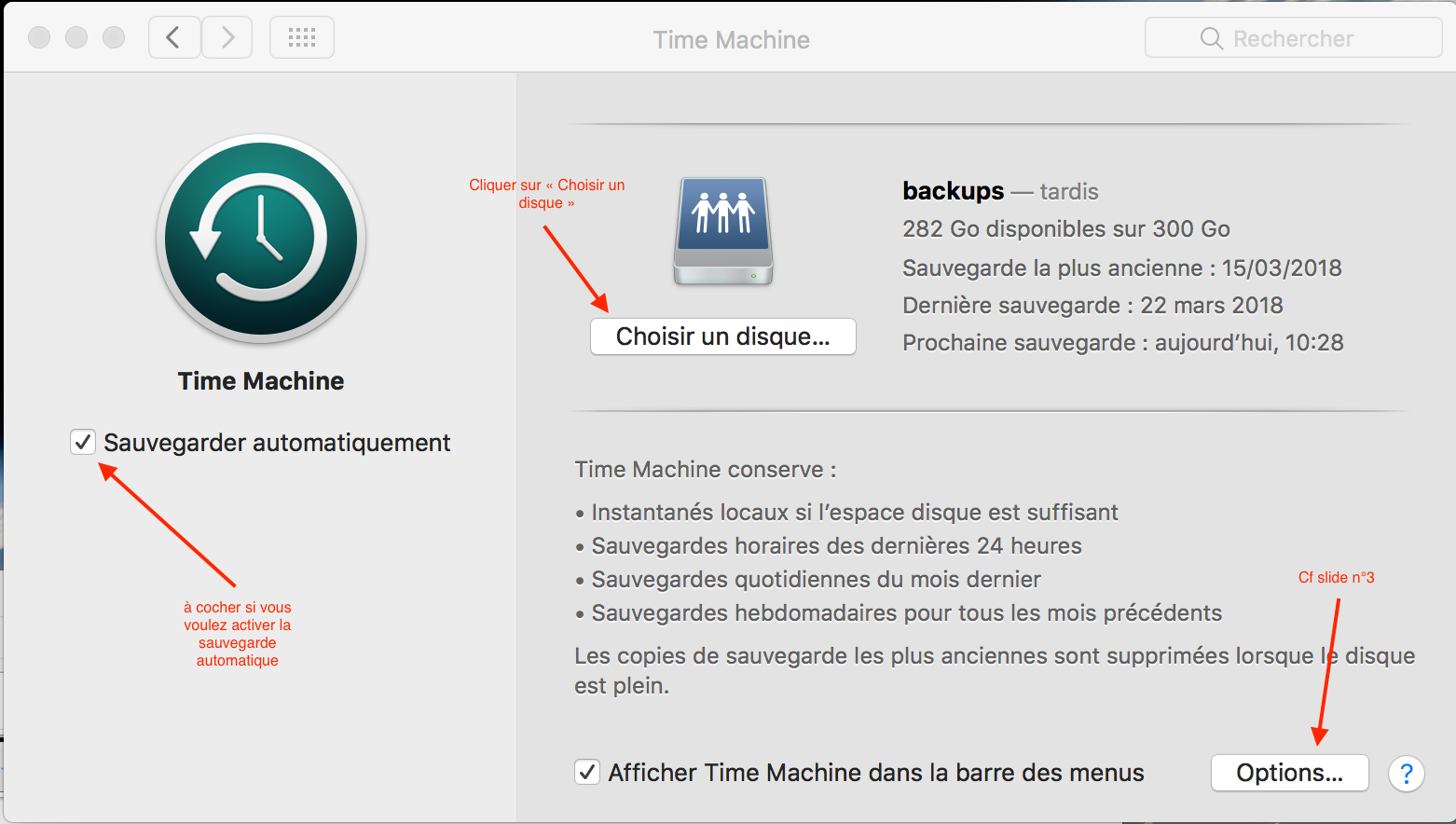
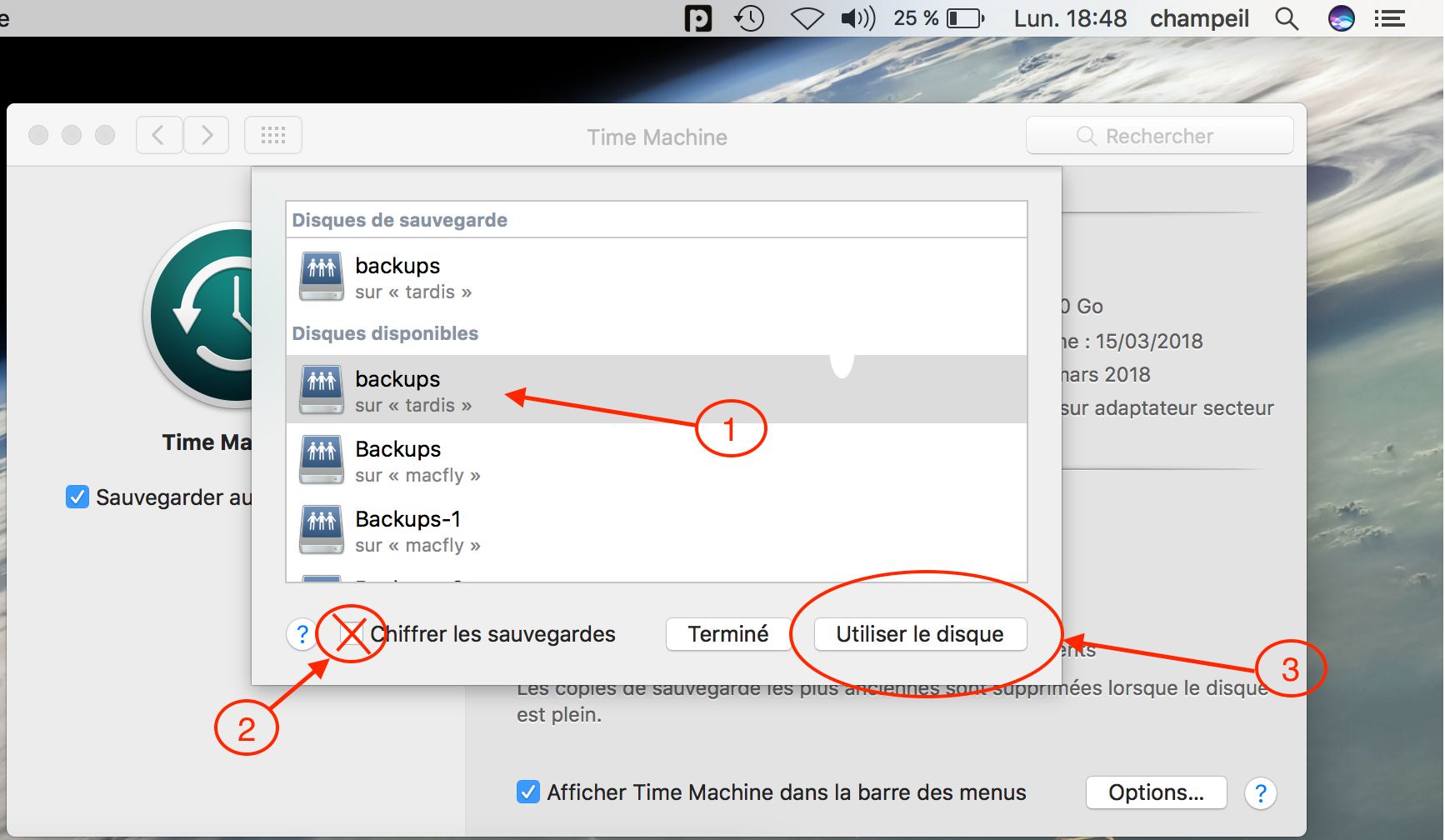
Note: It is also possible to encrypt your backups.
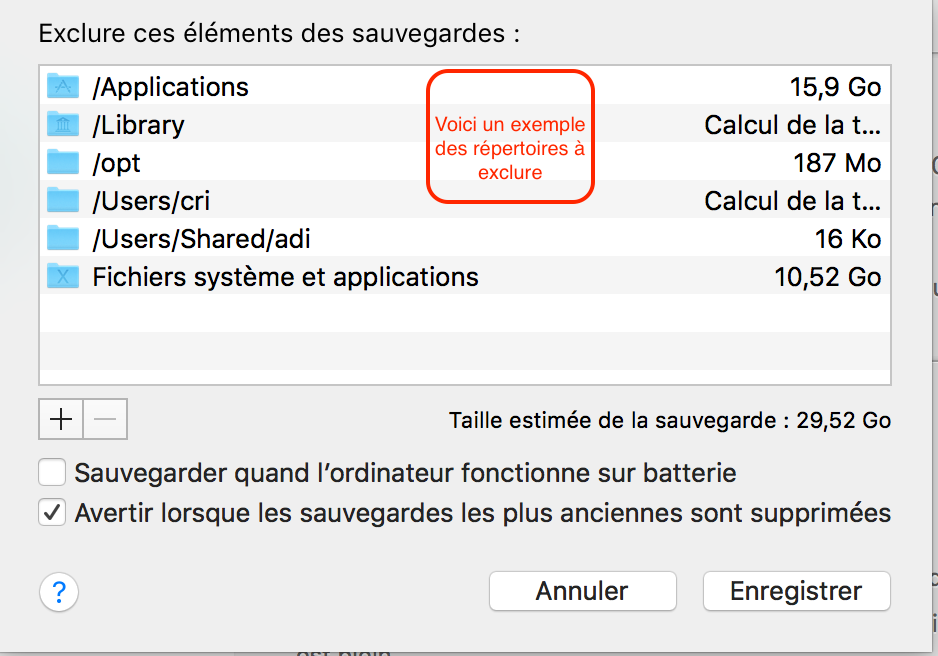
The "Options" button allows you to exclude folders or disks you do not wish to back up. The current policy is not to back up the following directories: * Applications * Library * System files and folders
Accessing Your Backups✯
To access your backups, click on "Enter Time Machine" either from the Dock, the Applications folder, or the menu bar at the top left (if the option was checked during configuration).