GitLab ISIMA / LIMOS✯
URL of the dedicated pedagogical forge
URL of the dedicated research forge
Getting Started✯
To get started with GitLab, you can read the CRI ISIMA/LIMOS post
Who can connect to GitLab?✯
All Active Directory users (Windows account / printing) can connect to https://gitlab.isima.fr.
Associating external users with a project✯
It is possible to assign external users to an existing GitLab project (pedagogical or research). Procedure:
- Create a local account in our infrastructure: either do it yourself or by creating a ticket providing the user's first name, last name, email, and requirements (VPN, research GitLab, etc.)
- Once the account is created and the user has been notified of their account credentials, they must connect to GitLab for the first time and inform you
- Once their user is created in GitLab, you can then add them as a project member. Go to the
Project Information/memberstab and click theInvite membersbutton on the right, search for them by name or username, and specify their role correctly.
GitLab and Continuous Integration✯
GitLab allows for continuous integration and, in particular, to automatically deploy to a machine whenever a change is made to the GitLab repository.
To do this, edit a gitlab-ci.yml file at the root of the project that might look like this:
image: ubuntu:xenial                  # Specify the OS of the machine

before_script:                        # To be executed before the script
  - apt-get update                    # Update then install the rsync and openssh tools and configure openssh
  - apt-get --yes --force-yes install rsync
  - 'which ssh-agent || ( apt-get update -y && apt-get install openssh-client -y )'
  - mkdir -p ~/.ssh
  - eval $(ssh-agent -s)
  - '[[ -f /.dockerenv ]] && echo -e "Host *\n\tStrictHostKeyChecking no\n\n" > ~/.ssh/config'
  - ssh-add <(echo "$SSH_PRIVATE_KEY")
  # This last line adds the private SSH key found in your environment variables

# Below, we create a stage named deploy that will synchronize the repo with your VM
# All content will be deleted and replaced except for gitlab-ci and README files
deploy_prod:
  stage: deploy
  script:
    - echo "deploy my_site_web"
    - rsync -av --exclude='.gitlab-ci.yml' --exclude='README.md' --delete . $PROD_USERNAME@$PROD_HOST:$PROD_ISP_PATH/
This file will be executed on every commit to any file in the repository. A GitLab runner will create a rebuilt image of the machine using Docker technology.
It is useful to use environment variables that are meant to remain hidden; they start with $ in the gitlab-ci file.
You can edit these variables in "Settings/Continuous Integration and Deployment".
For the example above, you would find these in the environment variables:
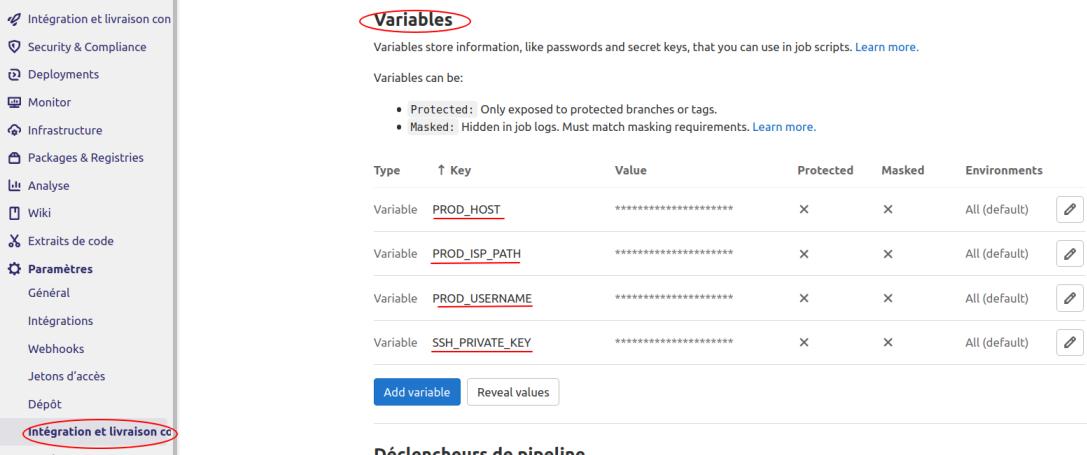
Finally, you can check that your CI is running correctly in "Continuous Integration and Deployment/Pipelines".
GitLab CI Patch✯
On the LIMOS GitLab, CI may not work because SSL verification fails.
You need to patch your gitlab-ci.yml file by adding a GIT_SSL_NO_VERIFY variable set to True:
image: ubuntu:xenial

variables:
  GIT_SSL_NO_VERIFY: "1"

before_script:
  - apt-get update
  - ...
Appendix✯
- python-gitlab (CLI): https://github.com/gpocentek/python-gitlab
Other Institutional Forges✯
The UCA forge will close in summer 2023 and all projects hosted there will disappear. If you have any, you must migrate them.
URL of the Renater forge: SourceSup