C101✯
Presentation of the room and equipment
Please put the equipment back in its place after each use 🙏

Wireless projection with USB-C (recommended)✯
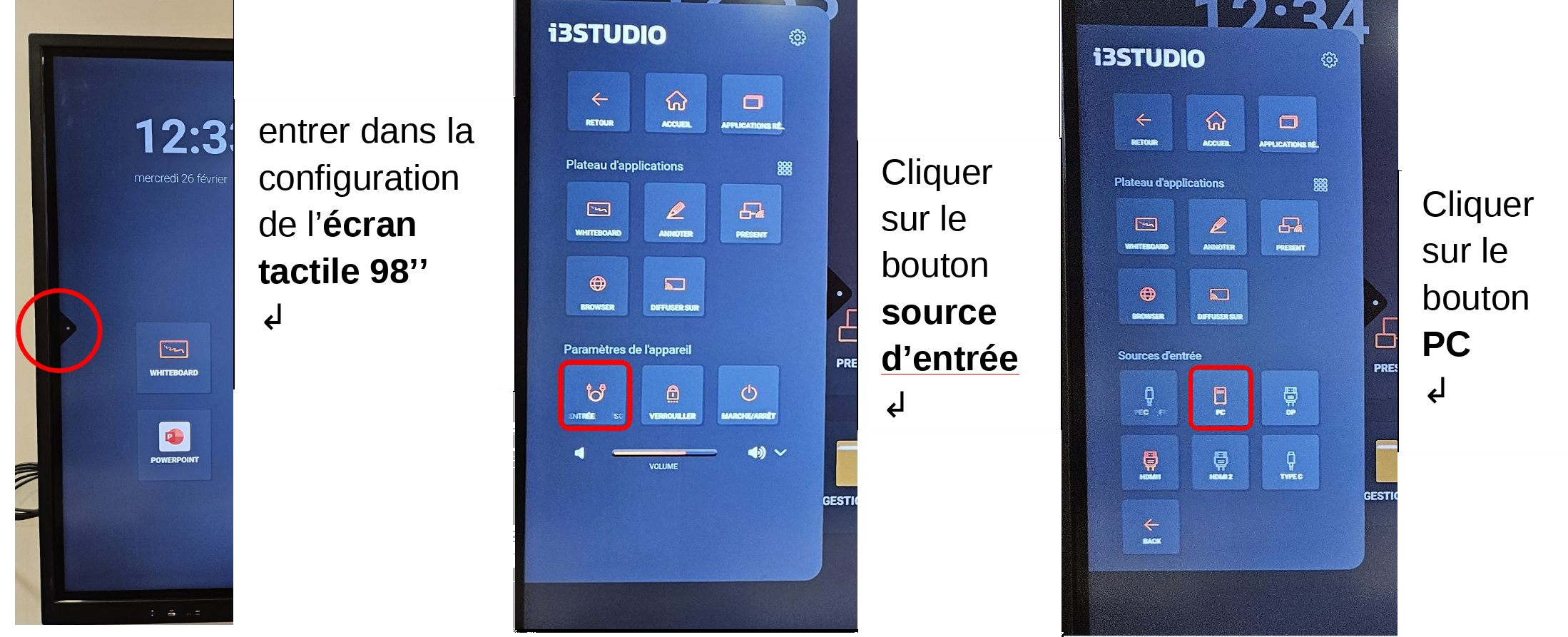
Turn on the screen and video projectors from the touch control screen and select the ‘Touch Screen’ source✯
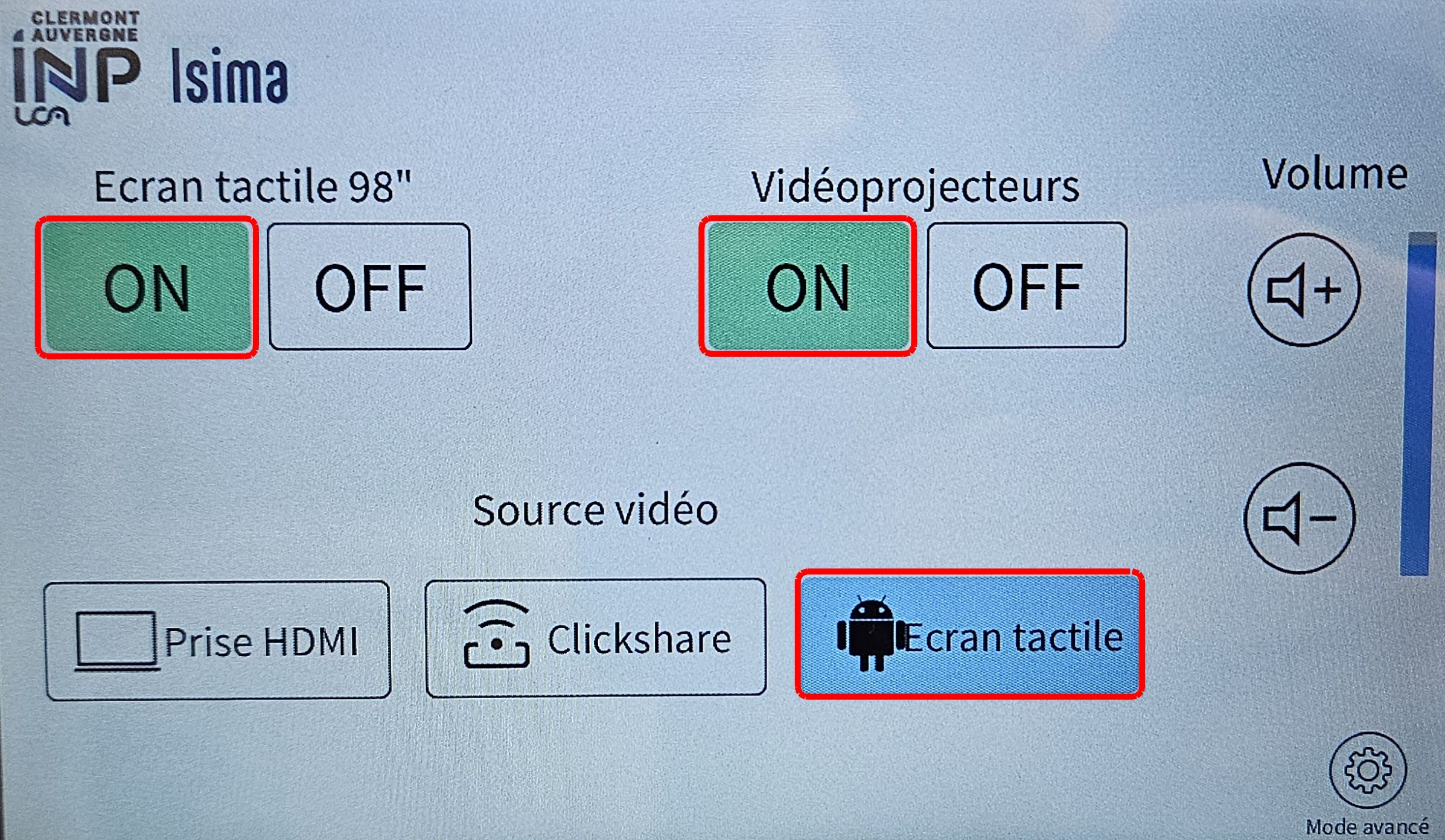
Connect the digital screen projection box to your PC via USB-C✯
Wait a few seconds for the button to turn a dark green color

Press the button on the box to start broadcasting✯
The light is blue when broadcasting is active
Press the button again to stop broadcasting
HDMI projection (if no USB-C)✯
Turn on the screen and video projectors from the touch control screen and select the ‘Touch Screen’ source✯
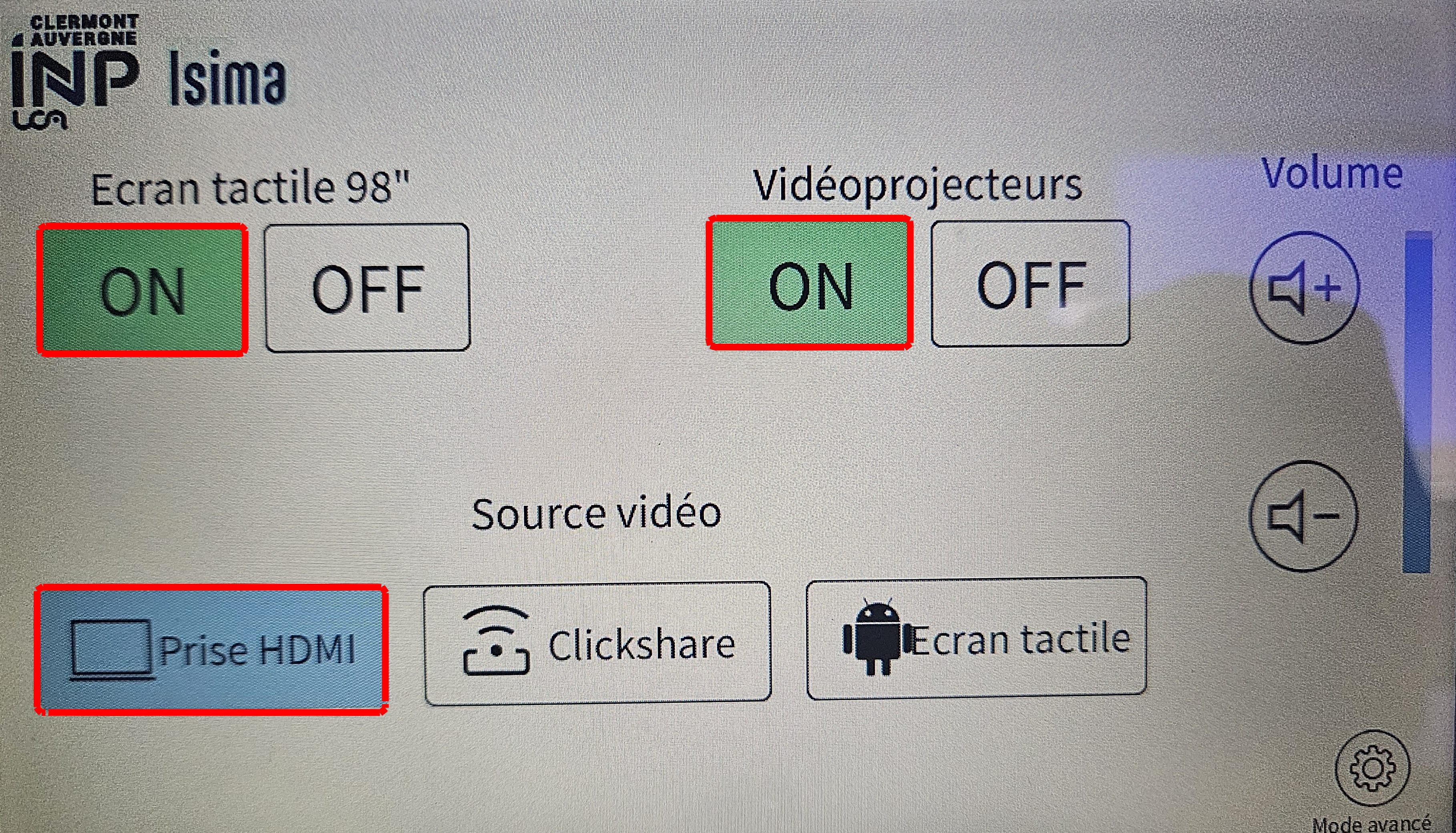
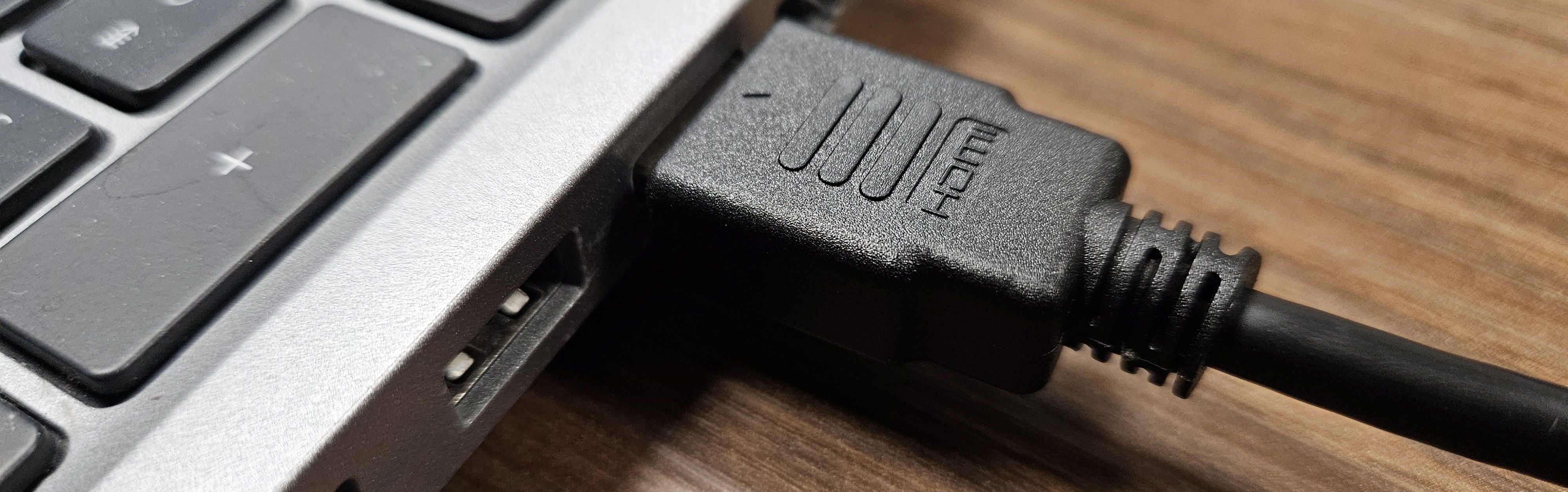
If the device does not have an HDMI port, adapters are available in A109 / A115
Connect the HDMI cable to the device's HDMI port✯
Multi-source wireless projection✯
The screen and the orange wall video projector always display the same image
The digital screen projection box via USB-C is used as the main display to project onto the touch screen
The ClickShare box via USB-C is used as a secondary display to project onto one or the other video projectors

Switch the touch control panel to advanced mode✯
long press on the knurled wheel at the bottom right
Turn on the screen and video projectors✯
- Select the "Touch Screen" source for the screen + orange wall group
- the digital screen projection box via USB-C then projects onto the touch screen and the orange wall video projector
- Select the "ClickShare" source for the window video projector
- The ClickShare box via USB-C then projects onto the window video projector
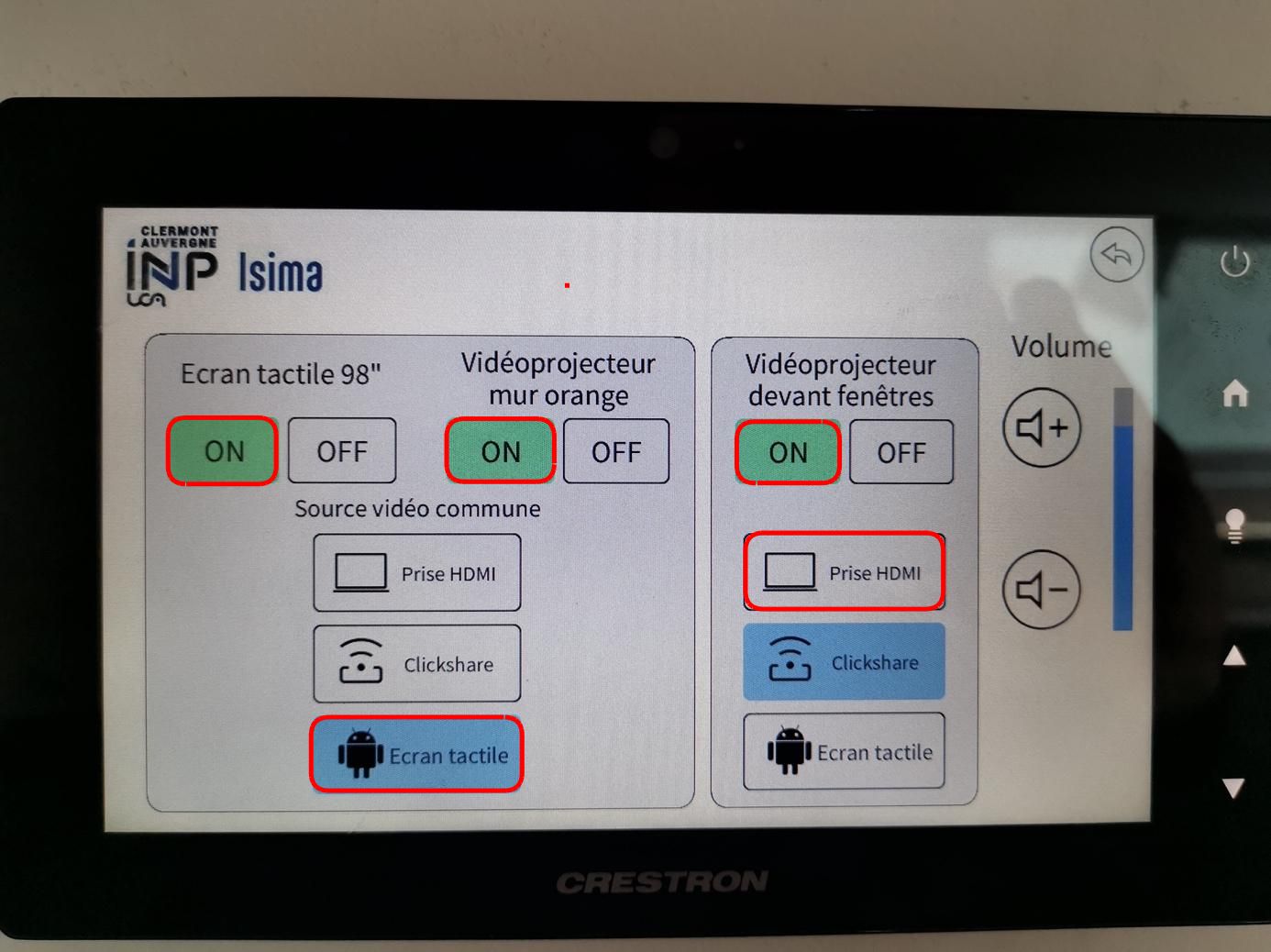
By reversing the selection of the "Touch Screen" & "ClickShare" buttons, it is possible to reverse the destination of the two USB-C dongles
Multi-source wireless + HDMI projection✯
The screen and the orange wall video projector always display the same image
The digital screen projection box via USB-C is used as the main display to project onto the touch screen
The 5m HDMI cable is connected to the wall socket and coiled to the left behind the screen
Switch the touch control panel to advanced mode✯
long press on the knurled wheel at the bottom right
Turn on the screen and video projectors✯
- Select the "Touch Screen" source for the screen + orange wall group
- the digital screen projection box via USB-C then projects onto the touch screen and the orange wall video projector
- Select the HDMI source for the window video projector
- the HDMI cable then projects onto the window video projector

By reversing the selection of the "Touch Screen" & "ClickShare" buttons, it is possible to reverse the destination of the two USB-C dongles
Project from your system✯
Video conference with Microsoft Teams✯
You must check that the screen is displaying the Teams window correctly. If not, please follow the procedure below