ISIMA Printers✯
The reprographic system of the institute is managed by a print management software: Papercut. It allows:
-
to control and monitor print jobs and costs
-
secure follow-me printing
-
enforce a printing policy
-
analyze printer usage
To print, authentication is mandatory (integration with the institute's Active Directory directory - your ENT identifier).
Students must first release their print jobs at the photocopier in room D013 and optionally at the one located in the hall of building A.
Note
Before printing anything, please consult the guide to good printing practices for all staff
Printer Installation✯
Info
Only for staff members, researchers, teachers, PhD students but not students Printers are already installed on teaching workstations
You can use the Papercut software which installs the printer, documentation and software: print-mobility.dsi.uca.fr or follow the documentation below
For Windows Workstations✯
First, we recommend uninstalling old printers via the Control Panel.
Then to install new printers, download the executable below (without changing the executable name):
https://print-mobility.dsi.uca.fr:9164/client-setup/known-host/windows.html
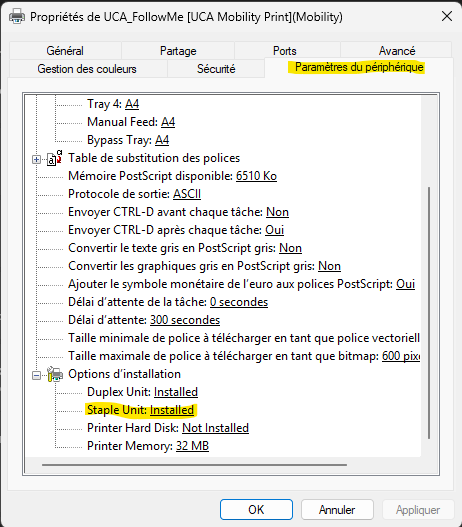
To use staples, go to the properties of the installed printer and check the "staple unit" box in the device settings section.
For Mac Workstations✯
First, we recommend uninstalling old printers.
Then run the following script:
Troubleshooting✯
If authentication doesn't seem to work, check that the print credentials are correct in the "Keychain Access".
For Linux Workstations✯
First, we recommend uninstalling old printers.
Then follow the installation process from the UCA printer installation documentation for Linux
How to Print?✯
Printers are managed by the university and may be subject to network issues.
In case of temporary issues, use the web printing https://print.dsi.uca.fr which will work reliably.
For PhD students, teachers, researchers, post-docs, etc., printing is free (if not, please send us a ticket)
For students, see here
Via the web interface https://print.dsi.uca.fr✯
Log in using your UCA credentials. Then go to the Web Printing tab on the left and follow the printing assistant.
Click on Web Printing then Send a job. You will then be able to choose the printer pcutmobility01\UCA_FollowMe(virtual), the number of copies and then you can select the file to print.
This can be retrieved from one of the copiers (Ground Floor Building A, Ground Floor Building D, 1st Floor Building B, 1st Floor Building F) by logging in with your UCA account.
English version
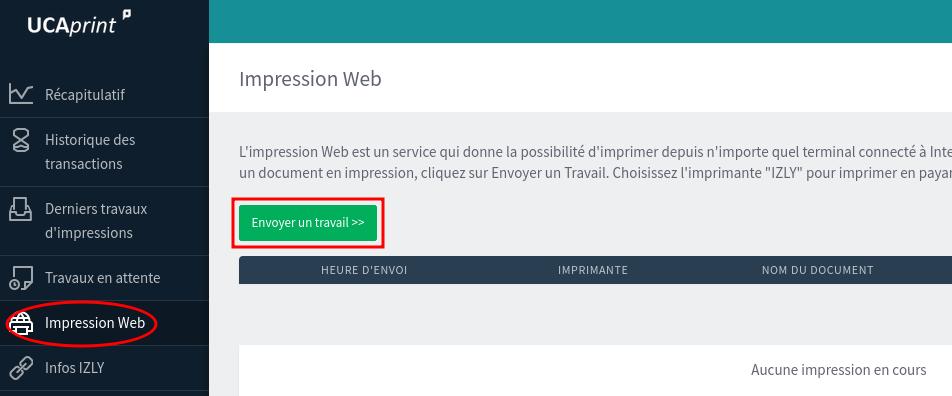
To print, go to the URL https://print.dsi.uca.fr and log in with your UCA account.
Click on Web Printing and then Send a job. You will then be able to choose the printer pcutmobility01\UCA_FollowMe(virtual), the number of copies and then you can select the file to print.
This can be retrieved from one of the copiers (Ground Floor Building A, Ground Floor Building D, 1st Floor Building B, 1st Floor Building F) by logging in with your UCA account.
Your credentials will be requested to release the print job (by card or manually).
Only supports PDF files and picture files (bmp, gif, jpeg, etc...)
It is also possible to use web printing with the "Mobility Print" application for laptops (Windows & MacOS), smartphones or tablets.
Via a locally connected "FollowMe" printer✯
The printer installation procedure is below
You can use your UCA card to release your prints.
For the first time, you need to associate your card with your account:
-
Place your UCA card where indicated on the copier (usually under the touch panel)
-
A message appears asking if you want to associate your card with your UCA account -> click "define"
-
Enter your login (note: not your UCA email but your username) and password
-
From then on your card is associated with your account and can be used on any ISIMA copier
You can now use your card to print
If you've forgotten, you can log in with your ENT credentials
Printing for Students✯
For students, printing is charged directly to their IZLY card
Students can print on all UCA and ISIMA copiers in particular. They have a balance of €5 printing credit allocated at the beginning of the year, which can be topped up via the IZLY interface
The copier in room D013 is recommended as it allows IZLY account top-ups
UCA Documentation: How do refunds work?
Troubleshooting (validated with Ubuntu 20.04)✯
CUPS Service
- Install CUPS:
sudo apt-get install cups - Check installation:
sudo lpinfo -v - Add your user to the lpadmin group, in this example user username:
sudo usermod -aG lpadmin username - Restart CUPS:
sudo /etc/init.d/cups restart
In the CUPS graphical interface
- Open the CUPS interface in a browser, go to http://localhost:631
- Administration (http://localhost:631/admin)
- Add a printer
- Follow the instructions provided by UCA: y.uca.fr/linux-print
- Then print a document
- Go to Settings / Printers / Print Job (message "authentication required") in Ubuntu
- Authenticate (with UCA credentials)
- Retrieve the document with your IZLY card at the printer
Other Potential Issues✯
It may happen (depending on browsers and their versions) that a document found on the web (or a link to a document on the internet) doesn't print -> You need to download the document before printing
Scanning issues. Sometimes, the UCA server that sends scanned documents may go down. In this case, once logged in, follow this protocol
- Place your sheet on the copier glass
- Tap the
Scantab to enter the scanning menu - Press the
Sharp UCAPAD at the top left to enter a new interface - Enter your email address and validate by pressing
OK - Press the
Black & WhiteorColorscanning button (bottom right); scanning will start - Add more pages to scan or finish your scanning
macOS Installation✯
You can use the Papercut software which installs the printer, documentation and software: print-mobility.dsi.uca.fr (check "save credentials" when launching the first print). Or follow the documentation below
Printing in FollowMe IPP from a Linux Workstation✯
The installation procedure is available in the UCA documentation.
Alternative solution in case of malfunction (validated with Ubuntu 20.04)✯
CUPS Service✯
- Install CUPS:
sudo apt-get install cups - Check installation:
sudo lpinfo -v - Add your user to the lpadmin group, in this example user username:
sudo usermod -aG lpadmin username - Restart CUPS:
sudo /etc/init.d/cups restart
In the CUPS graphical interface✯
- Open the CUPS interface in a browser, go to http://localhost:631
- Administration (http://localhost:631/admin)
- Add a printer
- Follow the instructions provided by UCA: y.uca.fr/linux-print
- Then print a document
- Go to Settings / Printers / Print Job (message "authentication required") in Ubuntu
- Authenticate (with UCA credentials)
- Retrieve the document with your IZLY card at the printer
Mobile Printing✯
Go to https://print.dsi.uca.fr (from the university wifi) for Web Printing, or for printing with the "Mobility Print" application for laptops (Windows & MacOS), smartphones or tablets.
In the latter case, download the "Mobility Print" executable (according to your operating system) available on the left side of the browser once connected to https://print.dsi.uca.fr.