Personal Storage Space (~shared)✯
Each user has a personal file space, accessible via network shares on the workstations, the application servers and computing servers, the classrooms, and the personal virtual machines.
- This personal space is
- 100GB for staff
- 5GB for students
- manageable via ownCloud
- your personal web pages can be managed from the
public_htmldirectory of this share !!! warning "Thispublic_htmlhere feedsperso.[isima|limos].fr. The pagespublic.isima.fr/<login>are served from thepublic_htmlof your pedagogical personal directory, not from~/shared" - automatically mounted on the application servers and computing servers, the classrooms, and the personal virtual machines
- on
~/shared(/home/local.isima.fr/<user>/shared) under UNIX and Mac - on
P:\\under Windows
Warning: By default, you work in the machine's home directory. Remember to copy your practical work, reports, code, etc. to your shared space
- on
These shares can be accessed from your workstation provided you are connected to the network (i.e., in your office or via the VPN) and have the necessary credentials.
Authentication always uses your UCA account
To access your storage space from a workstation, follow the procedure corresponding to your operating system:
Windows Installation✯
For Windows workstations in the 'LOCAL' domain✯
By default, all Windows workstations are in the LOCAL domain (unless specifically requested otherwise)
Quick method
All Windows computers in the domain receive a GPO that mounts the correct network drives.
If you do not see the "P:" (Perso) network drive appear, type gpupdate in the Windows search bar. This will restart the GPO within a few seconds, and you will find the Perso drive for students or teachers (and administrative drives for those who are entitled to them).
Complete method
Open Windows Explorer
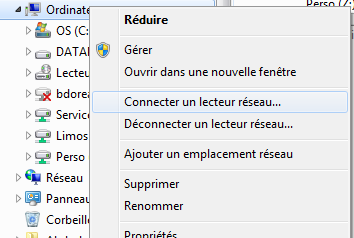
Right-click on Computer and select "Map network drive"
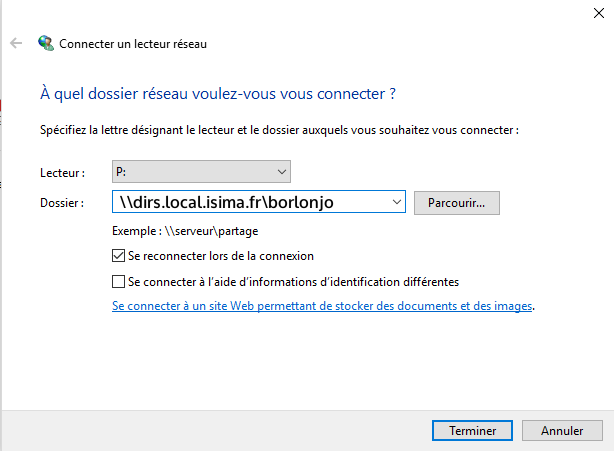
Select the letter "P" for this drive, and for the folder, enter \\dirs.local.isima.fr\your_uca_login
Check the box "Reconnect at sign-in" and VALIDATE by clicking "Finish"
For workstations outside the domain (same procedure as above, only the authentication changes)✯
Same as above, with a small variation... at the question (see screenshot above) "Which network folder do you want to connect to?"
Also check "Connect using different credentials"
As the login, you must enter the domain name in the form:
Login_UCA@local.isima.fr

Password
Mac OS X Installation✯
To mount a network drive from a GNU/Linux system, the easiest way is to use the Samba protocol.
You will need to provide the server to which you want to connect, along with the share path and your ENT username and password.
The procedure is similar whether accessing administrative shares or your personal directory.
Open Finder, in the menu bar click Go then Connect to Server...
Enter this address:
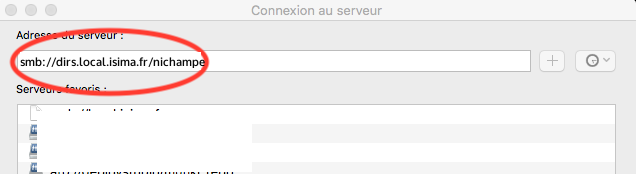
Click the "+" to save the server connection.
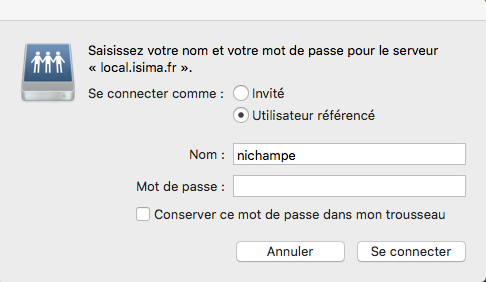
Remember to check "Add this password to my keychain"
GNU/Linux Installation✯
To mount a network drive from a GNU/Linux system, the easiest way is to use the Samba protocol.
You will need to provide the server to which you want to connect, along with the share path and your ENT username and password.
The procedure is similar whether accessing administrative shares or your personal directory.
The procedure is described for several file managers. See below.
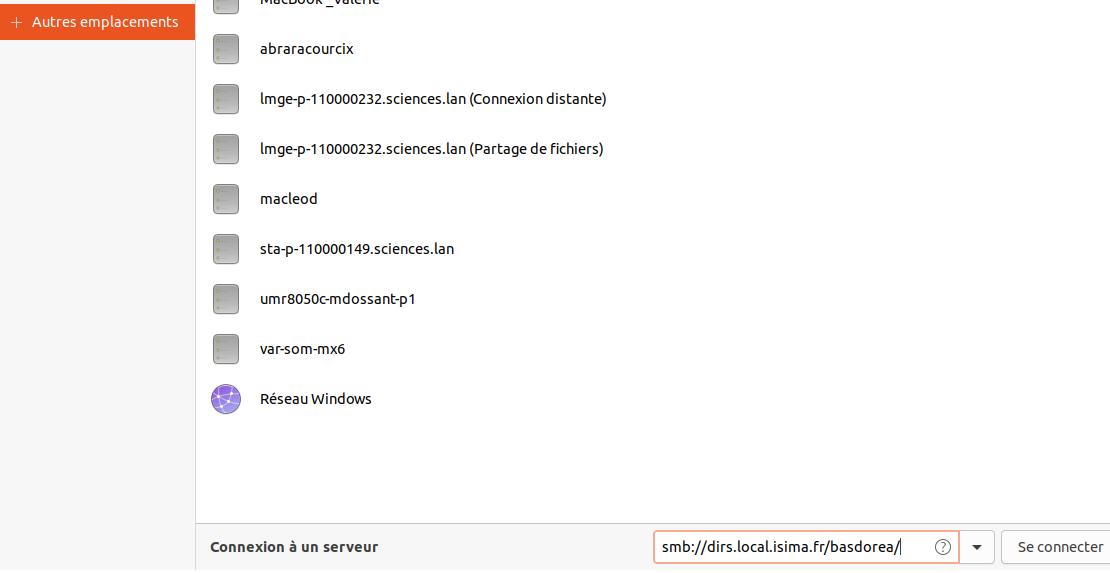
Use the URI (server address): smb://dirs.local.isima.fr/<ENT_username>
Username: username@local.isima.fr [ where username is the ENT username ]
Password: [ ENT password ]
On Dolphin (KDE - Kubuntu) - Default on new machines and teaching rooms✯
On GNOME Files / Nautilus (GNOME Shell - Ubuntu)✯
Open the file manager and click "Connect to Server"
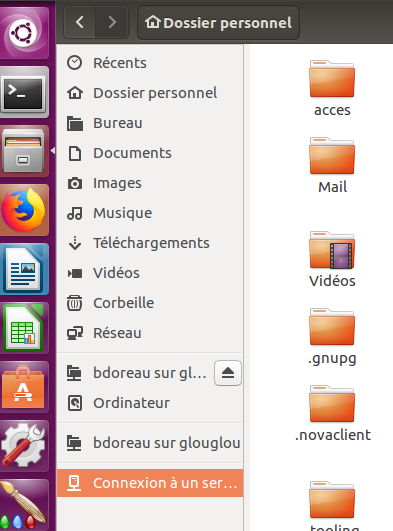
In the server address, type smb://dirs.local.isima.fr/<username> replacing <username> with your username (UCA login)
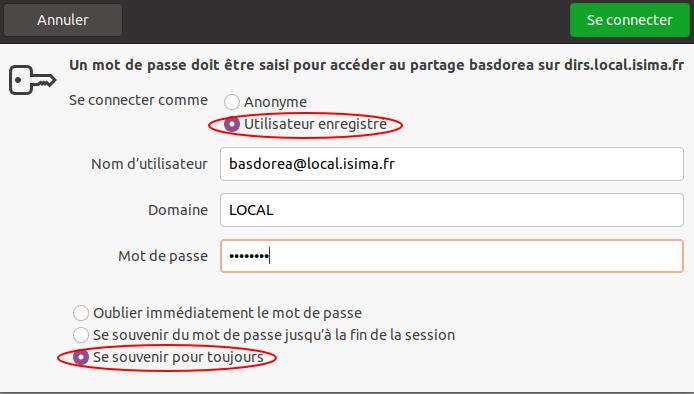
- In the next window, indicate that you are connecting as a "Registered user"
- Then enter your UCA@local.isima.fr credentials
- The domain is
LOCAL - Then enter your UCA password
- Finally, select "Remember forever"
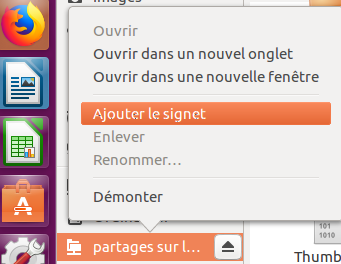
Once the connection is established, select your drive in the file manager, right-click, and click "Add to bookmarks"
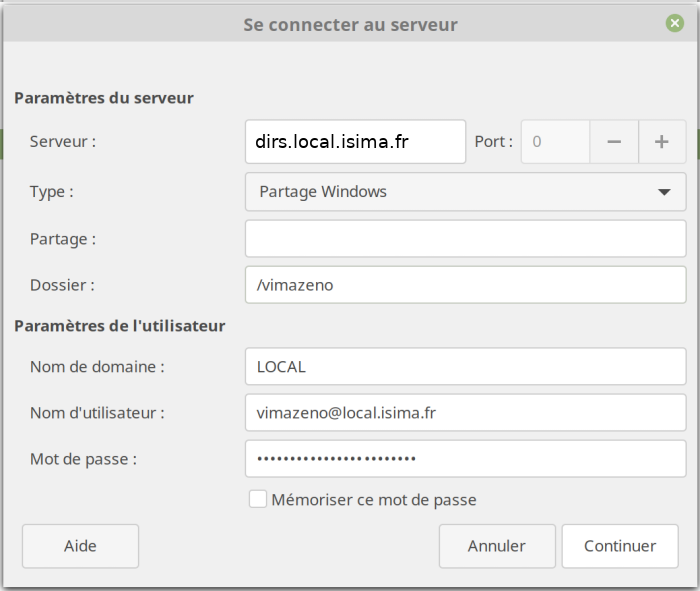
On Nemo (Cinnamon - Linux Mint)✯
Here the URI is split between the server address and the folder to reach. For example:
smb://dirs.local.isima.fr/vimazeno gives:
Server: dirs.local.isima.fr
Folder: /vimazeno
With SmbClient✯
For command-line enthusiasts, use smbclient
$ sudo apt install smbclient
$ smbclient -U borlonjo@local.isima.fr //dirs.local.isima.fr/borlonjo
If you have a Kerberos ticket:
smbclient -k //dirs.local.isima.fr/borlonjo