RDP✯
RDP (Remote Desktop Protocol) is a method allowing a user to connect from a source computer to a remote Windows target computer.
Configuring the target computer✯
If you wish to connect to a target computer, you must first configure it.
- Type
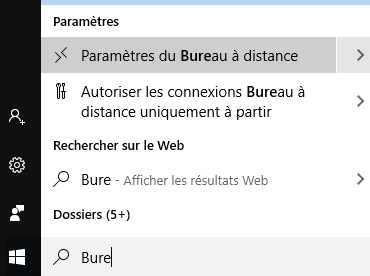
Remote Desktopin the Windows search bar and selectRemote Desktop settings.
- Check the
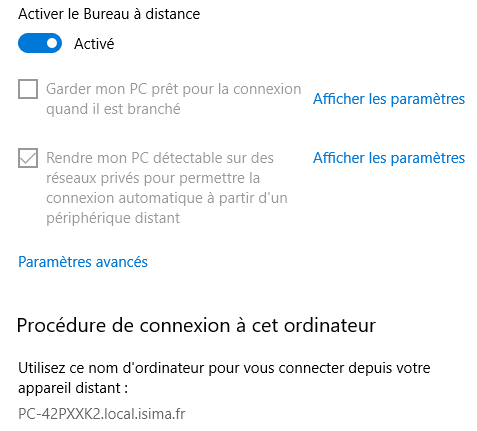
Enabledbox and note the name of your computer, which you will need to provide later.
- Type
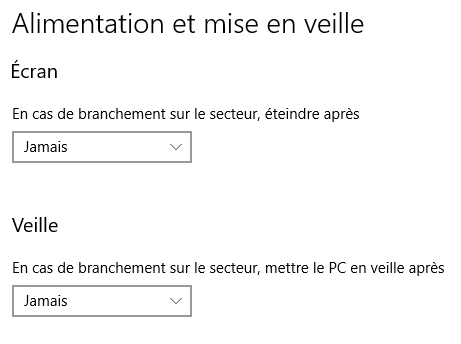
Sleepin the Windows search bar and selectPower & sleep settings. Set both options toNeverso that your computer is always accessible.
Leave your computer powered on; you can still log out.
Connecting from a source computer to a target computer✯
Once the VPN is activated:
- Type
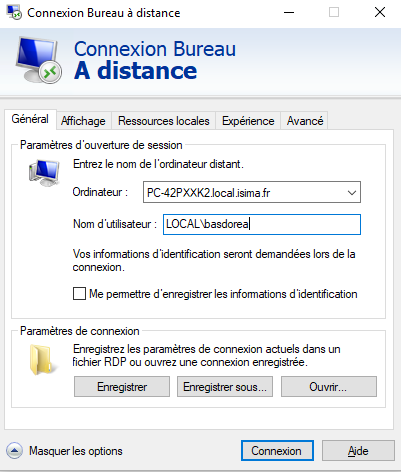
Remote Desktopin the Windows search bar and selectRemote Desktop Connection. - Click
Show Options. - Enter the name of your target computer as well as the identifier used to log in to the target computer (usually the UCA identifier preceded by
LOCAL\if your target computer is in the ISIMA domain). - Click
Connect.
Potential issues✯
Remote authentication limits for Windows in the domain✯
When you connect to a Windows computer linked to the domain (using a UCA identifier), you contact the domain controller, which either authorizes or denies your connection.
When connecting remotely, you cannot contact this domain controller, and you authenticate using a Windows cache.
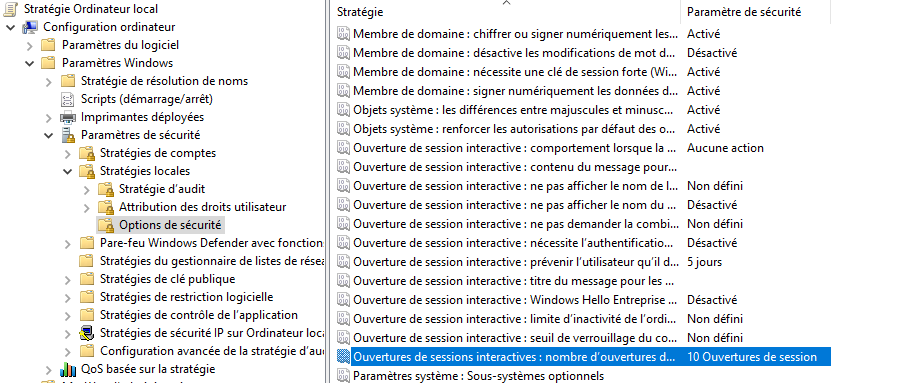
This cache is limited to 10 connections. To increase this quota:
- Type
gpedit.mscin the search bar. - Navigate to the following tabs:
Computer Configuration > Windows Settings > Security Settings > Local Policies > Security Options. - Locate and open the entry
Interactive logon: Number of previous logons to cache. - Select 50 logons, for example, instead of 10.