Encryption of Workstations at ISIMA and LIMOS✯
-
The CNRS, UCA, and the ANSSI mandate that all user workstations—whether fixed or portable—must be encrypted.
-
The encryption of your workstation(s) must be performed through the CRI ISIMA/LIMOS service:
- A procedure exists for each operating system
- Your recovery key to decrypt the disk in the event of an incident will be stored in a secure vault
-
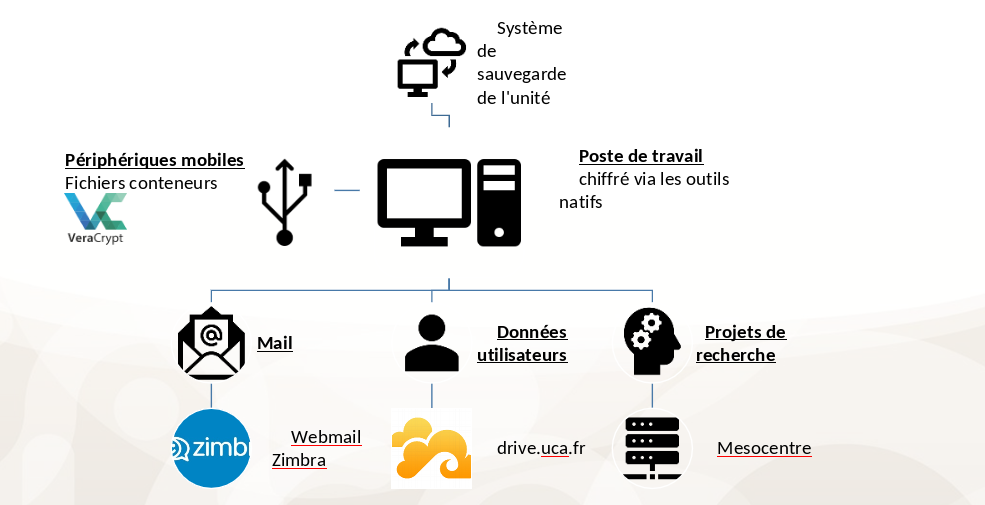
Your external drives/USB keys must also be encrypted with VeraCrypt by you or by contacting the CRI ISIMA/LIMOS service
Backup Policy✯
-
To avoid unpleasant surprises, always ensure that:
-
Your workstation data is automatically backed up by the CRI ISIMA/LIMOS
-
Your data is stored in a location recommended by UCA:
- https://mail.uca.fr for emails
- https://drive.uca.fr for personal/professional files
- https://drive.mesocentre.uca.fr/ for large research files
-
Your data is stored in a location recommended by ISIMA:
-
Adding an Additional Linux Encryption Key✯
First, determine which partition is encrypted, then find a free slot to add a new key, and finally add your key.
This new key, along with any existing one, will allow you to decrypt the computer.
lsblkto identify the encrypted partition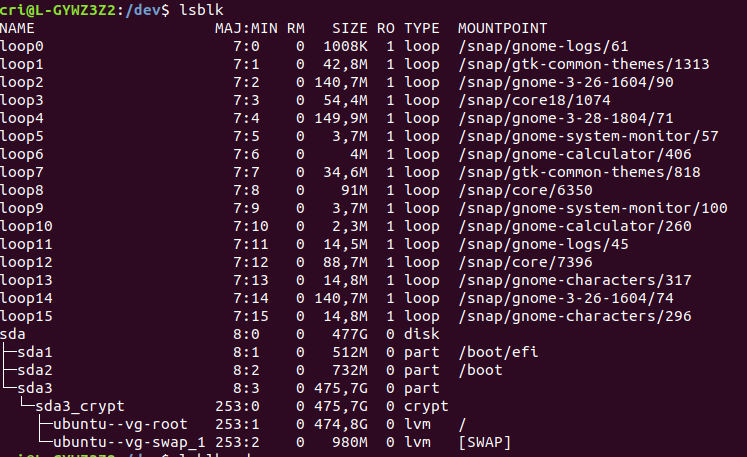
- Here, we see that sda3 is encrypted
sudo cryptsetup luksDump /dev/sda3to check which slots are used (and which are free)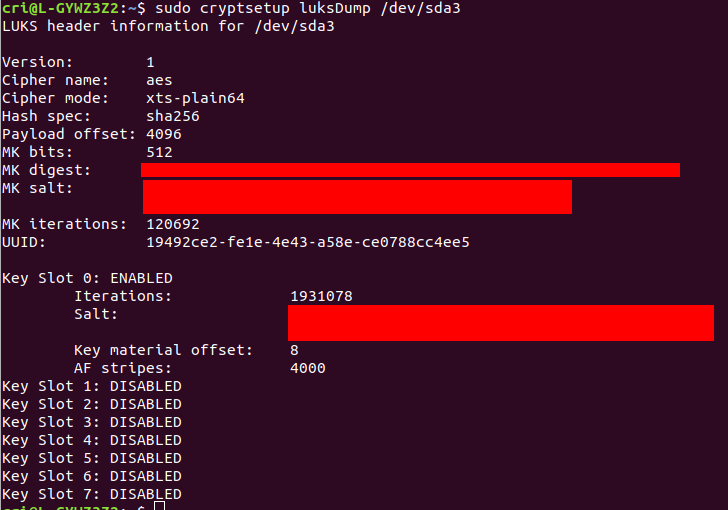
- We see that slot 0 is used by the key set during installation
- The other 7 slots are free
sudo cryptsetup luksAddKey --key-slot 1 /dev/sda3to add a key to slot 1 (which is free) on partition sda3- You will then be prompted for a new passphrase
Modifying the Key (PIN Code) for Windows✯
On Windows 10, BitLocker manages encryption.
A recovery key has already been created and saved, and a 10-digit PIN has been added.
This is what allows you to decrypt the machine, and it can be modified.
- Type
BitLockerin the search bar (bottom left) and clickManage BitLocker
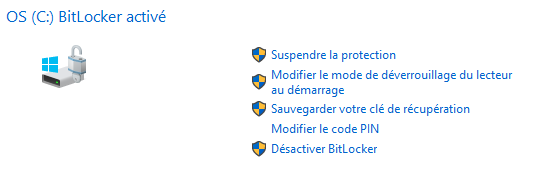
- Enter a new 10-digit PIN