Matrix Usage Guide at ISIMA — Part 2: Mobile (Element X)✯
Documentation intended for users of the ISIMA (LIMOS Laboratory) Matrix messaging service. This part covers installation and first connection on Android and iOS using the Element X application (current generation of the Element app, replacing the old "Element Classic").
Prerequisites: already have a working web session (Part 1) and your recovery key noted (see Part 1: Save Your Recovery Key) — useful for device verification.
Installing Element X✯
Scan the QR code corresponding to your phone with the camera (on Android, Google Play opens directly; on iOS, the App Store):
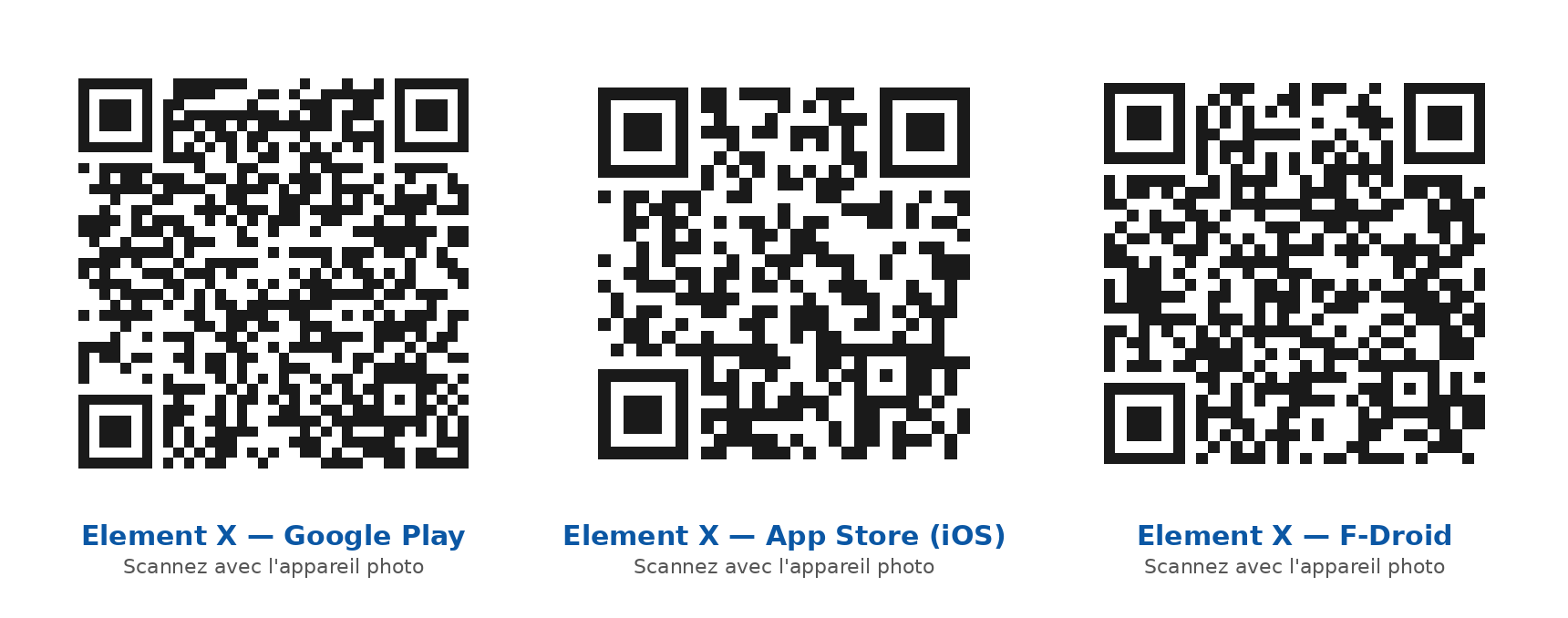
| Platform | Direct Link |
|---|---|
| Android (Google Play) | io.element.android.x — https://play.google.com/store/apps/details?id=io.element.android.x |
| Android (F-Droid, without Google) | https://f-droid.org/packages/io.element.android.x/ |
| iOS / iPadOS (App Store) | https://apps.apple.com/app/id1631335820 |
Android without Google Play: the package is available on F-Droid (main repository). Add https://f-droid.org if the store is not already installed, then search for "Element X".
First Connection on Element X✯
Welcome Screen✯
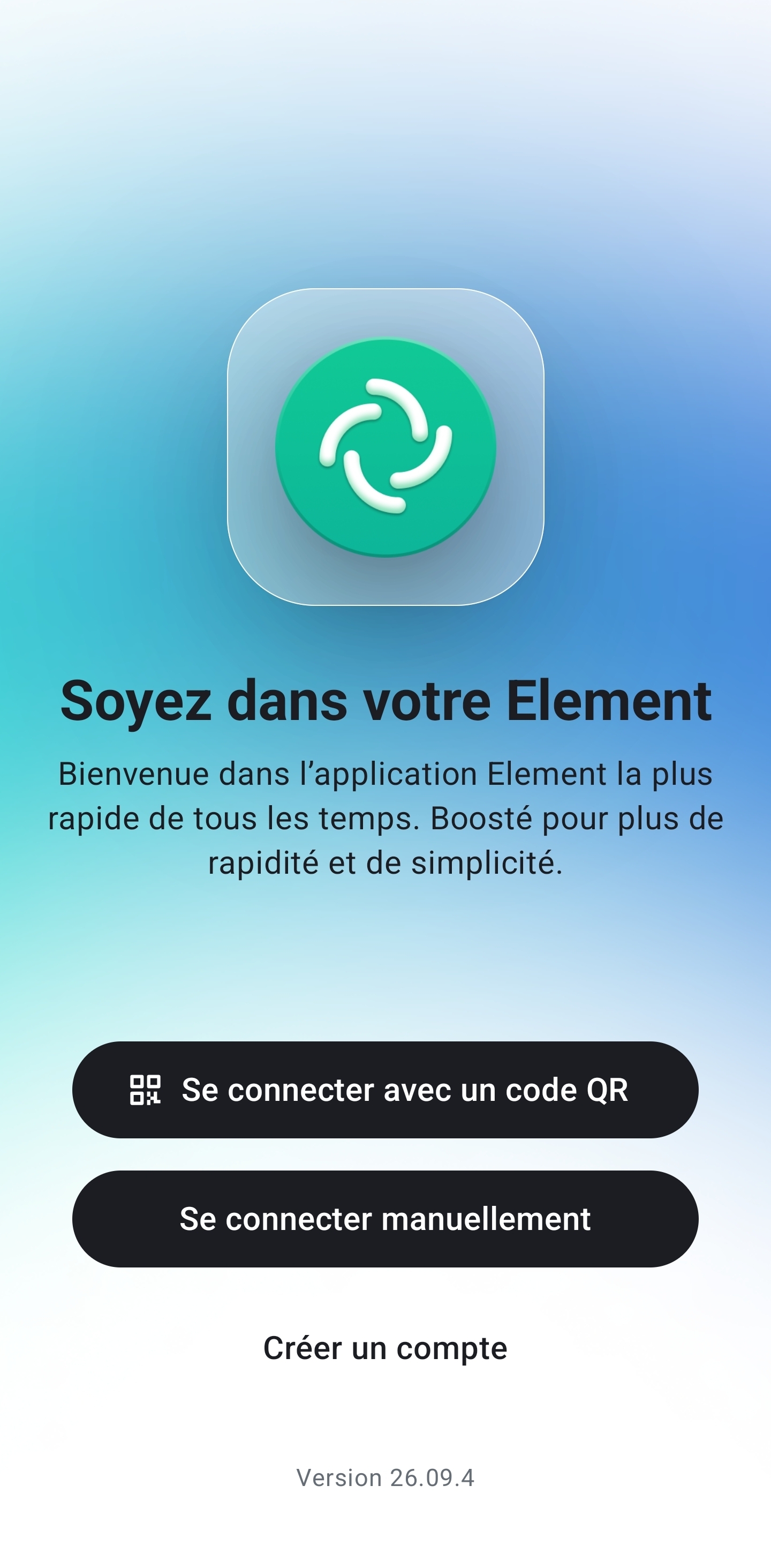
Open Element X: the welcome screen ("Be in your Element") offers "Log in with QR code", "Log in manually", and "Create an account". Tap "Log in manually".
The QR option allows pairing an already logged-in session without retyping the password — however, it is marked as "not supported" with ISIMA authentication (see Device Verification); use "Log in manually".
Specify the Account Provider✯
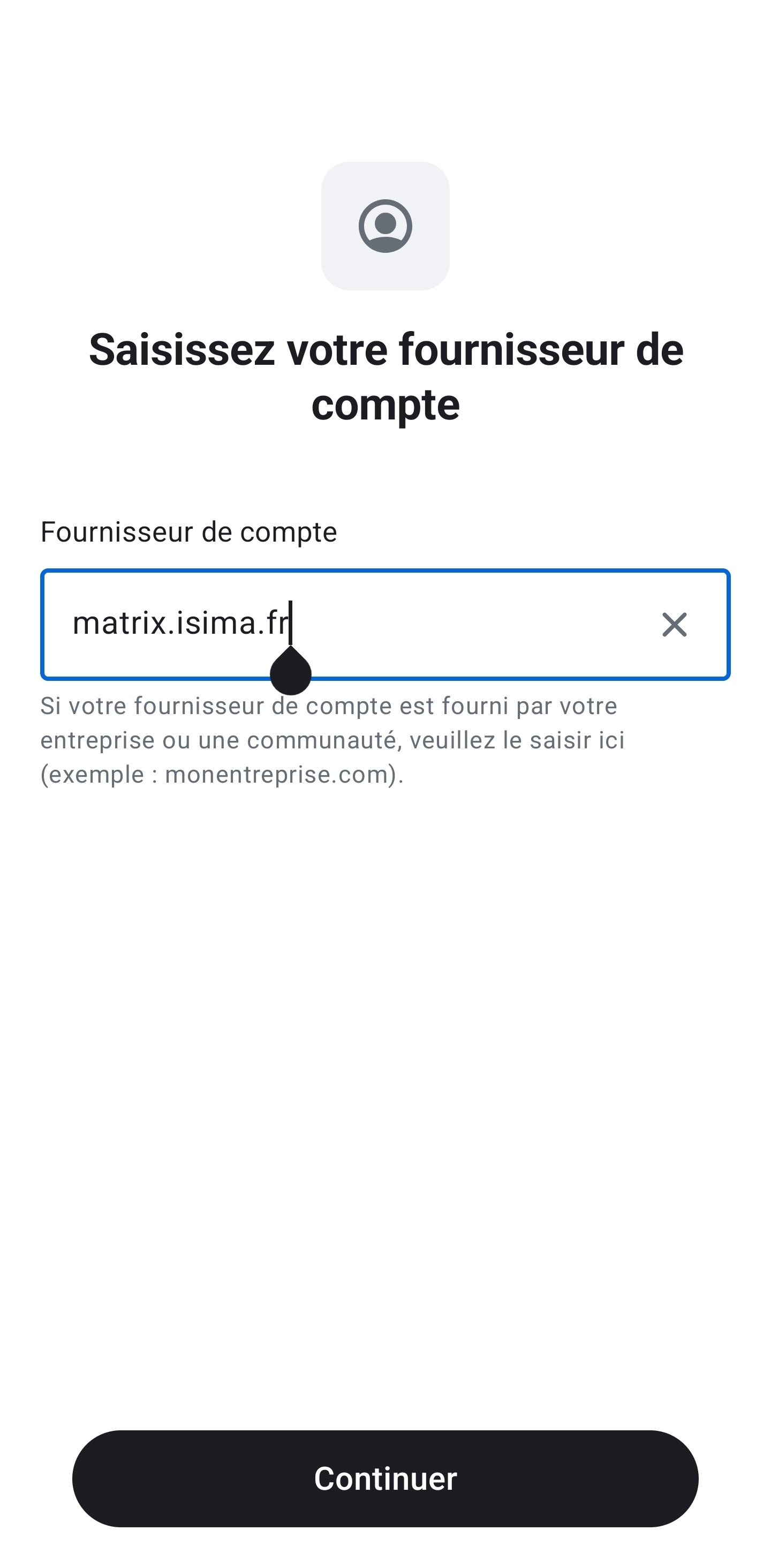
The next screen asks for your "Account provider" — this is the server domain, not your username or password:
- Enter
isima.fr(ormatrix.isima.fr, used in our screenshot); - The app automatically detects the school's configuration (homeserver
https://matrix.isima.fr, MAS authentication) and redirects you to the login page.
Your Matrix ID (
@username:isima.fr, e.g.@tibertra:isima.fr) is automatically created and linked when logging in via SSO, just like on the web (Part 1, § 2.3) — nothing to enter here.
Logging in via ISIMA SSO✯
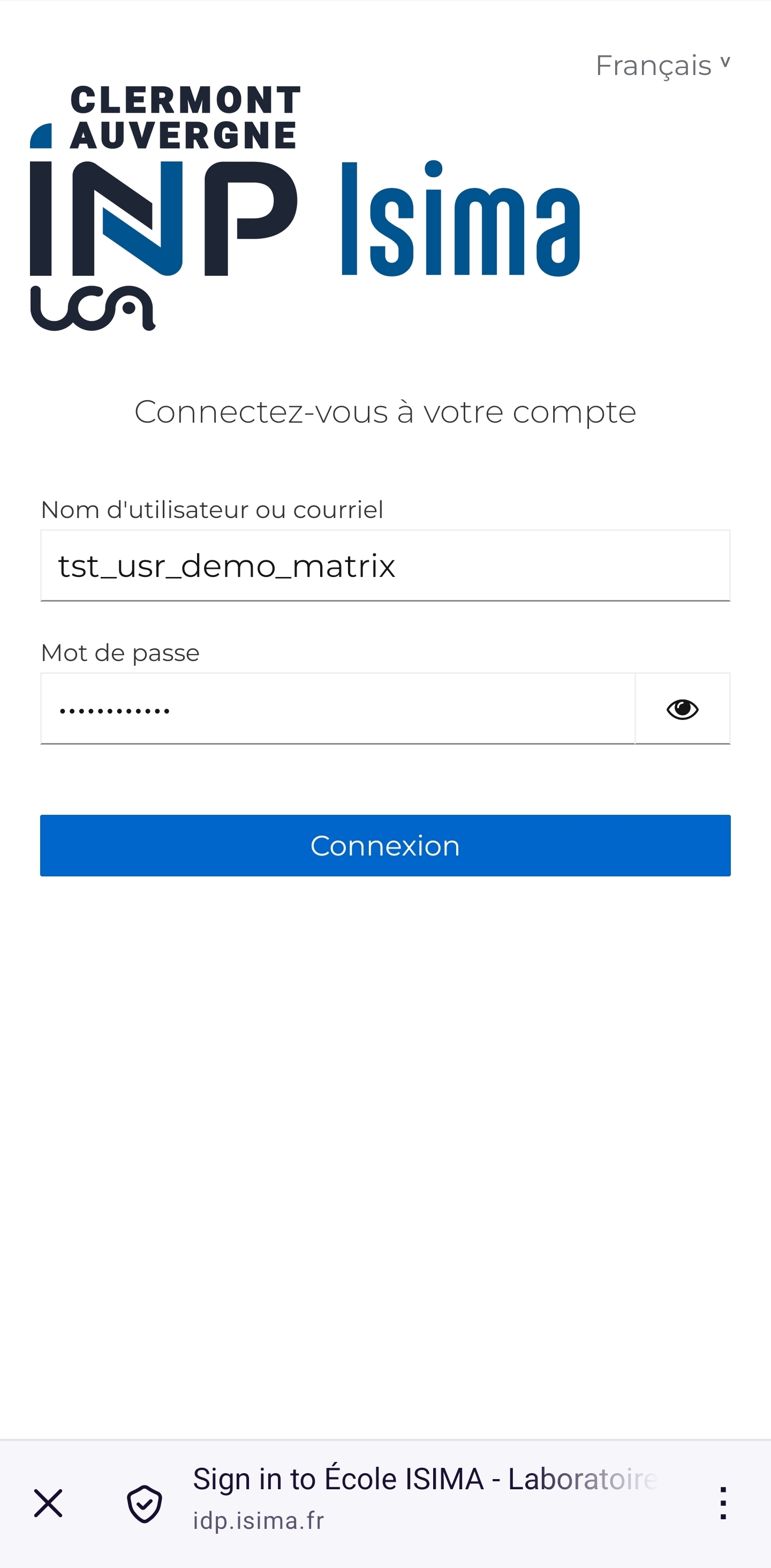
The browser opens the school's authentication portal — exactly the same as on the web:
- Username or email: your ISIMA username;
- Password: your ISIMA password;
- Login.
Then, the consent screen "Continue to Element X?": tap Continue to allow Element X to use your ISIMA account.
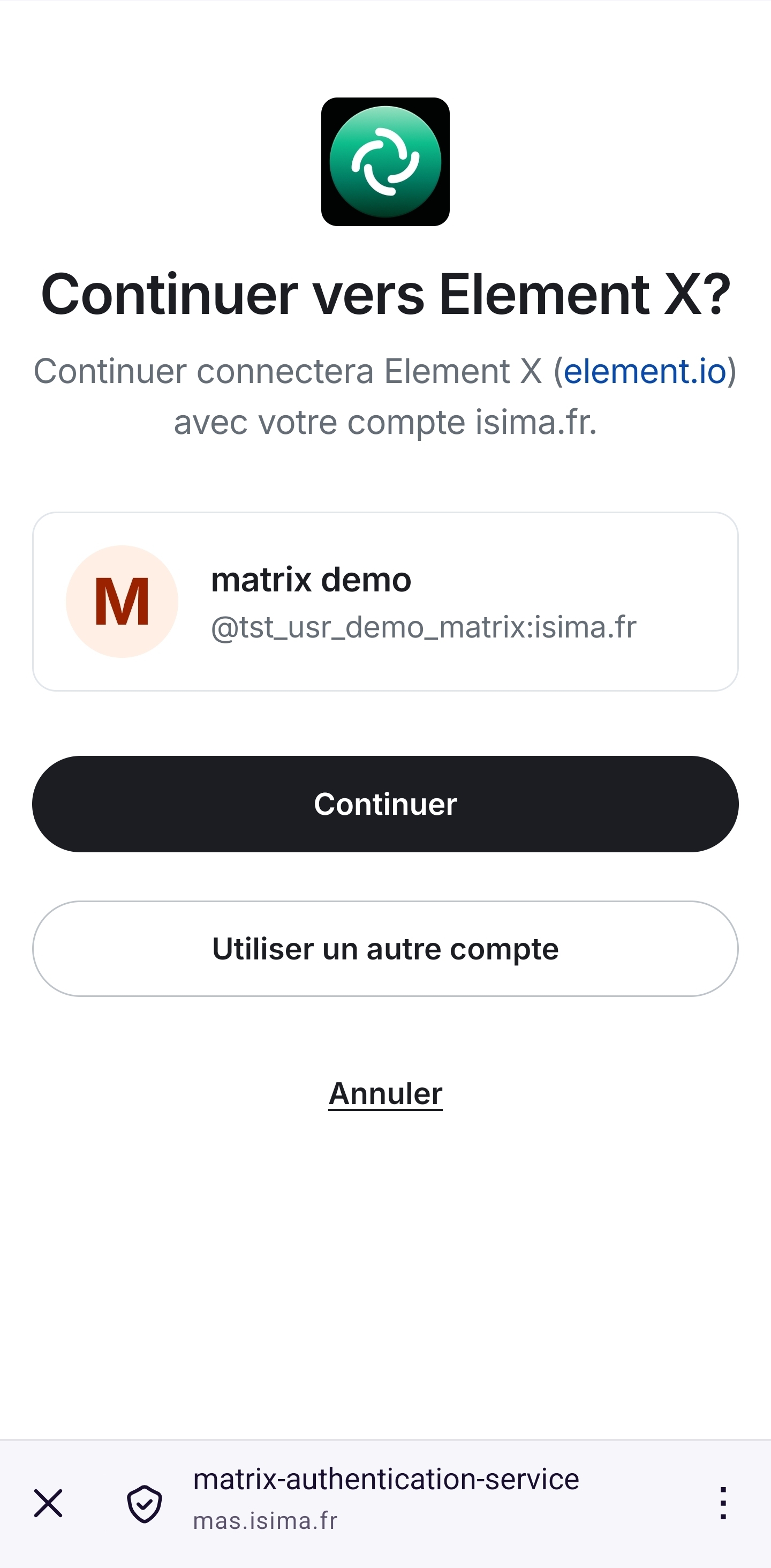
You are automatically returned to the app, which then asks you to confirm your digital identity (see Device Verification).
Device Verification✯
On first login, Element X asks you to confirm your digital identity to enable encrypted messaging. Two methods are offered:
- Use another session — recommended if you already have a verified session available (the web session from Part 1): cross-verification compares a unique set of emojis on both devices;
- Use recovery key — if no other session is available: enter the 11 groups of 4 characters noted in Part 1, § 3.2.
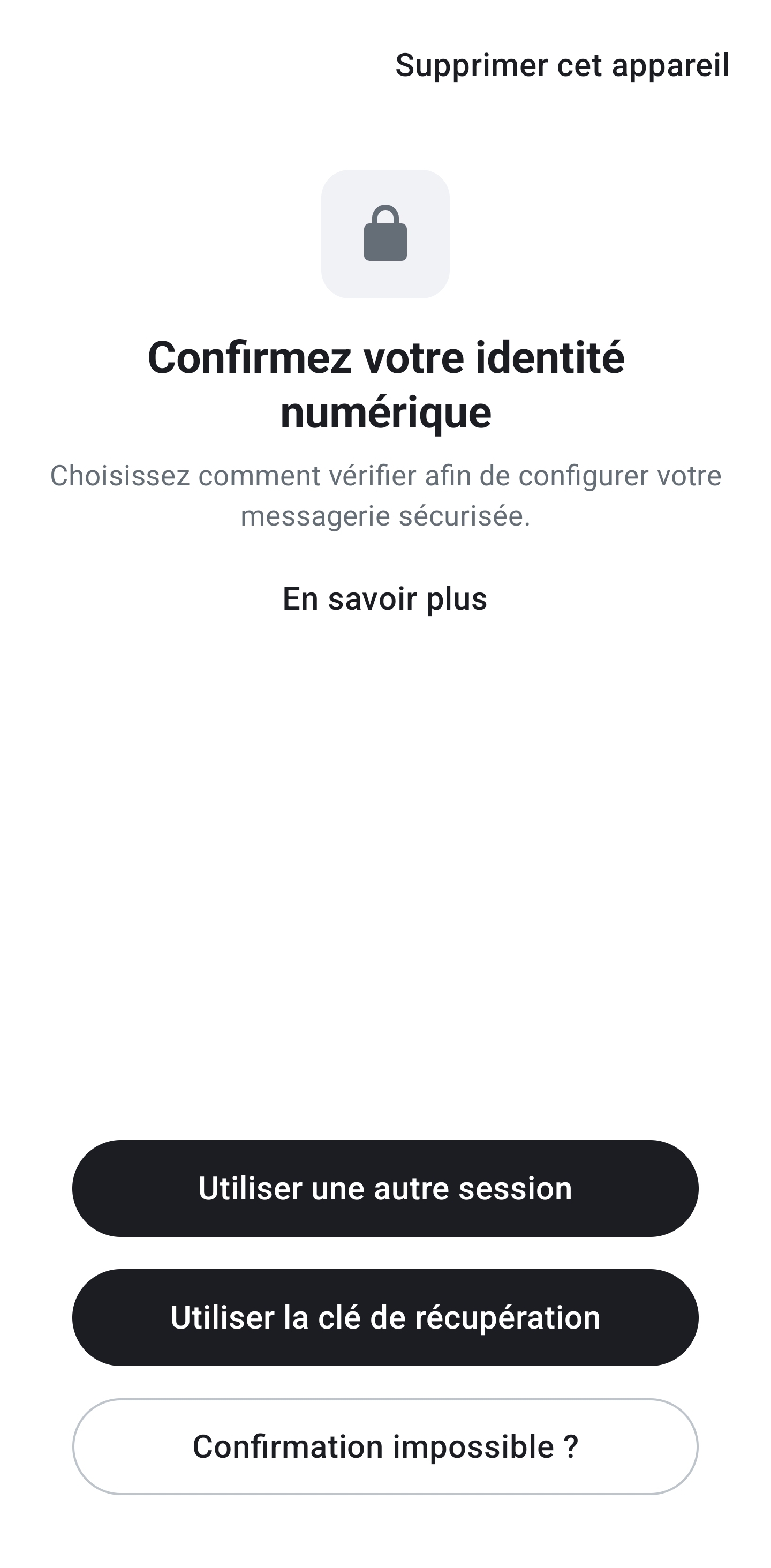
Without verification (or recovery key), encrypted rooms will remain unreadable on your phone, and your contacts won’t be able to trust this device.
Cross-verification with another session (emoji method)✯
- Choose "Use another session";
- The screen "Open the app on another verified device" appears: ensure your web (or desktop) session is open, then tap "Start verification".
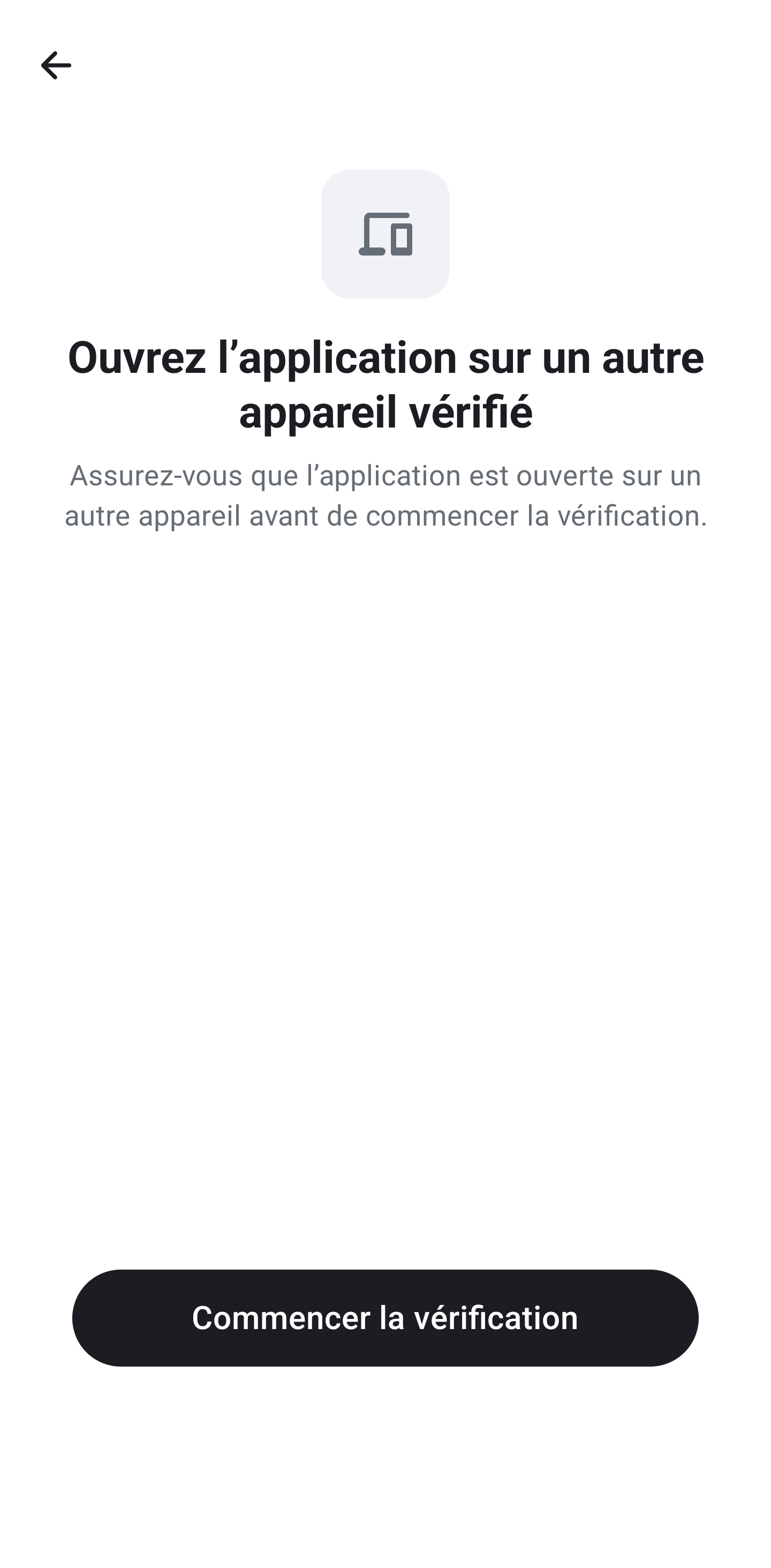
- The phone waits: "Start verification on the other device — once accepted, you can continue verification".
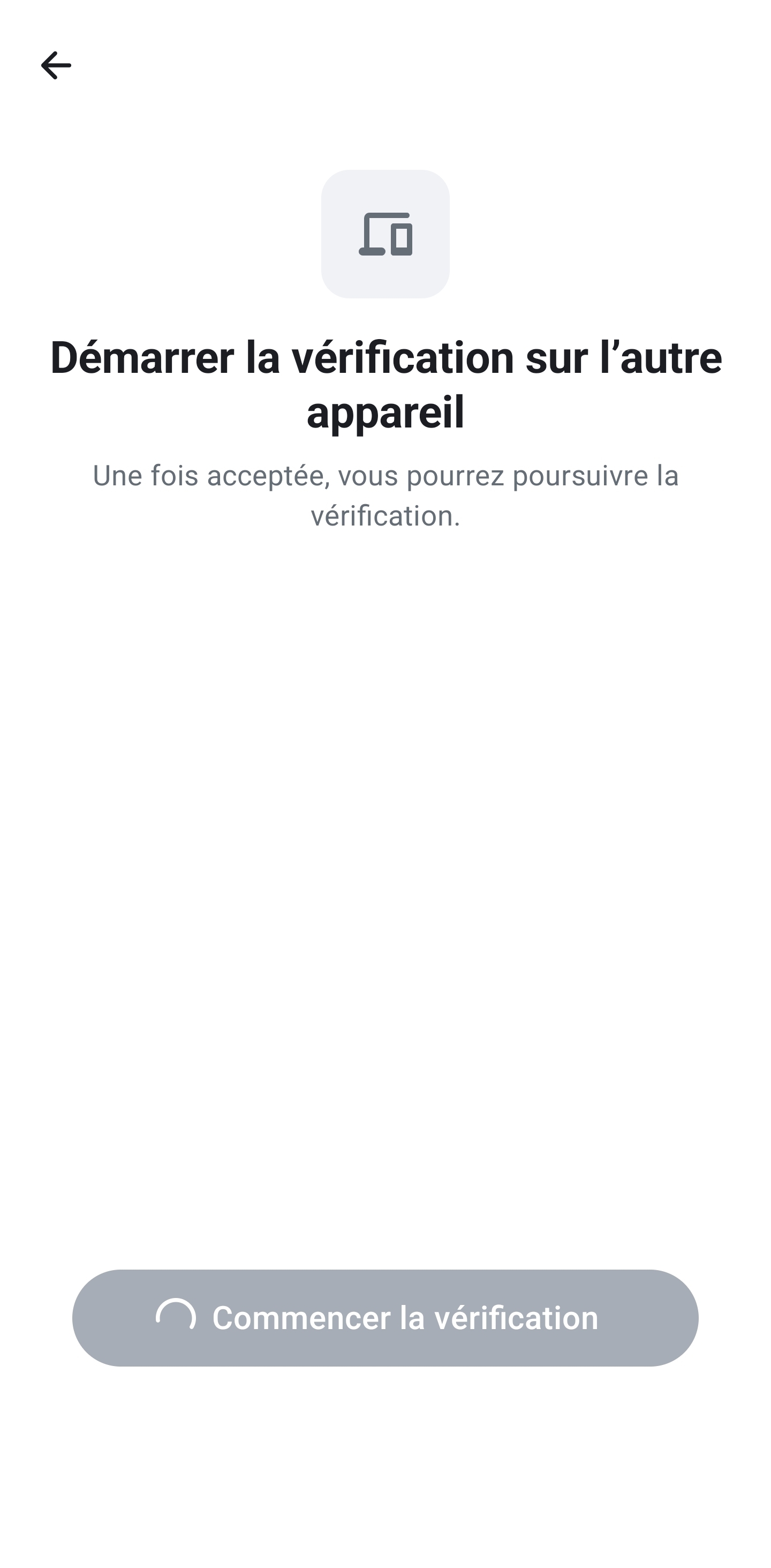
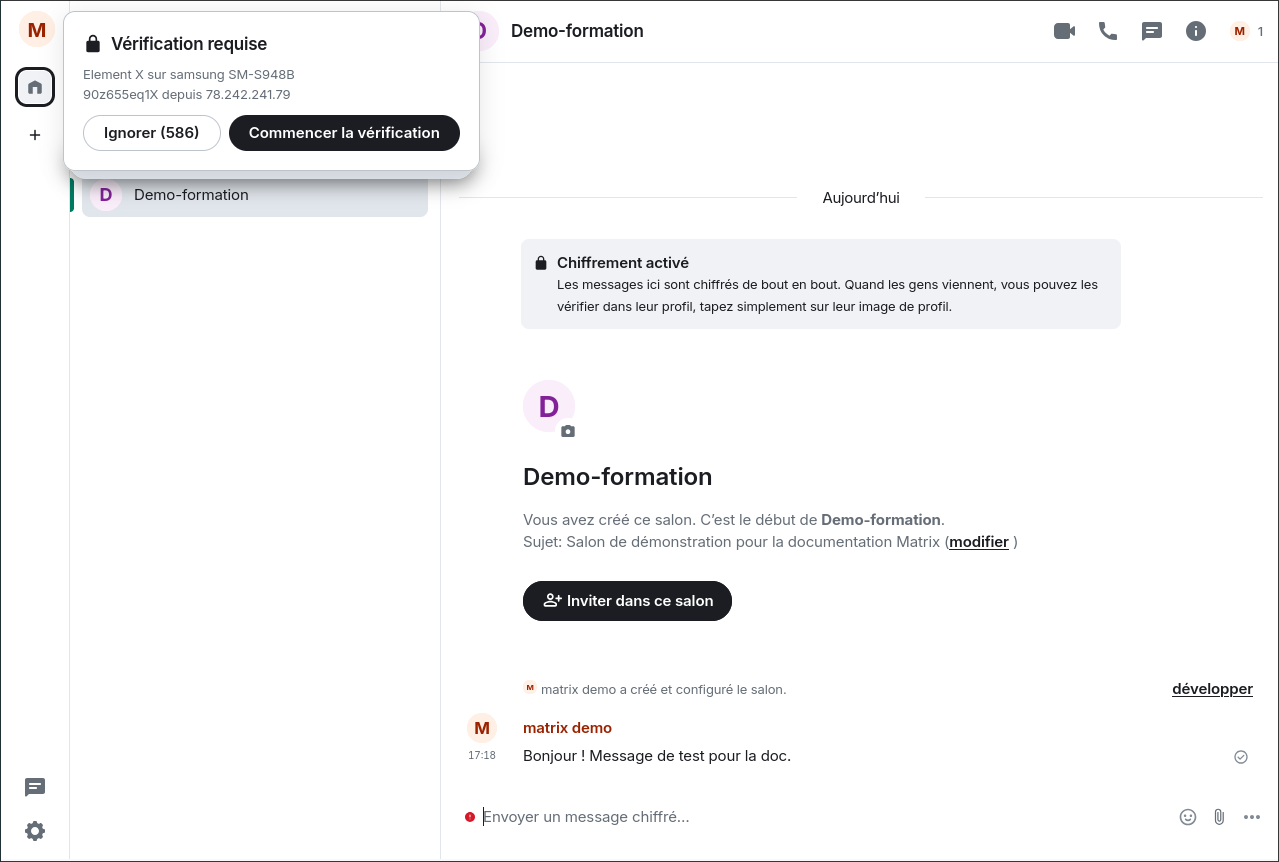
- On the web: a banner "Verification required" appears at the top left (or via Settings → Sessions), with the buttons Ignore / Start verification — click "Start verification" (the request expires after a few minutes, restart it from the phone if needed).
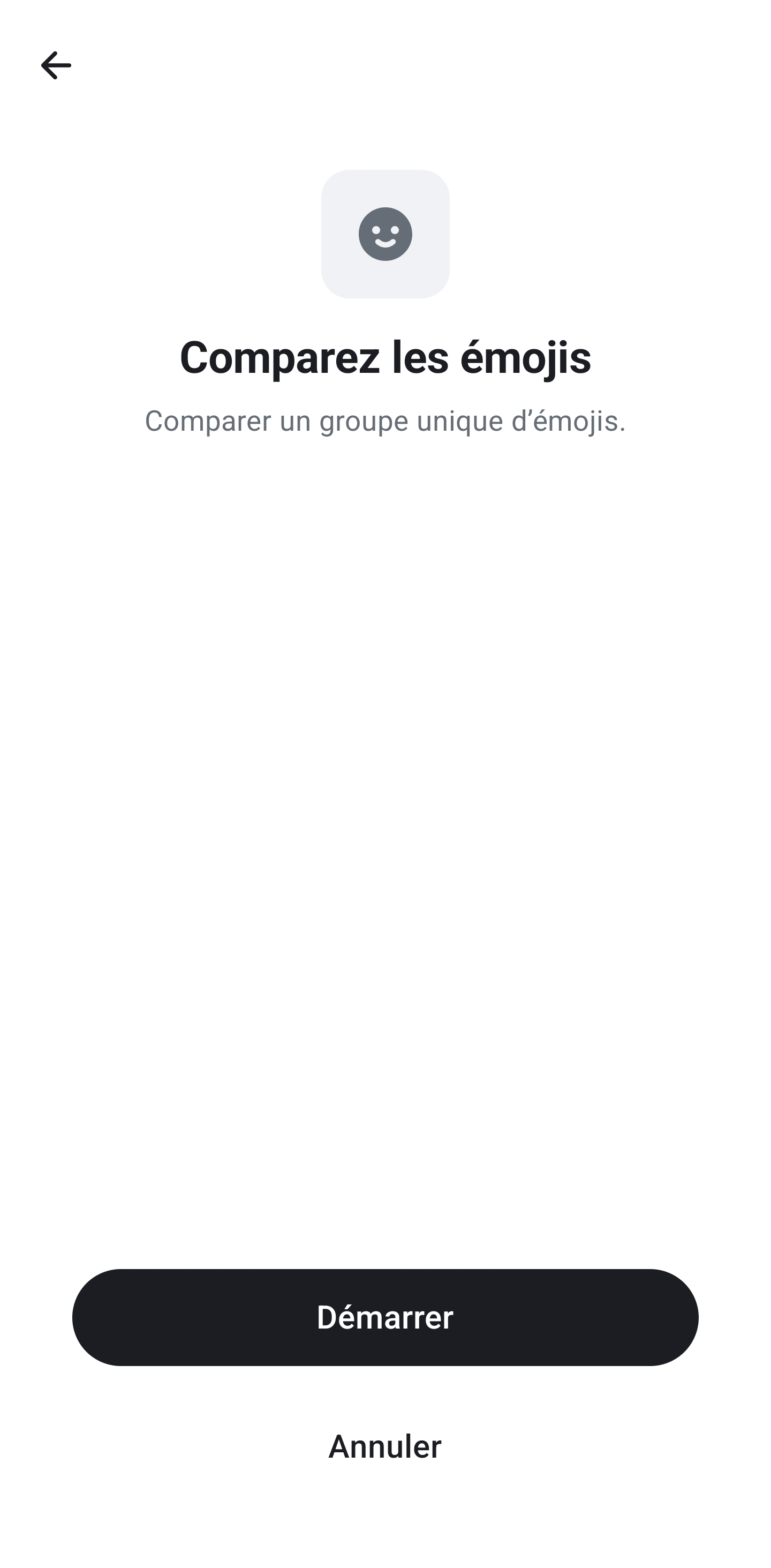
- The phone displays "Compare emojis" — tap Start.
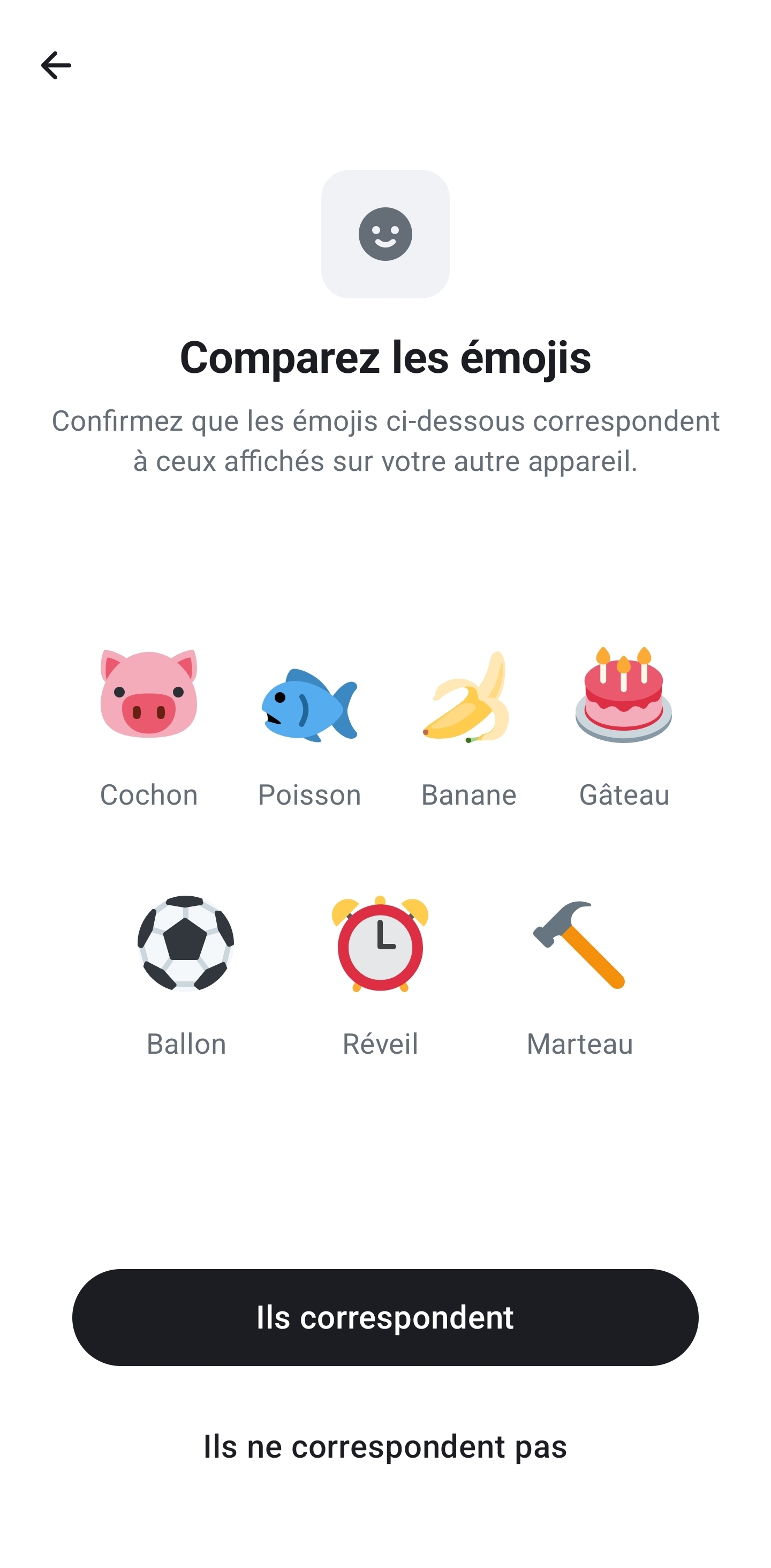
- Both devices display the same unique set of emojis (e.g. Pig, Fish, Banana, Cake, Balloon, Alarm Clock, Hammer…):
-
Compare: if they match, tap "They match" on the phone, then confirm on the web ("All good" / Finish). If they don’t match, tap "They don’t match" and try again (the list is regenerated).
-
Final screen: "Verified device — You can now read and send messages securely, and anyone you chat with can also trust this device."
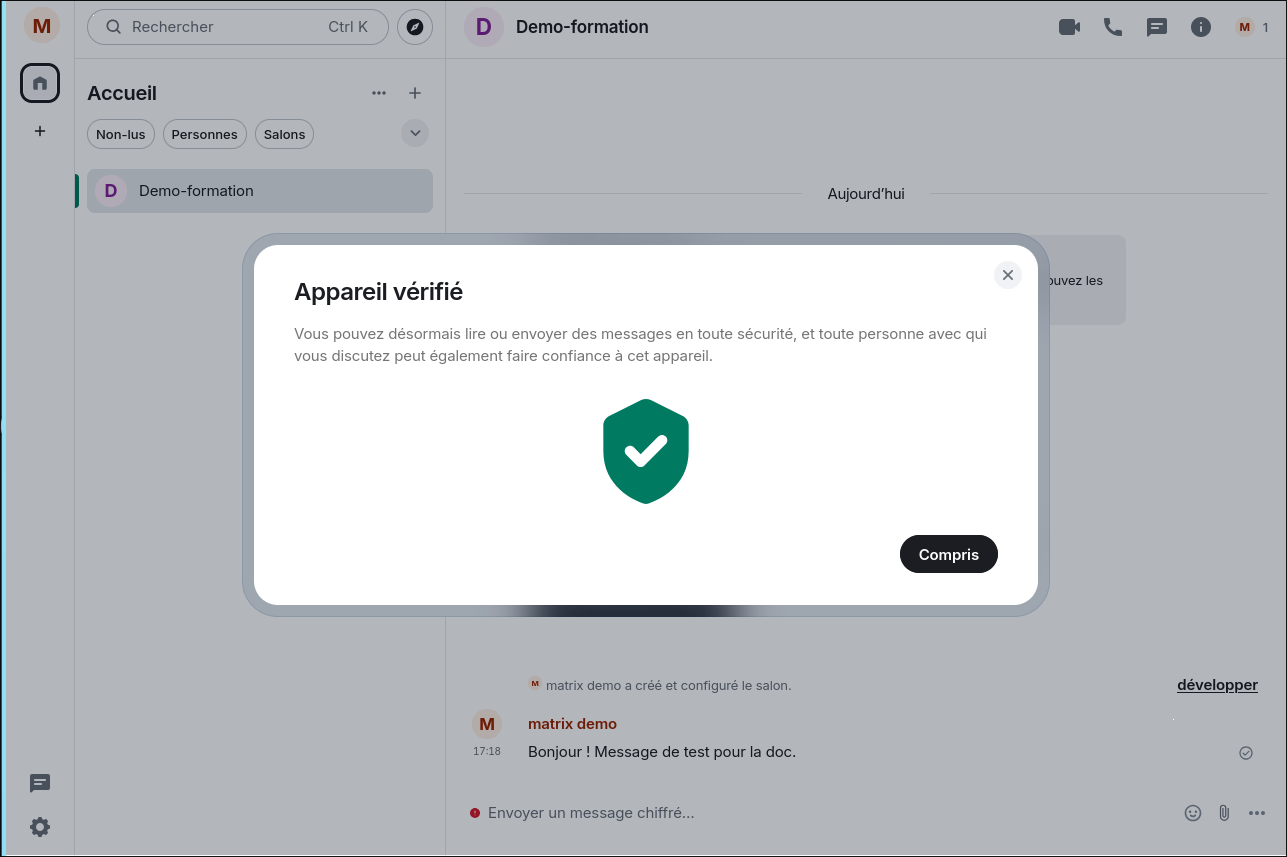
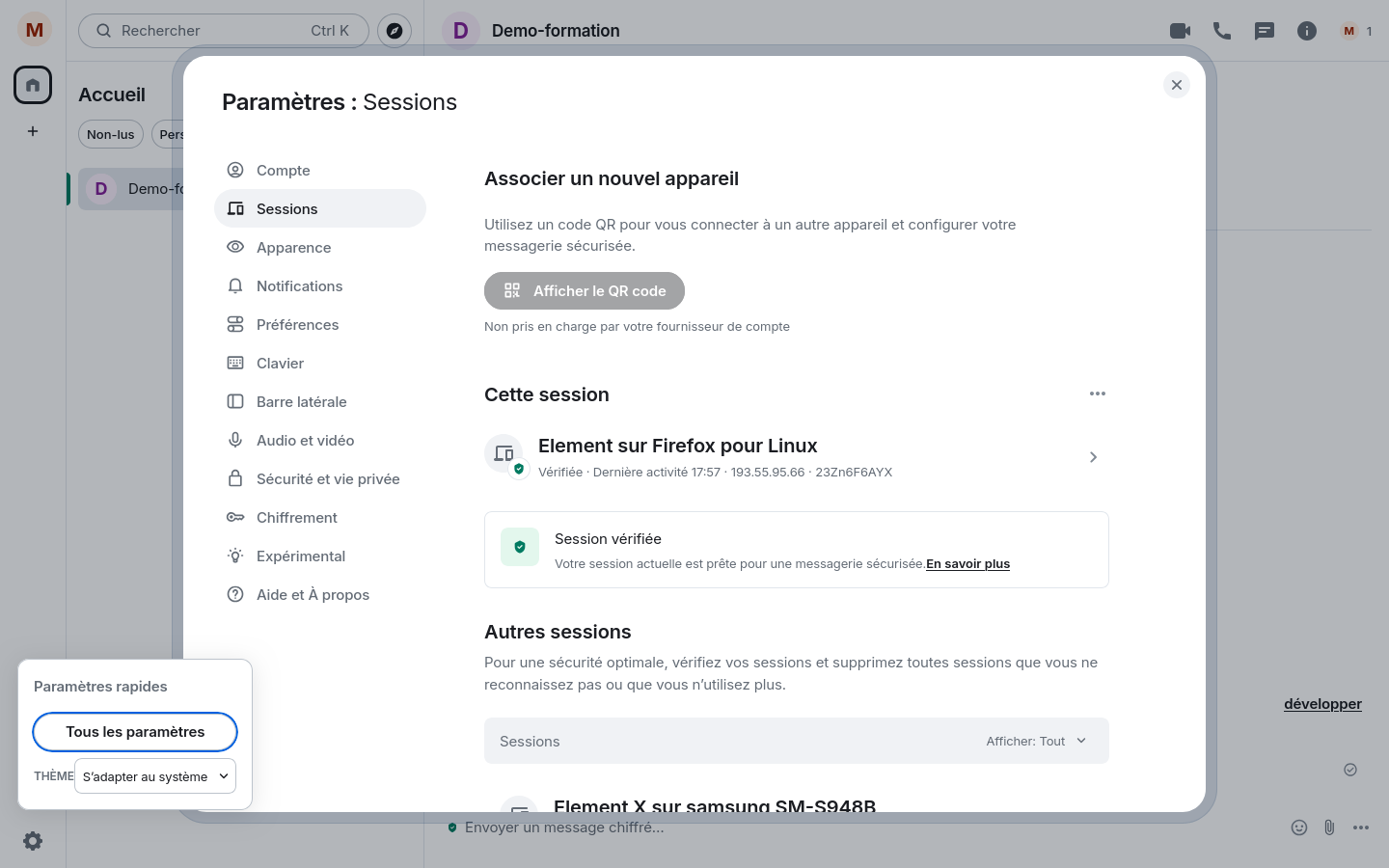
On the web, Settings → Sessions now shows all Verified sessions (the web session and "Element X on
Alternative: Recovery Key✯
If you don’t have another session available, choose "Use recovery key" at the "Confirm your digital identity" screen and enter your key (see Part 1: Save Your Recovery Key). The effect is identical: the device is verified and encrypted history becomes readable again.
The QR code pairing ("Associate a new device") is marked as not supported by your account provider with ISIMA authentication — use emojis or the recovery key instead.
First Steps on Mobile✯
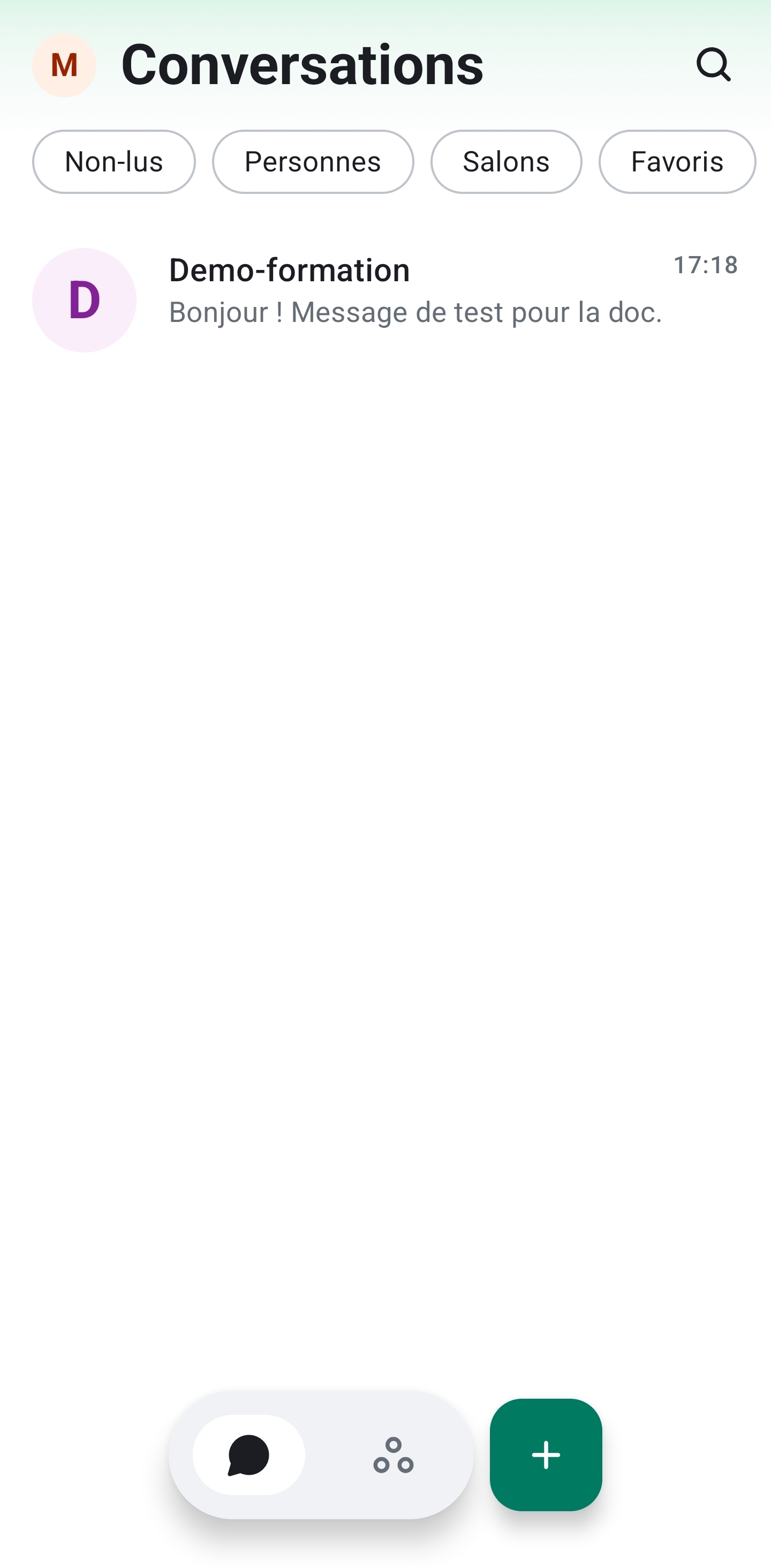
- The room list is identical to the web: filters Unread / People / Rooms / Favorites, and your rooms appear with their decrypted history;
- Enable notifications when the system prompts you (Android / iOS permission);
- The banner "You have unverified sessions" disappears once verification is complete (Later lets you postpone it);
- The search (magnifying glass, at the top) finds rooms, people, and messages.
After verification, conversations open with readable encrypted history — here the Demo-formation room and its test message:
Troubleshooting✯
| Symptom | Solution |
|---|---|
| "Account provider" rejected | Enter isima.fr, or matrix.isima.fr; check spelling (no spaces) |
| SSO page loops or doesn’t load | Verify your ISIMA credentials on another service first, then restart "Log in manually" |
| Verification request expires | Restart "Start verification" from the phone and confirm on the web within ~5 minutes |
| Encrypted rooms unreadable (lock icons) | Re-do device verification: cross-verification or recovery key |
| Pairing QR "not supported" | Normal with ISIMA authentication — use "Log in manually" |
| No notifications | Device system settings → Element X → Allow Notifications |