Microsoft Teams✯
- MS Teams is installed per session and will install at the first login. Once installed, MS Teams will launch automatically at login.
- You must have activated your Office 365 account to use MS Teams. See the activation procedure.
- To log in to Teams, use your UCA email address and your Office 365 password. Note: this is not necessarily the same password as your UCA account.
- If a Windows security alert (firewall opening) appears during your first Teams meeting, click Cancel. The Windows firewall configuration will still be modified even if the prompt is closed by selecting "Cancel". Two incoming traffic rules for
teams.exewill be created with the "Allow" action for TCP and UDP protocols.
More documentation on Teams here
Creating a Videoconference✯
This procedure allows you to generate a Teams videoconference link. This link can be shared with external participants.
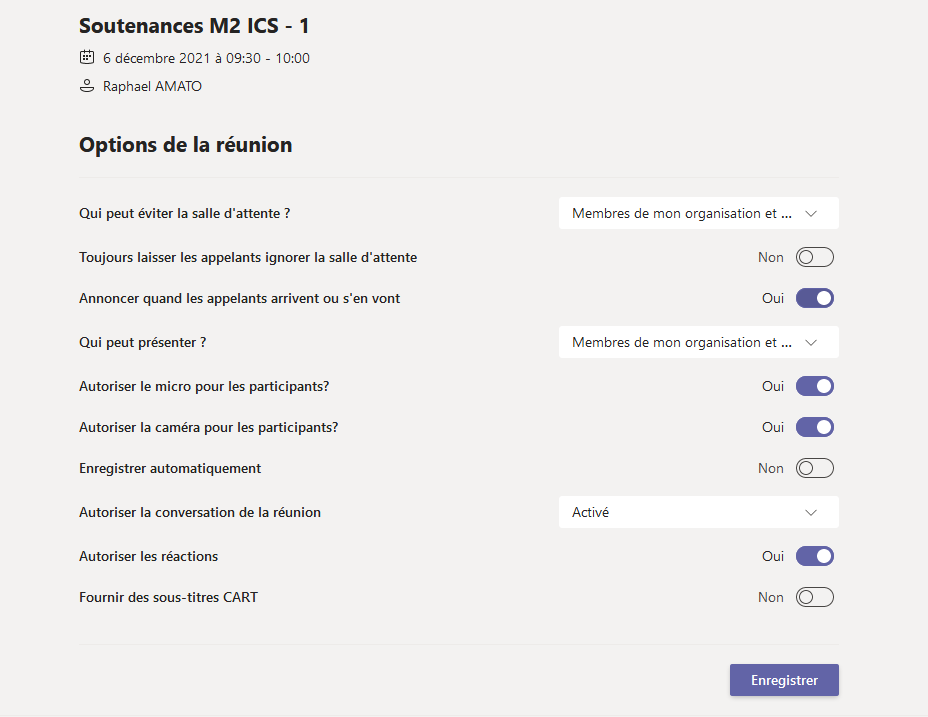
By default: - Participants logged in with their UCA address: - Are directly connected to the videoconference - Are defined as presenters - Other participants are placed in a waiting room. They can join the conference after their presence is validated (by a member logged in with their UCA address). - All cameras and microphones are enabled - Chat is active - The conference is not recorded
From the Teams client: - Log in (or ensure you are logged in) with your Microsoft account associated with your UCA email address. The identifier is the UCA email address; the password is the one you set when creating your Microsoft account.
The Microsoft account password is not necessarily the same as your UCA account password
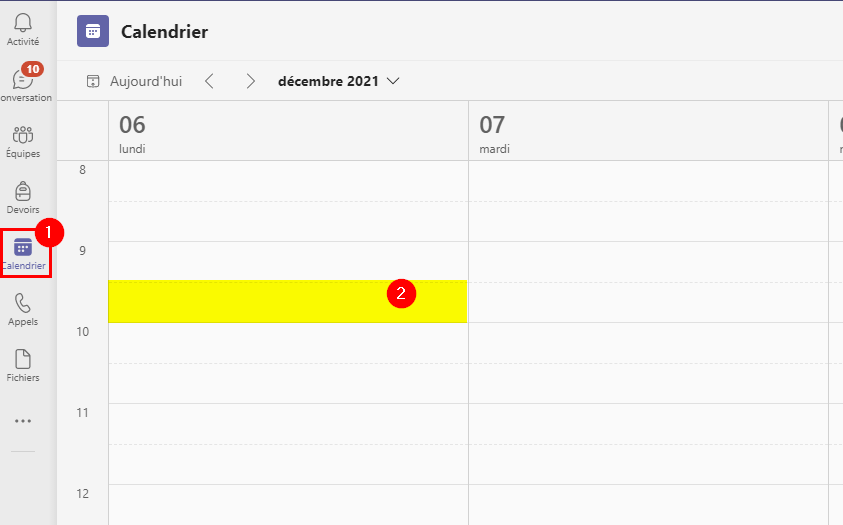
- Open the Teams client calendar. Double-click on a time slot to create a new videoconference. (The chosen date has no impact on the link's validity; the link is valid as soon as it is generated, see point 3)
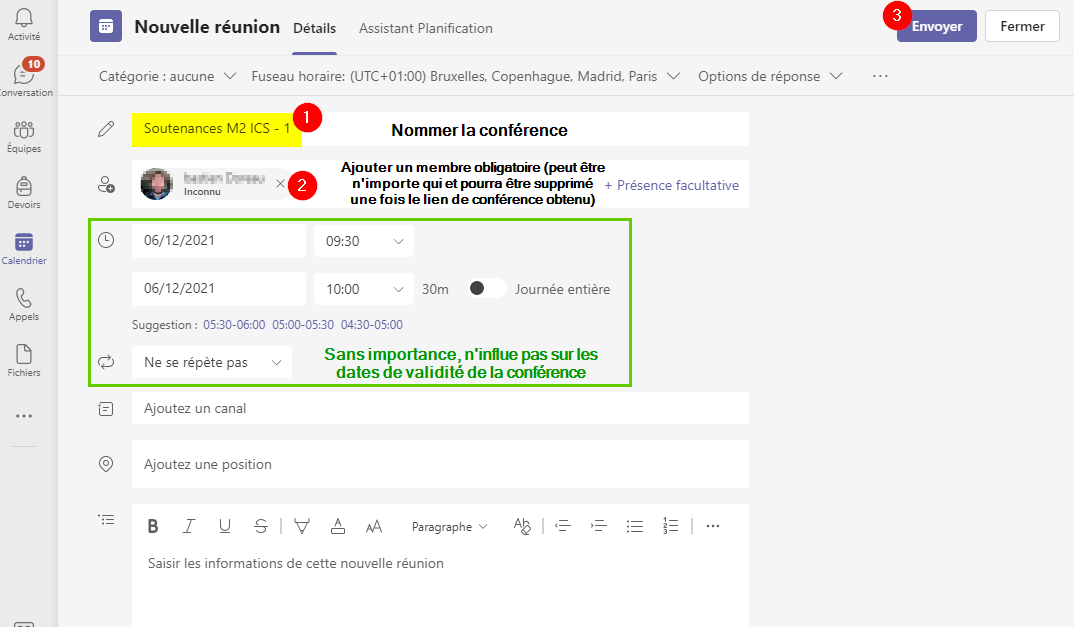
- Name the conference and invite a member to generate the videoconference link (the chosen member has no importance, but they will receive a notification by email. Without a member, the link is not created). This mandatory member can be removed once the link is obtained. Click 'Send' to create the conference.
- In the calendar, right-click on the previously created conference, then click 'Copy link'. This link is to be shared with the desired participants (internal UCA, external, and guests)
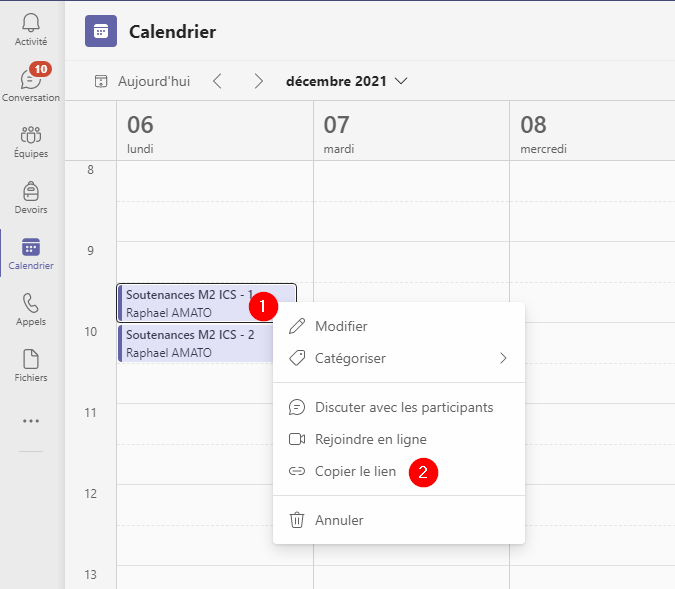
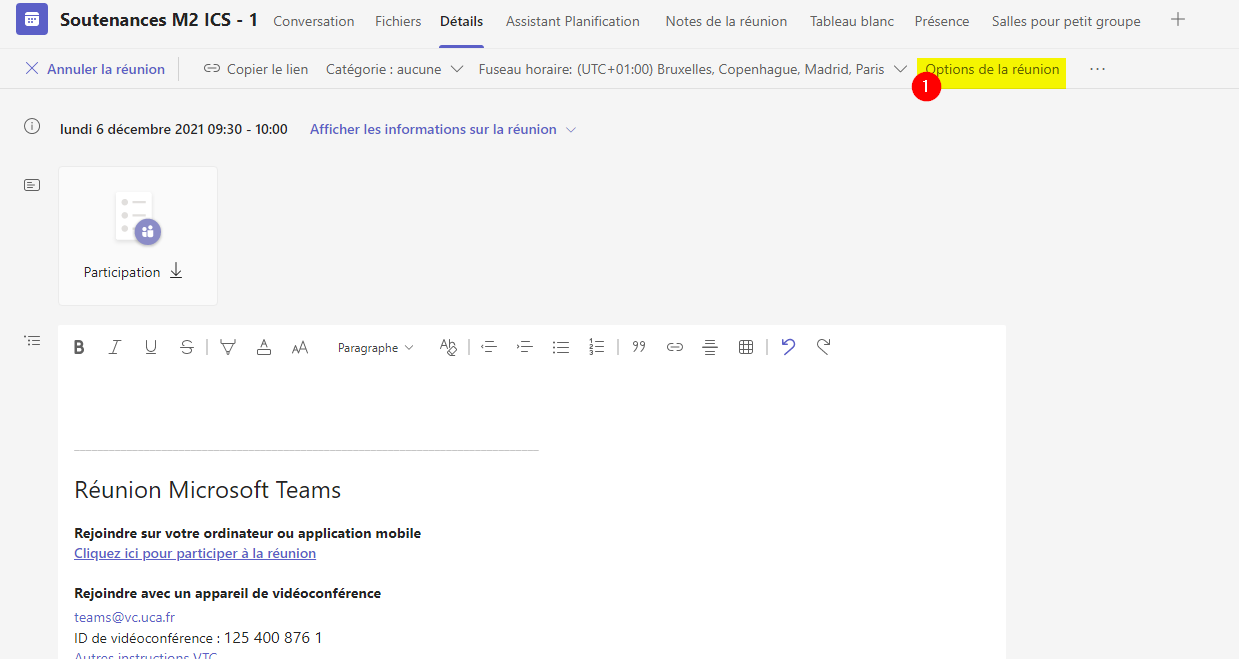
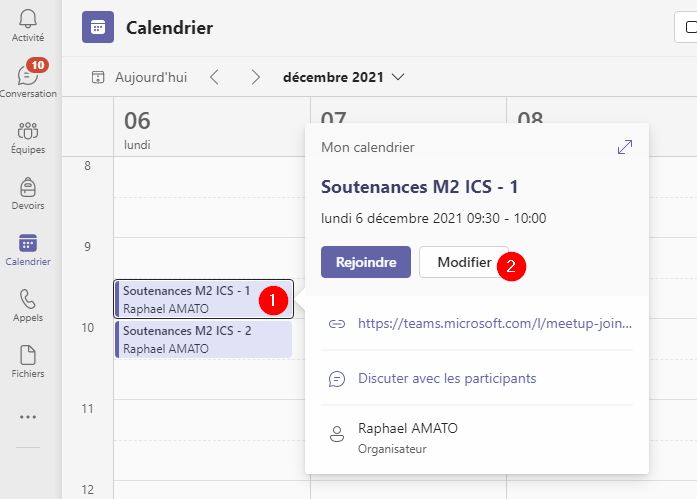
- [If you wish to remove the mandatory member OR modify the default videoconference options] In the calendar, right-click on the previously created conference, then click 'Edit'
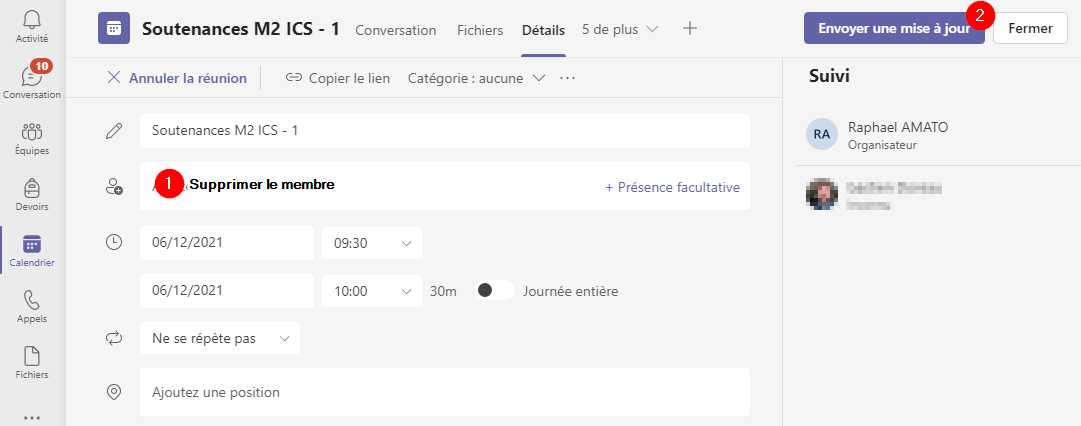
- [If you wish to remove the mandatory member] Click on the cross to the right of the participant to remove them. Click 'Send update' to validate.
- [If you wish to modify the meeting options] Click on meeting options. A browser will open; you must log in with your Microsoft account to access the meeting options