IT Requirements Expression✯
Since the IT department is not an expert in all requested software, you must provide a detailed test procedure to ensure that installations meet your needs.
IT requirements are expressed: - via the Syllabus application for the engineering degree (excluding work-study programs) - using the attached requirement expression form for other programs requirement expression form
Syllabus Application✯
For each of your courses, IT requirements must be specified by following the procedure below.
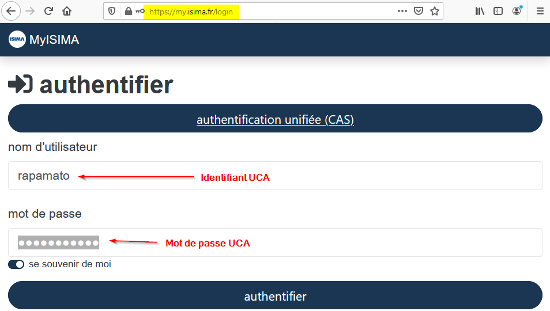
- Log in to my.isima.fr using your UCA credentials
The UCA login follows this format: first 2 letters of first name + last name
Ex: rapamato for Raphaël AMATO
If you do not have a UCA account, use your ISIMA account in the format iia_XXX
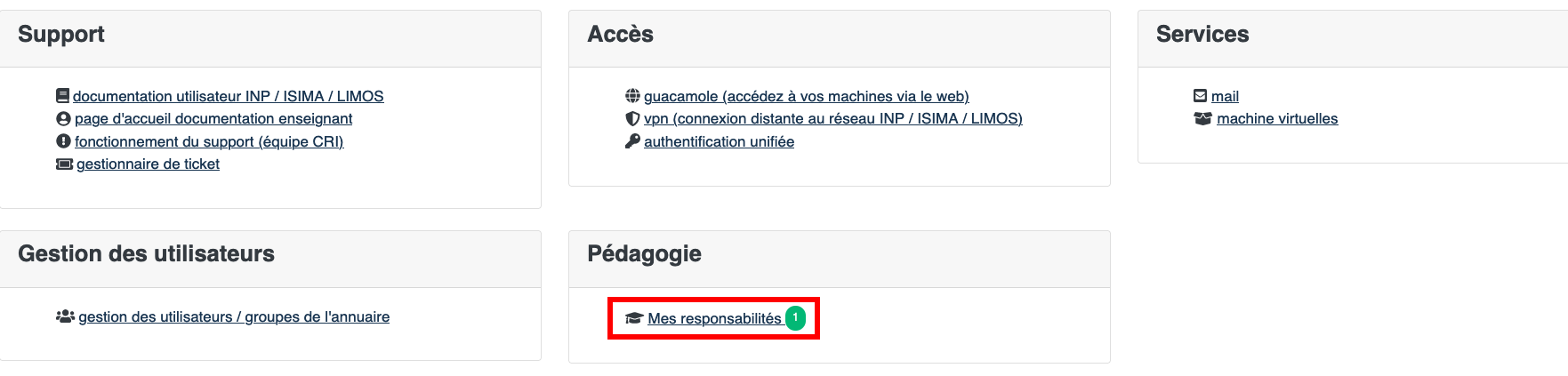
- Click on My responsibilities on the right side of the page to display your list of courses.
- View your list of courses. For each course
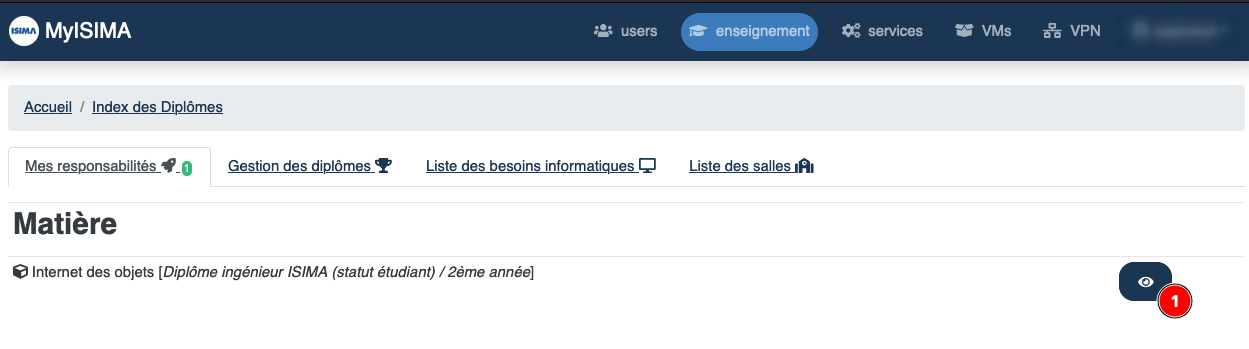
If you notice that your course list is incorrect, contact your subject or program coordinator
- Click on the Edit icon to specify IT requirements
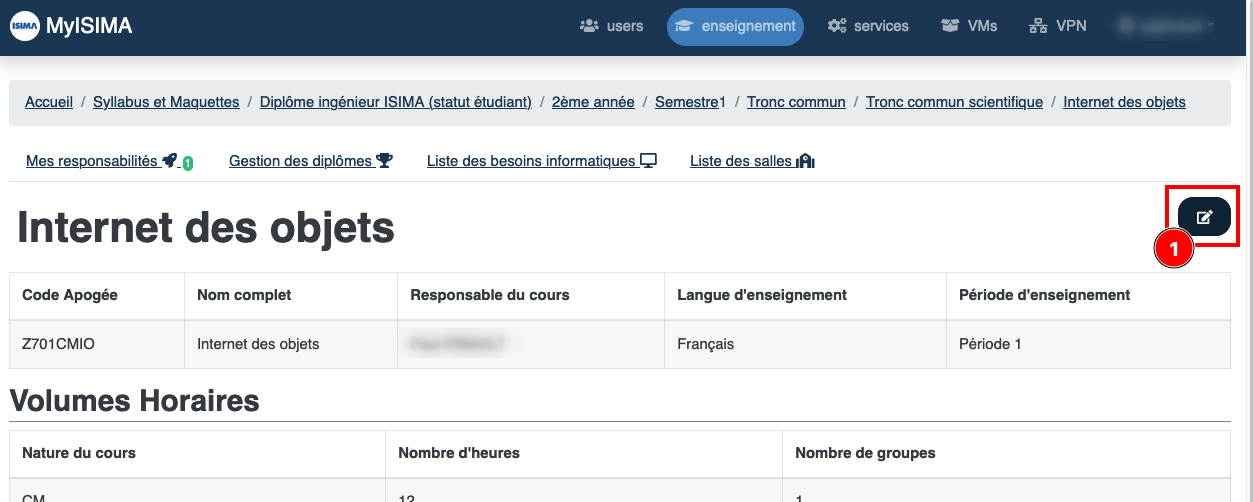
- Scroll down the page to view the IT or hardware requirements section. The No IT or hardware requirements box must be unchecked You must define at least one of the three categories: Software, Remote machine access, or Virtual machines
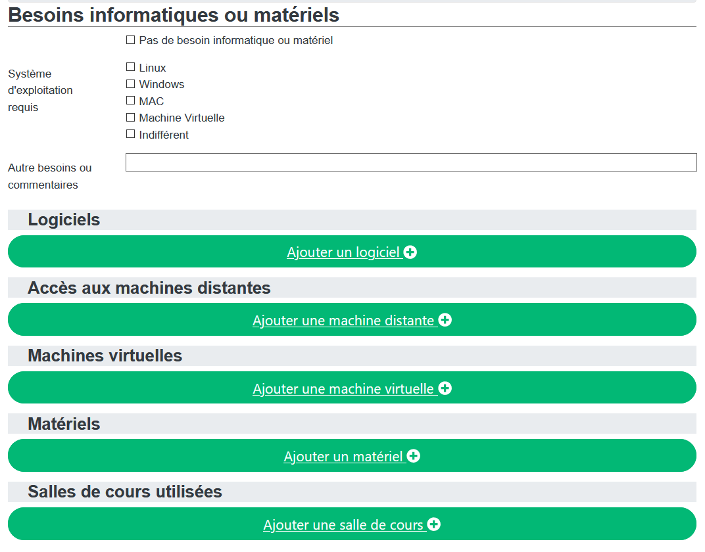
1. Specify the desired operating system
2. Click _Add software_ if needed
(you can add as many software programs as needed; 2 versions of the same software must be defined as 2 separate software entries in the Syllabus application).
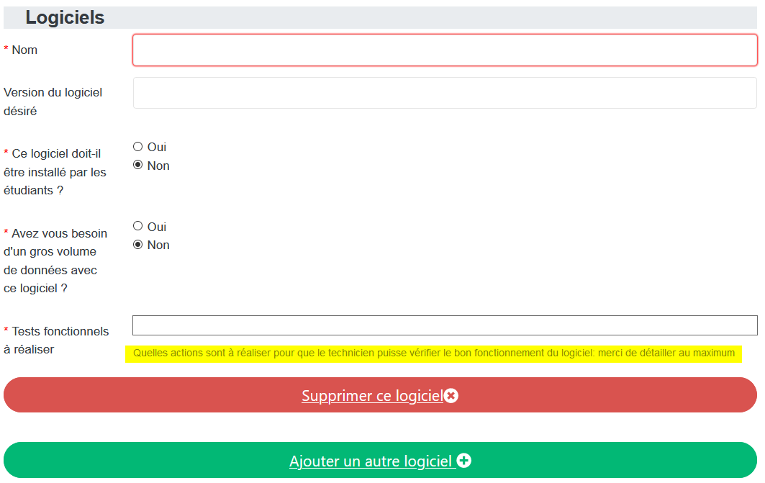
- Specify the software name (or APT package name), version, and answer the 2 questions
- **Provide as detailed functional tests as possible**. These tests are performed by IT technicians to validate that the installation meets your requirements
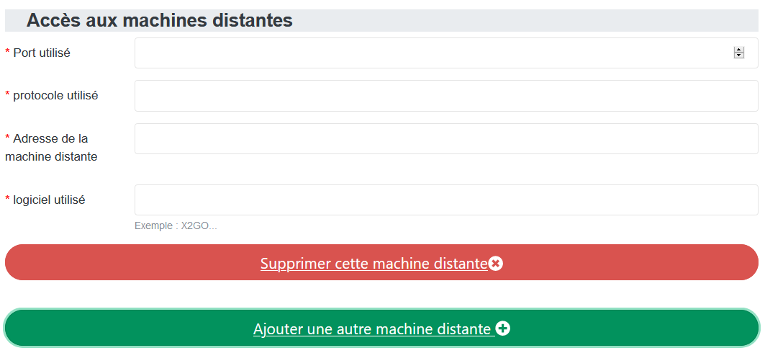
3. Click _Add remote machine_ if needed
This declaration allows the technician to ensure that the remote machine is reachable (firewall open) and that the software required to access the machine is installed.
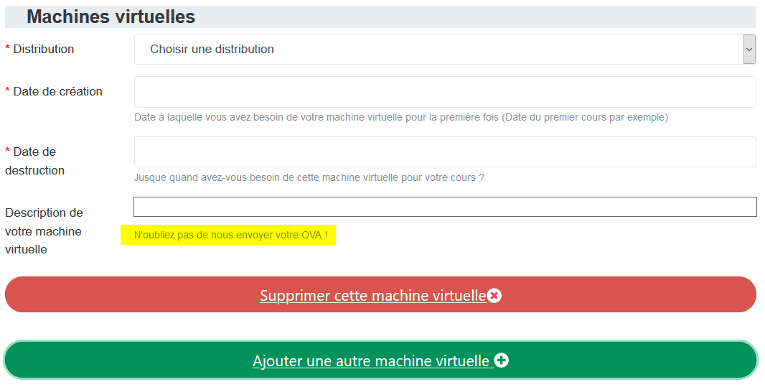
4. Click _Add virtual machine_ if needed
Virtual machines must be provided in OVA format (VirtualBox)
Remember to provide login/password for your virtual machines
VirtualBox virtual machines will only be deployed in rooms with fixed PCs
-
Click Add hardware if needed
-
Click Add a classroom