External SSH Access to ISIMA/LIMOS Computing Resources✯
To access the computing resources of the IIA and LIMOS via SSH, the following prerequisites must be met:
- Have an account
- Have submitted your public key via the ticket manager
If you are unsure what a public key is, please consult the Public/Private Key Authentication section.
SSH Connection to ext.limos.fr✯
The SSH server is located at ext.limos.fr and listens on port 2225.
Warning
The server ext.limos.fr is not intended for storing your files. You may use it as a temporary zone for a few dozen minutes to transfer data to/from the computing servers.
Connecting from Linux or Mac✯
To establish such a connection from Linux or macOS, you can use the following command:
ssh your_identifier@ext.limos.fr -p 2225
ssh -Y your_identifier@ext.limos.fr -p 2225
If you are using a Mac, this assumes you have previously installed XQuartz.
Once connected to the bastion host, you will need to initiate another SSH connection with "X forwarding" enabled using the command:
ssh -Y your_identifier@final_server
Connecting from Windows✯
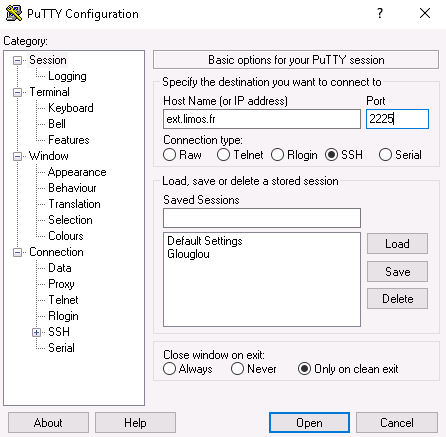
You can use PuTTY to connect via SSH from a Windows machine. Ensure the following settings are configured:
- The server address under "Host Name (or IP address)"
- The port must be set to 2225 as shown below
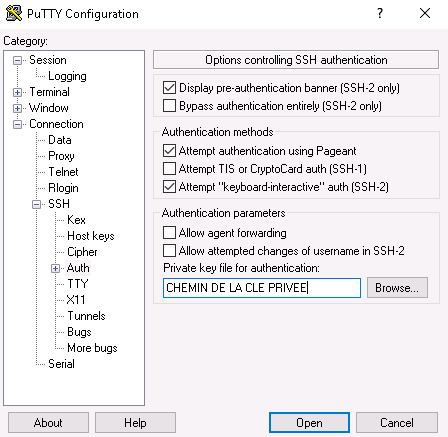
- Specify the path to your private key file corresponding to the public key you previously sent to cri-commun@isima.fr. This setting is found under "Connection/SSH/Auth" then "Private key file for authentication".
To connect in graphical mode using PuTTY, you must enable "X forwarding" in the PuTTY configuration panel under the X11 options. This requires that you have previously installed an X server for Windows. A popular X server for Windows is Xming.