Client Installation✯
macOS✯
Do not download OpenVPN Connect as it is not the same product
An up-to-date version of Tunnelblick is recommended. We advise you to update your client if you experience connection issues. As of now, the latest stable version is Tunnelblick 10.0.x, which includes OpenVPN 2.7.x
-
Download the Tunnelblick client by clicking this link: https://tunnelblick.net/downloads.html
Take the Stable version: the package is universal (Intel and Apple Silicon) and requires macOS 13 (Ventura) or higher.
-
Open the downloaded
.dmgfile, then double-click the Tunnelblick icon to start the installation. Enter your administrator password when macOS prompts you. -
Retrieve your OpenVPN configuration files: log in to https://my.isima.fr/ovpn with your ISIMA account and download the
.ovpnfiles. You can download all the files you are entitled to by taking the ZIP, or just the file you need.You will find 2 versions of each file: one uses a TCP connection, the other UDP. It is good to have both installed on your machine, see which one to choose.
-
Import the previously downloaded configuration file by double-clicking it. The "Only me" choice is probably the most suitable:
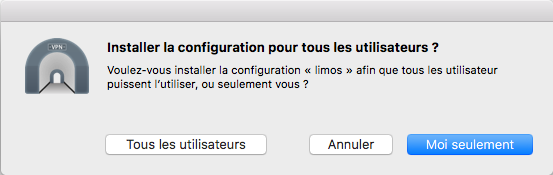
Note that the screenshots were taken with an older version of macOS and Tunnelblick, the interface may differ slightly
-
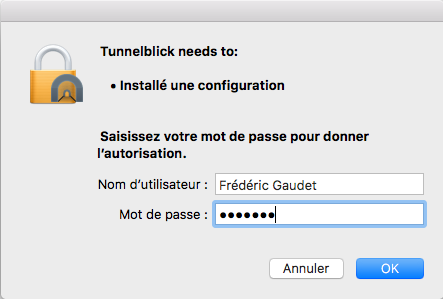
Enter your password:
-
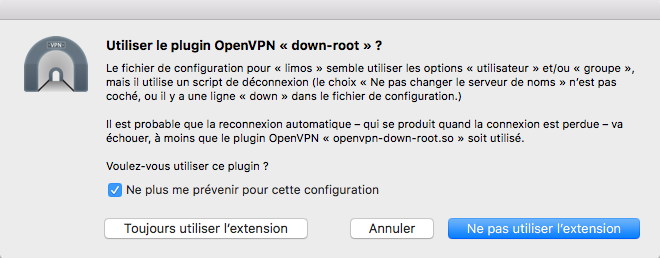
Click "Always use extension": this choice allows for better automatic reconnection when the connection is lost.
-
Repeat step 4 for each downloaded
.ovpnfile.
Proceed to the next chapter to start a connection!