Presentation✯
To remotely connect to a Microsoft Windows server, Microsoft's 'Remote Desktop' application is perfectly suitable.
For a Linux server, SSH is sufficient in 90% of cases. However, sometimes a complete graphical environment is required, not just a window forwarding (with ssh -X or ssh -Y).
To meet this need, we have deployed X2GO to allow you to remotely connect to the institute's and laboratory's Linux servers with a graphical environment.
The purpose of this documentation is to present the client-side installation of this tool, as well as its use.
Installation✯
The official X2GO website allows you to download the client for Windows, Linux, and MacOSX.
For MacOSX, you will also need to install an X server like XQuartz.
Configuration✯
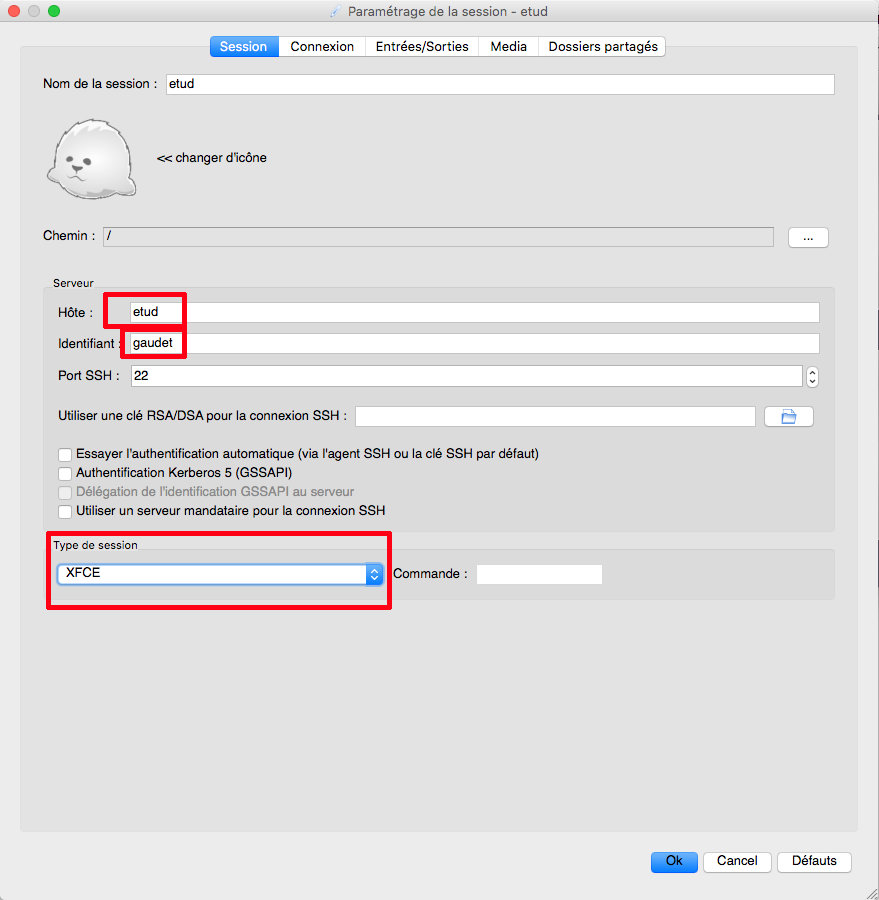
To configure a connection, you must at least specify:
- the hostname
- the username
- the type of Window Manager used on the server. In most cases, we use XFCE (for
etud,berzet, VMs on Galactica, etc.).
Example:
Launching a Connection✯
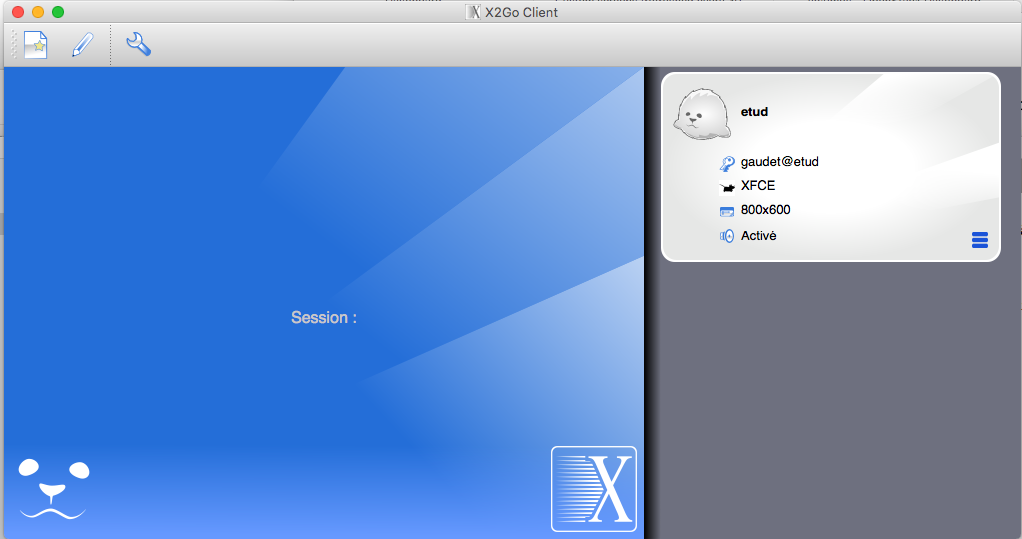
Simply click on the icon:
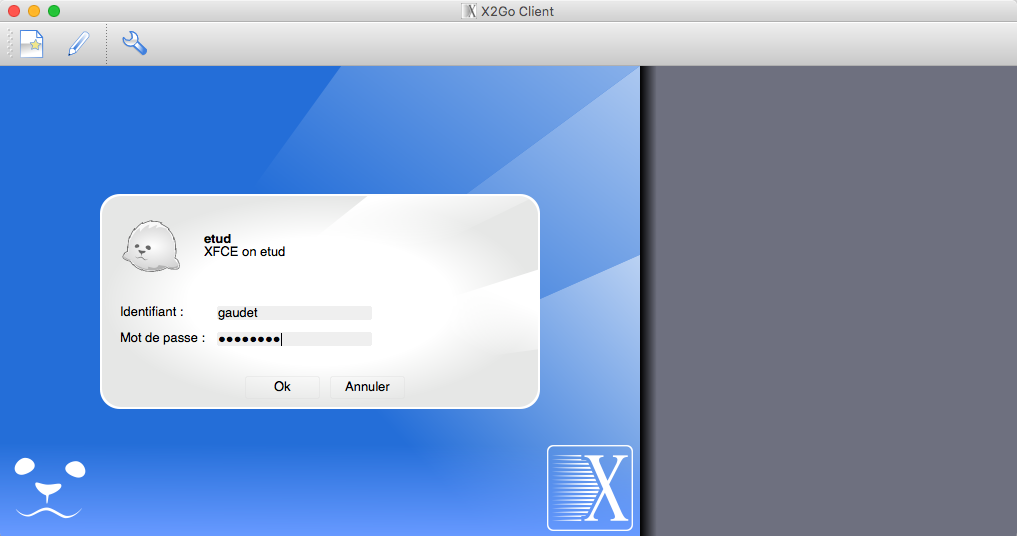
And enter your password:
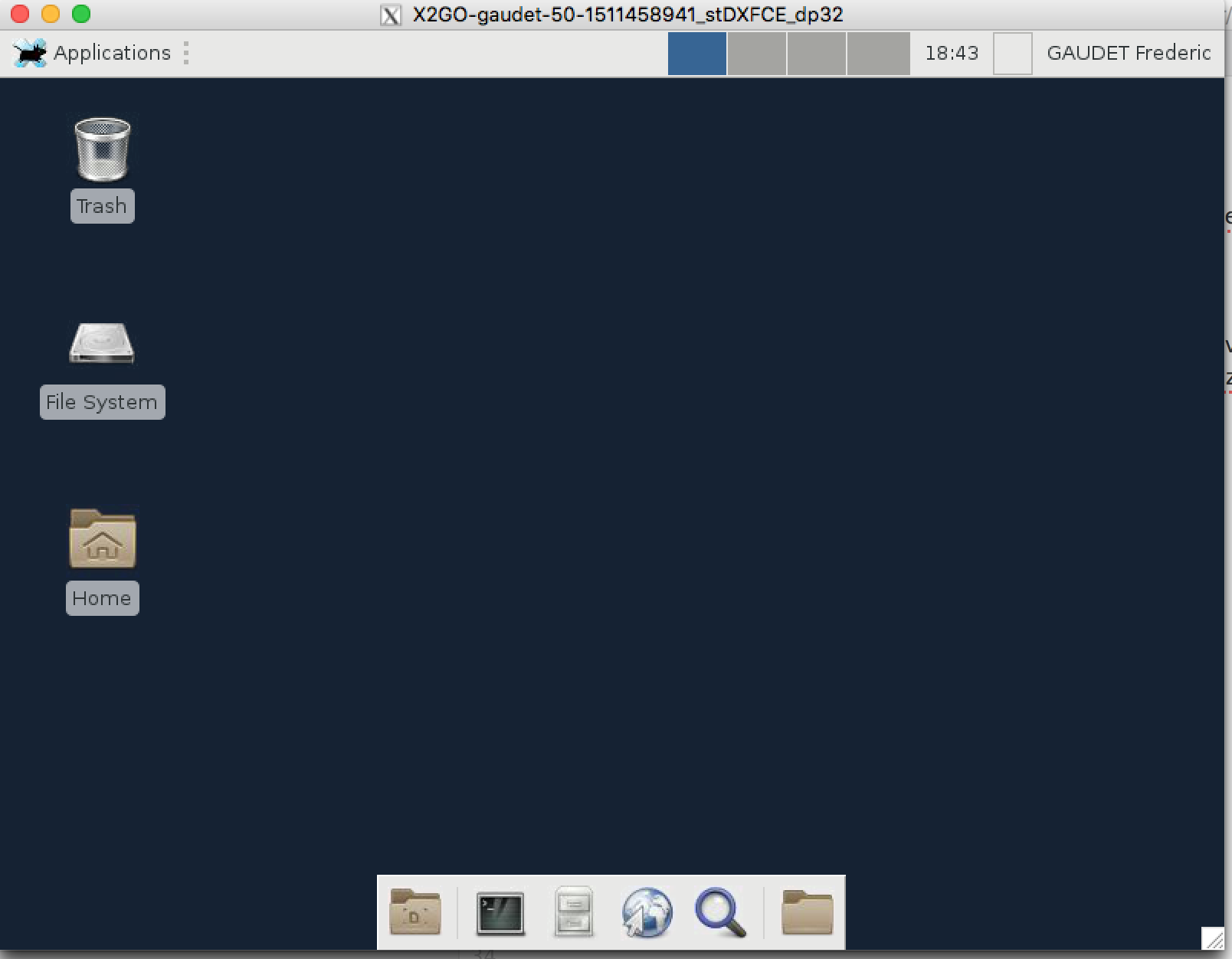
You are now connected; a window opens:
Ending the Session✯
The session ends as usual: by clicking on your name in the menu and then 'logout' or 'disconnect', depending on the language used.
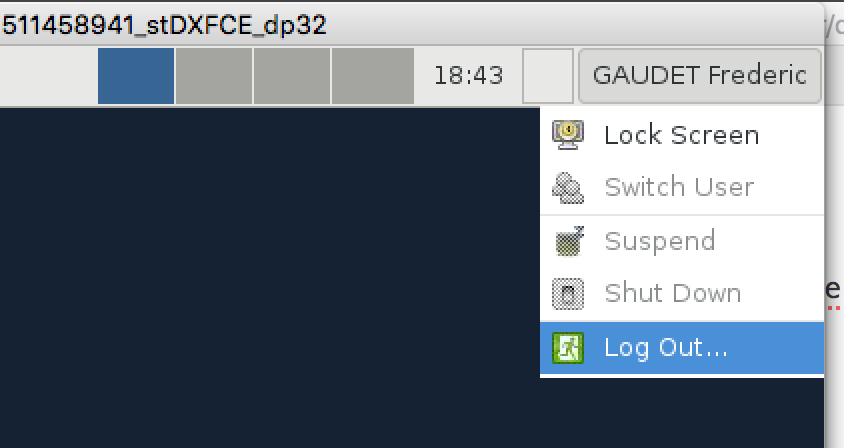
Do not close your X2GO window before properly exiting your session.
Disclaimer✯
We would like to point out that remote graphical access is less efficient than if you are physically in front of the server, especially if you connect through the VPN. In this case, your network path crosses nodes outside our control, and we cannot address issues related to slowdowns in this context.