Generating RSA Keys✯
An SSH key consists of
- a public key that is meant to be distributed. This is the one to be placed on the target server
- a private key that is confidential. This is the one that will be used by the SSH client
- learn more about asymmetric encryption
Linux & Mac✯
- Open a terminal - Enter the following command to generate an SSH key with a length of 4096 bytes:
ssh-keygen -b 4096
"Size matters", use a size of at least 4096.
- The following result is obtained; the command offers to modify the location of the private key:
Generating public/private rsa key pair.
Enter file in which to save the key (/home/user/.ssh/id_rsa):
While it is recommended to define a passphrase to protect the private key, keep in mind that this information will be requested each time the private key is used. This is also what we aim to eliminate as an issue by using public/private keys...
Your identification has been saved in /home/user/.ssh/id_rsa.
Your public key has been saved in /home/user/.ssh/id_rsa.pub.
The key fingerprint is:
0a:3a:a4:ac:d1:40:6d:63:6d:fd:d9:fa:d6:b2:e0:36 user@host
The keys randomart image is:
+---[RSA 4096]----+
|      .          |
|                 |
| .               |
|. . . .          |
|. .=.o .S.       |
| =o.o. ..   .    |
|o +   .  . o ..  |
|.. .      oEoo . |
|o.        .o+oo  |
+-----------------+
-
The public key is stored in ~/.ssh/id_rsa.pub. This is the file to be transmitted when your public key is requested.
-
The private key is stored in ~/.ssh/id_rsa.
WARNING: The private part of the key must be kept securely, and access must be limited to authorized personnel only
On Windows✯
With PuTTY
PuTTY is the most widely used SSH client for Windows.
- Download the PuTTYgen software to generate the key
- Run the key generation software
- In the field Number of bits in a generated key, enter the value 4096
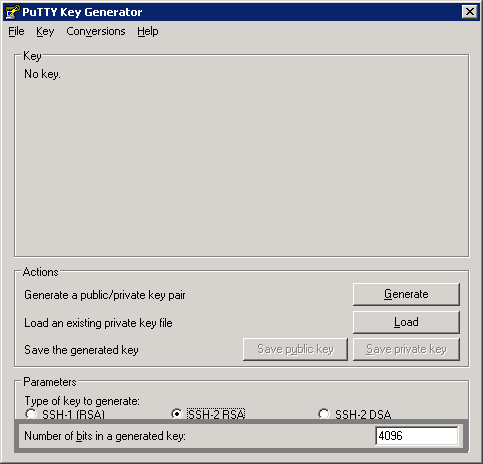
- Click Generate (move the mouse within the gray frame during the operation)
- You can specify a passphrase if you wish
- Save the private key by clicking on Save private key, give a name to this file (e.g., key.rsa)
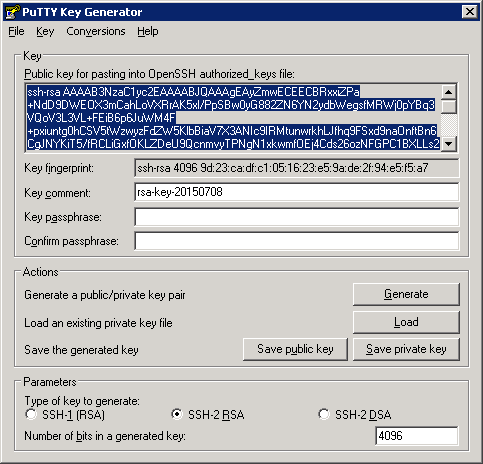
- Copy the public key displayed in the frame