Meeting Rooms✯
The ISIMA / LIMOS has 4 meeting rooms equipped with screens for screen sharing, video conferencing with Microsoft Teams and Microsoft Whiteboard
Reservations✯
The schedule for each of these rooms is available on the schedule of the UCA portal.
Rooms can be reserved by emailing reservations@isima.fr.
To simplify reservations, please specify:
- the date
- the time
- the duration
- the purpose
of the meeting
Screen Sharing✯
Windows✯
- press the "Windows" + P keys
- choose the display mode: duplicate or extend
MacOsX✯
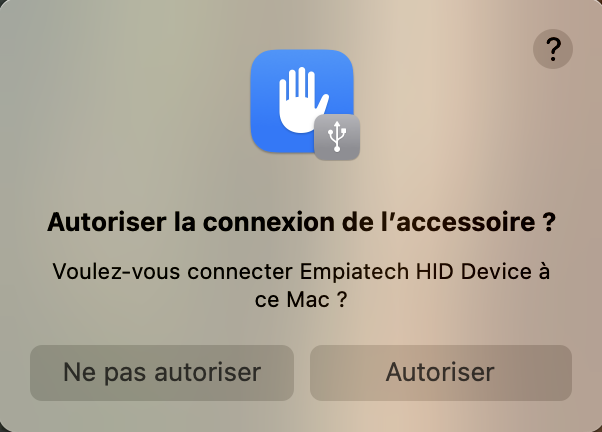
Confirm screen sharing with the dongle✯
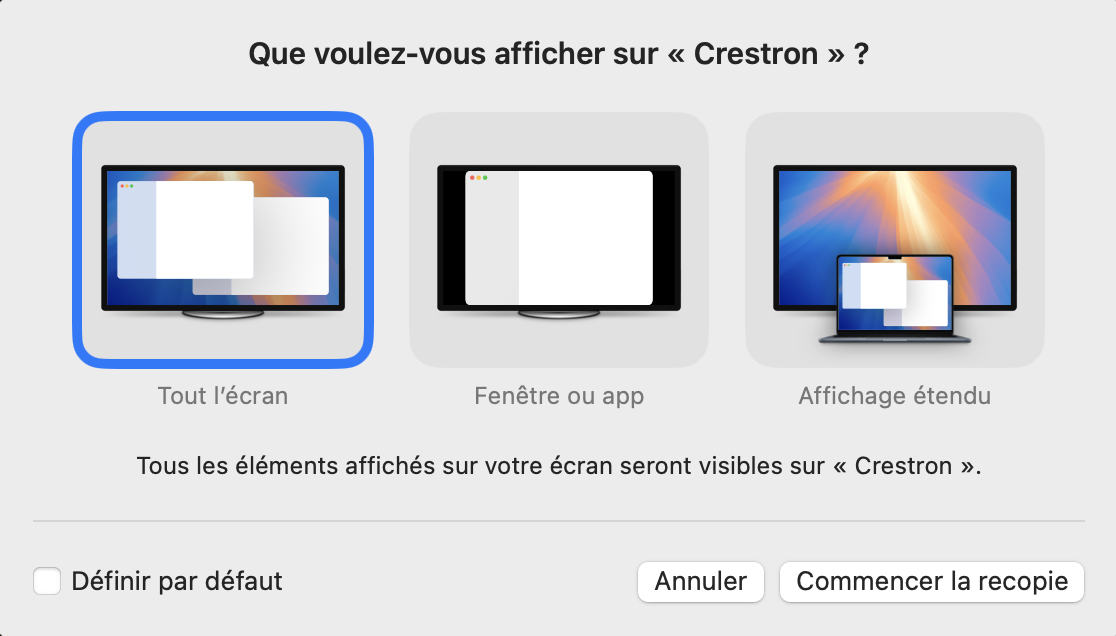
Select the screen sharing mode with HDMI✯
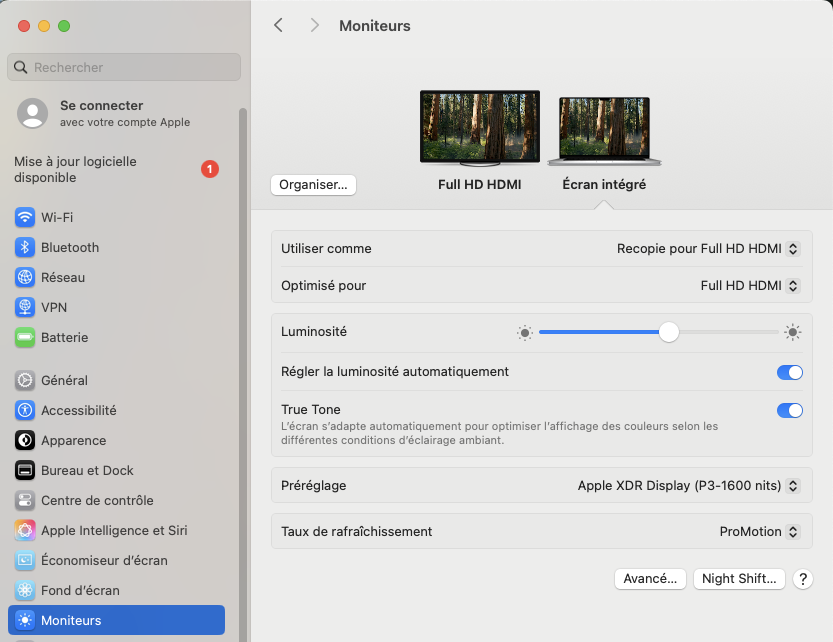
Adjust the screen sharing mode✯
- open "Settings"
- navigate to the "Monitors" section
- Choose the display mode by first clicking on the monitor to configure, then select the desired mode from the "Use as" dropdown list
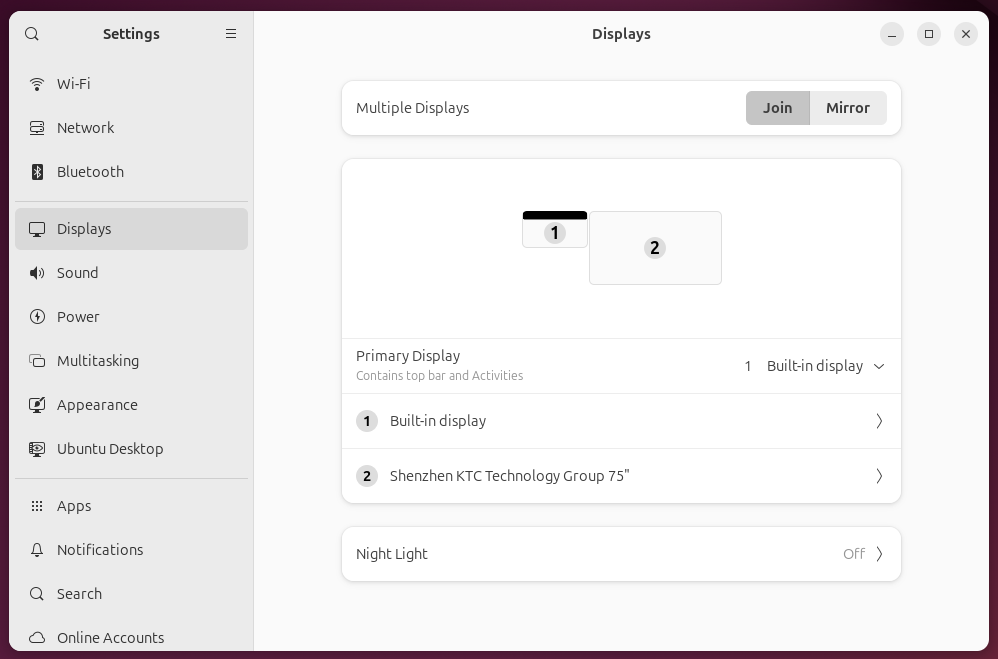
Gnome (Ubuntu)✯
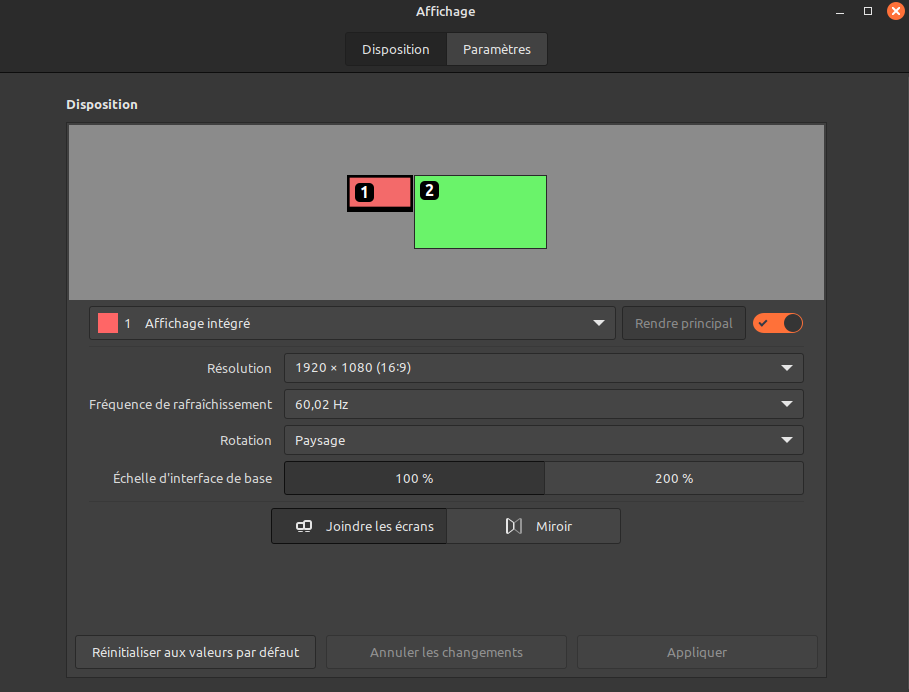
Cinnamon (Linux Mint)✯
Android✯
No action is required; screen sharing is automatic with the USB-C dongle
Video Conferencing with Microsoft Teams✯
You must verify that the screen displays the Teams window correctly. If not, please follow this procedure
To start a video conference:
- search for the name of the room you are in
- select the associated Teams contact
- call the room you are in

Share a Document in a Teams Meeting✯
By connecting the Yealink dongles, screen sharing via Teams is automatic (rooms A001 & A114)
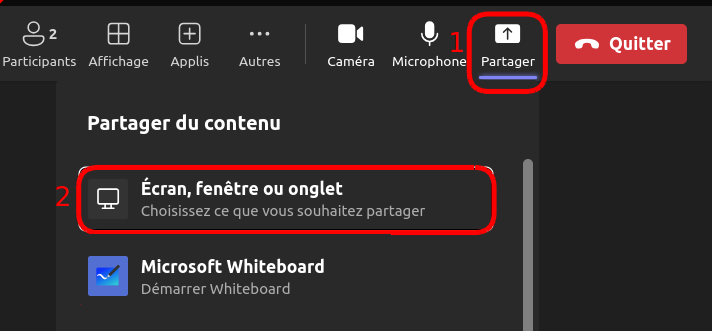
To share a document in a Teams meeting:
- click the "Share" button
- click the "Screen, window, or tab" button
Access Microsoft Whiteboard✯
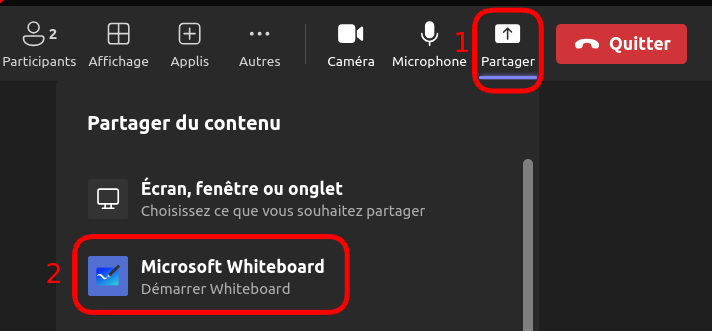
To access Microsoft Whiteboard:
- click the "Share" button
- click the "Microsoft Whiteboard" button